Using Advanced Setup Features for Decisions
Last updated 7 months ago
Open this article on a separate tab.
AliveSim Studio's decision tools include powerful configuration options for more responsive learner experiences and precise analytics. These advanced features are available in the Setup Stage and are designed for scenarios requiring sophisticated decision mechanics.

Advanced features are marked with a shield icon (🛡️) next to the section title. These options aren't required for basic decisions, but they allow for complex interactions like sequential decision-making, peer preference tracking, and efficient dialogue management.
Decision Setup Options
Click the arrow icon next to "Decision Setup Options" to expand the advanced options menu.
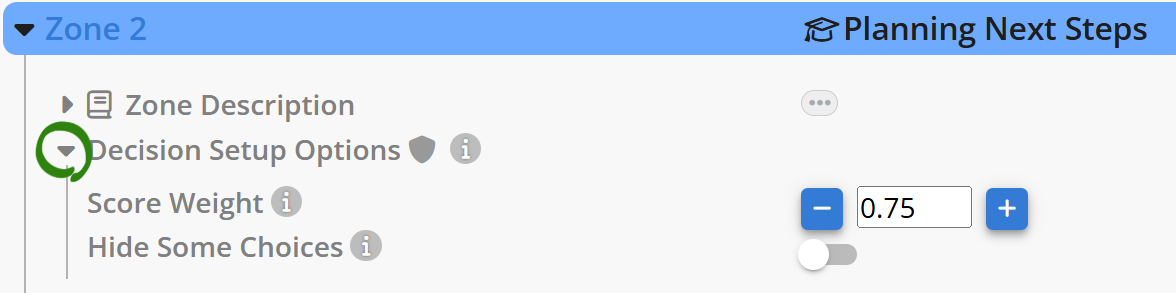
Score Weight
Score weight determines how much a decision impacts a learner's overall scenario score.
Scores range from 0 to 10
Adjustable in 0.25 increments
Default weight is 1.00
When to use this: If all decisions are equally weighted at 1.00, they'll have equal impact on the final score. Assign lower weights to simpler decisions and higher weights to more challenging ones to reflect their relative importance.
Hide Choices
Enable this feature to hide specific choices in the current zone while keeping them available in other zones where you reuse the same decision panel.
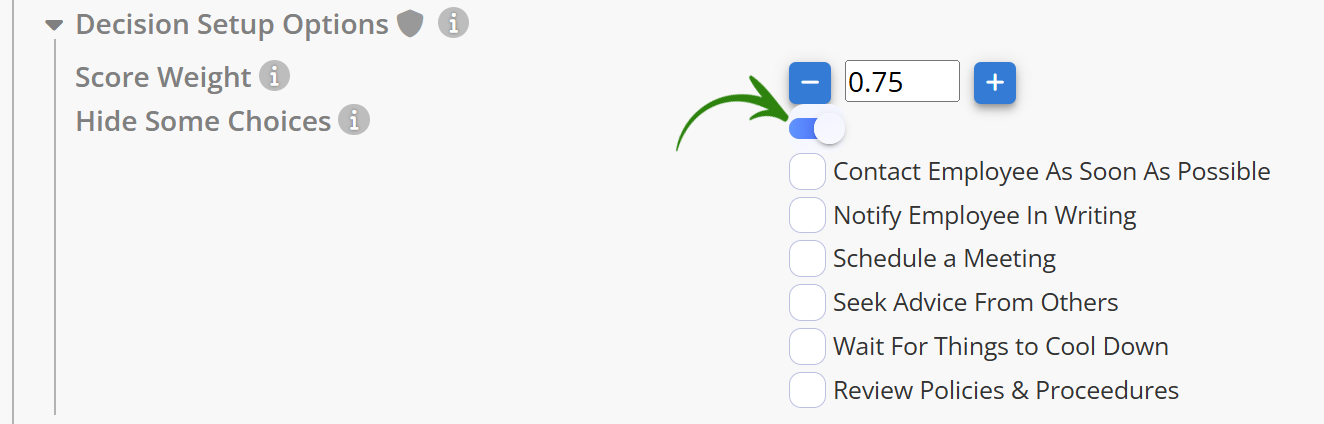
Toggle "Hide Some Choices" to display a checklist of all choices in the current decision panel. Check any box to hide that choice in this zone only.
Why this matters: This feature lets you reuse decision panels across multiple zones without creating duplicate panels. A choice that's inappropriate early in a scenario can remain hidden, then appear later when it becomes relevant.
Orb Setup Options
These features customize how orbs behave and help learners understand specialized orb functions. By default, AliveSim creates one Standard orb for each green choice in a decision zone.
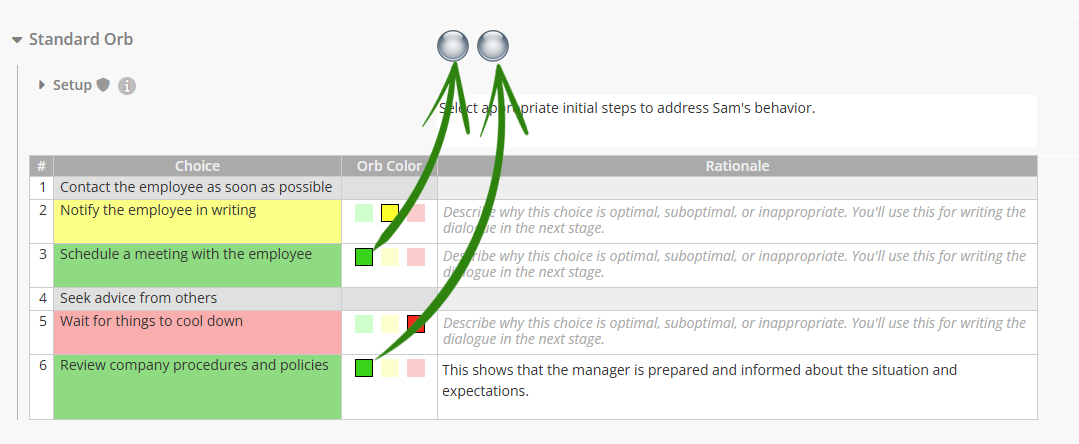
🔍 All orbs of the same type behave identically within a decision zone.
When you configure an orb type, you're setting the behavior for all orbs of that type simultaneously.
The Peer Preference Orb
The Preference Orb is a Standard orb variant marked with a star (⭐) icon. Use it to track which option learners select first when multiple equally valid choices exist.
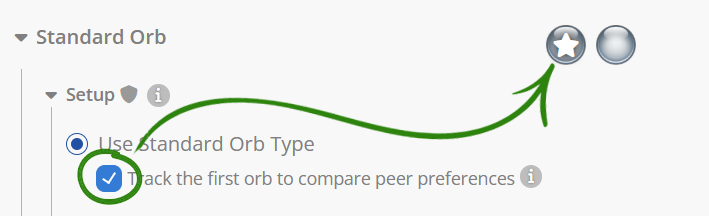
Check the box next to "Track the first orb to compare peer preferences" to enable this feature.
What happens:
Analytics track which choices learners select first
After completing the decision, learners see a panel showing how their first choice compares to other learners' preferences
These statistics reset with each Final Build, so testing data doesn't affect production analytics
When to use Preference Orbs:
💡 Great for assessing learner perspectives:
Preference Orbs work well when all green options are equally optimal and you want to understand learner thinking patterns or help them see peer perspectives.
Key considerations:
Only one Preference Orb per decision zone
Only Standard orb types can become Preference Orbs
Most useful when you have multiple green choices that are all equally valid
Always appears as the first orb learners encounter
Planning your dialogue: Since the Preference Orb always appears first, explain its purpose in your dialogue: "We're going to use this first orb to pick the approach that you prefer in this situation."
⚠️ Visual panel conflict: The peer preference panel appears immediately after the last green choice dialogue. It will cover any visual panel currently being displayed from a choice dialogue.
Special Orb Types
Standard orbs aren't your only option. Special orb types (A, B, C, 1, 2, 3, X) allow for sequential decision-making or categorized choices.
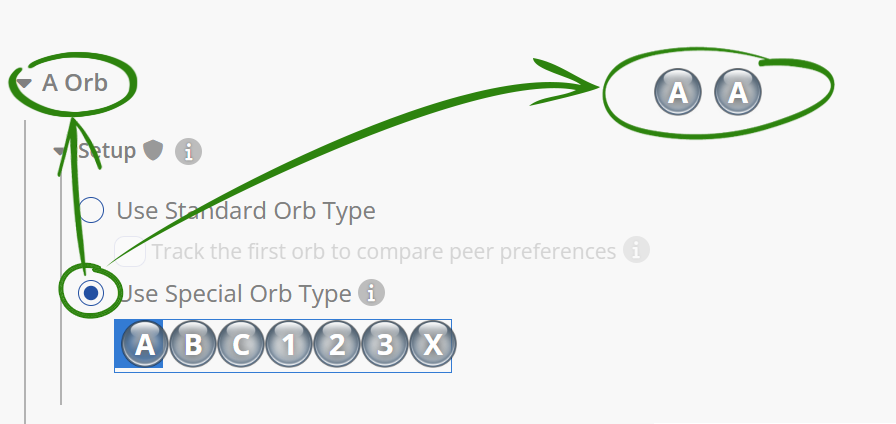
Click "Use Special Orb Type" to change from Standard orbs to a special type. The system automatically selects the first unused type (usually "A").
When to use special orb types:
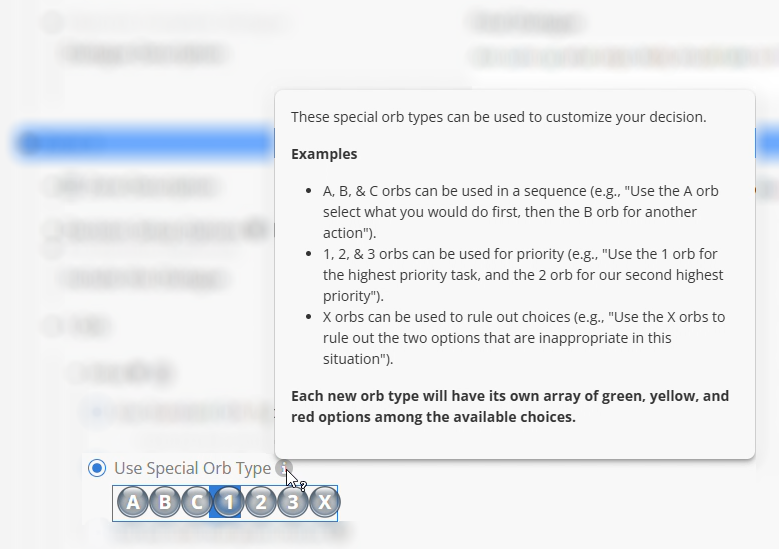
Common scenarios include:
Sequential decisions: Use numbered orbs (1, 2, 3) when steps must occur in order
Categorized choices: Use letter orbs (A, B, C) to group related decision types
Priority-based decisions: Different orb types for different priority levels
⚠️ Switching orb types replaces all existing orbs:
When you select a special orb type, all orbs that were "Standard" become the new type. All green choices transfer to the new type. To add a new orb type while keeping your existing setup, use the "+Add Orb Type" button instead (covered below).
Fewer Orbs Than Green Choices
Sometimes you want multiple valid options but don't need learners to select them all. This feature lets you set how many orbs learners use to select from a larger pool of green choices.
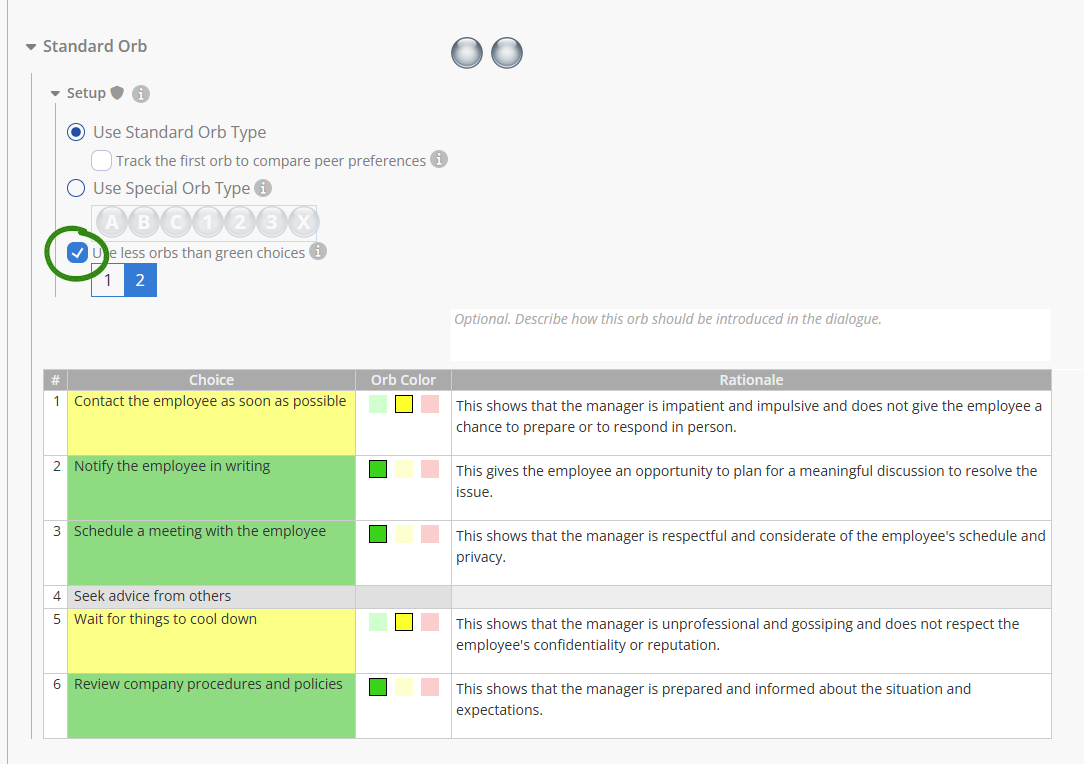
Check "Use less orbs than green choices" to customize the orb count. AliveSim reduces the count by one automatically, but you can set it as low as a single orb.
Example: Three green choices with only two orbs means learners select their top two approaches from three valid options.
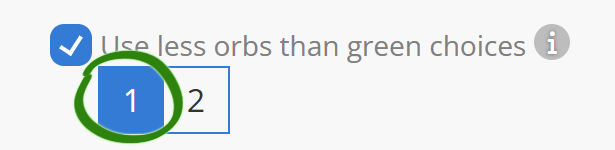
Setting the orb count to "1" when you have multiple green choices means learners choose just one option from all valid approaches.
💡 Perfect for Preference Orbs: When learners select one approach from multiple equally valid options, enable the Preference Orb to track and compare their choices with peers.
🔍 Technical requirement: You can never have more orbs than green choices for a given type. Every orb must be able to trigger a green choice.
Adding an Orb Type
Use the "+Add Orb Type" button to include multiple orb types in the same decision while preserving your existing orb configuration.
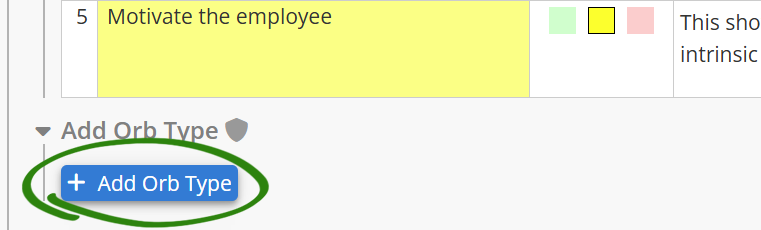
When you add a new type, it defaults to the next unused type (usually "A" if you started with Standard orbs).
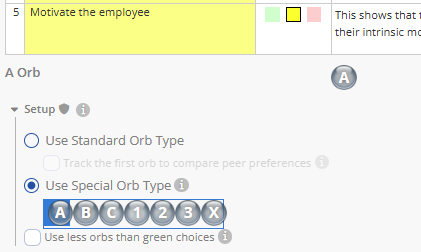
Configure the new orb type exactly like the first one: assign colors for each available choice in the zone. The new type can have different color assignments and orb counts than your existing type.
Example use case: Set up one "1" orb for the first critical step, then add two "Standard" orbs for subsequent actions learners can take in any order.
⚠️ Watch for configuration warnings:
A red background behind an Orb Type heading indicates a potential issue with that type's configuration.
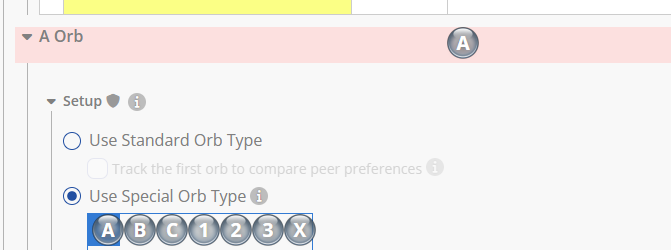
Common issues include:
Orb types sharing green choices when there aren't enough orbs to cover all possibilities
Configuration mismatches that could prevent learners from completing the decision
Special orb types offer significant flexibility but require careful planning. Test your configuration thoroughly in Preview builds.
🔧 Troubleshooting: Deleting an Orb Type
Hover over an Orb Type heading to reveal the trashcan icon, then click the enlarged icon to delete that type.

⚠️ This action cannot be undone:
Deleting an orb type removes all associated dialogue, events, and configuration. AliveSim requires confirmation to prevent accidental deletion.
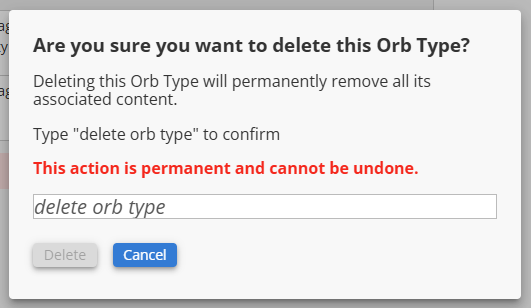
Type "delete orb type" in the confirmation field to enable the Delete button.
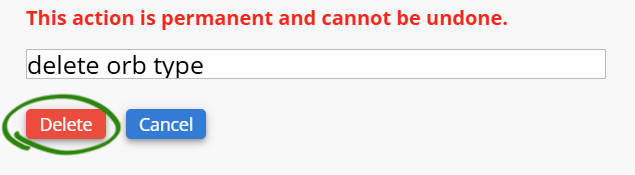
Only proceed if you're certain you don't need the orb type or any content created for it.
Choice Dialogue Groups
Choice Dialogue Groups let you write one dialogue response for multiple decision choices, streamlining content creation when several options warrant similar feedback.
Understanding Choice Dialogue Groups
By default, each decision choice has its own dialogue group. This section explains how to combine choices that share the same feedback into a single group.
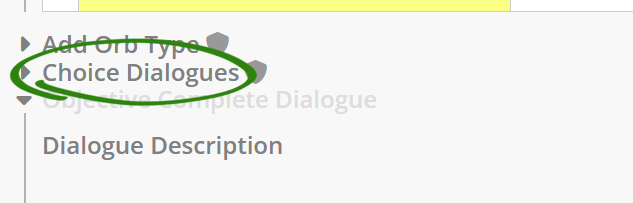
You’ll find the Choice Dialogues option below the Add Orb Type configuration options, in the Setup Stage.
Viewing Choice Groups
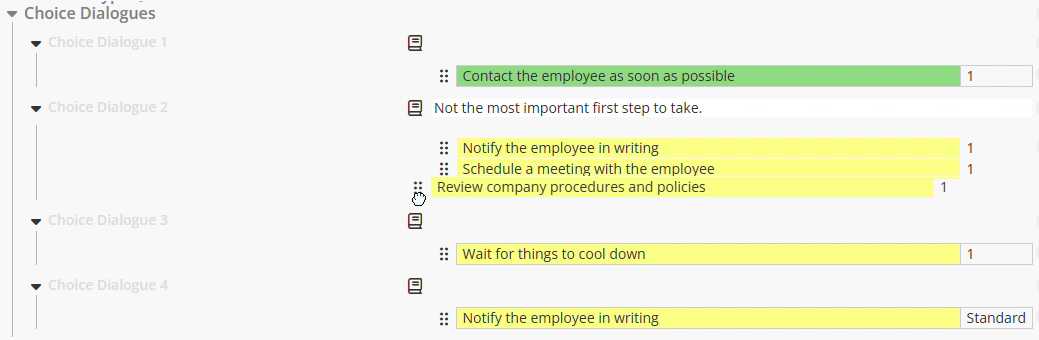
When you expand Choice Dialogues, AliveSim displays all dialogue groups configured for the decision zone.
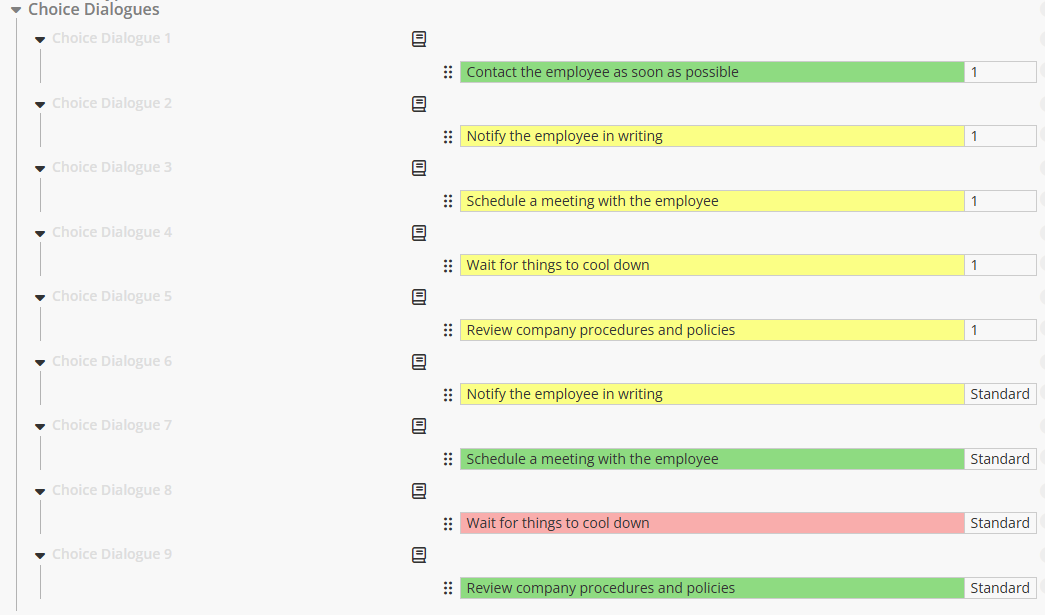
Each item represents one dialogue group. Hover over the book icon to see the rationale you wrote for that choice.

Notice that some choices appear in multiple groups - once for each orb type. This happens because the same choice may be appropriate or inappropriate depending on which orb is in use, requiring different feedback for each context.
Managing Dialogue Groups
This section covers combining groups, handling empty groups, and making adjustments to your dialogue organization.
Combining Groups with the Same Rationale
When multiple choices share identical rationales for the same orb type, you can combine them into a single group with one shared dialogue response.
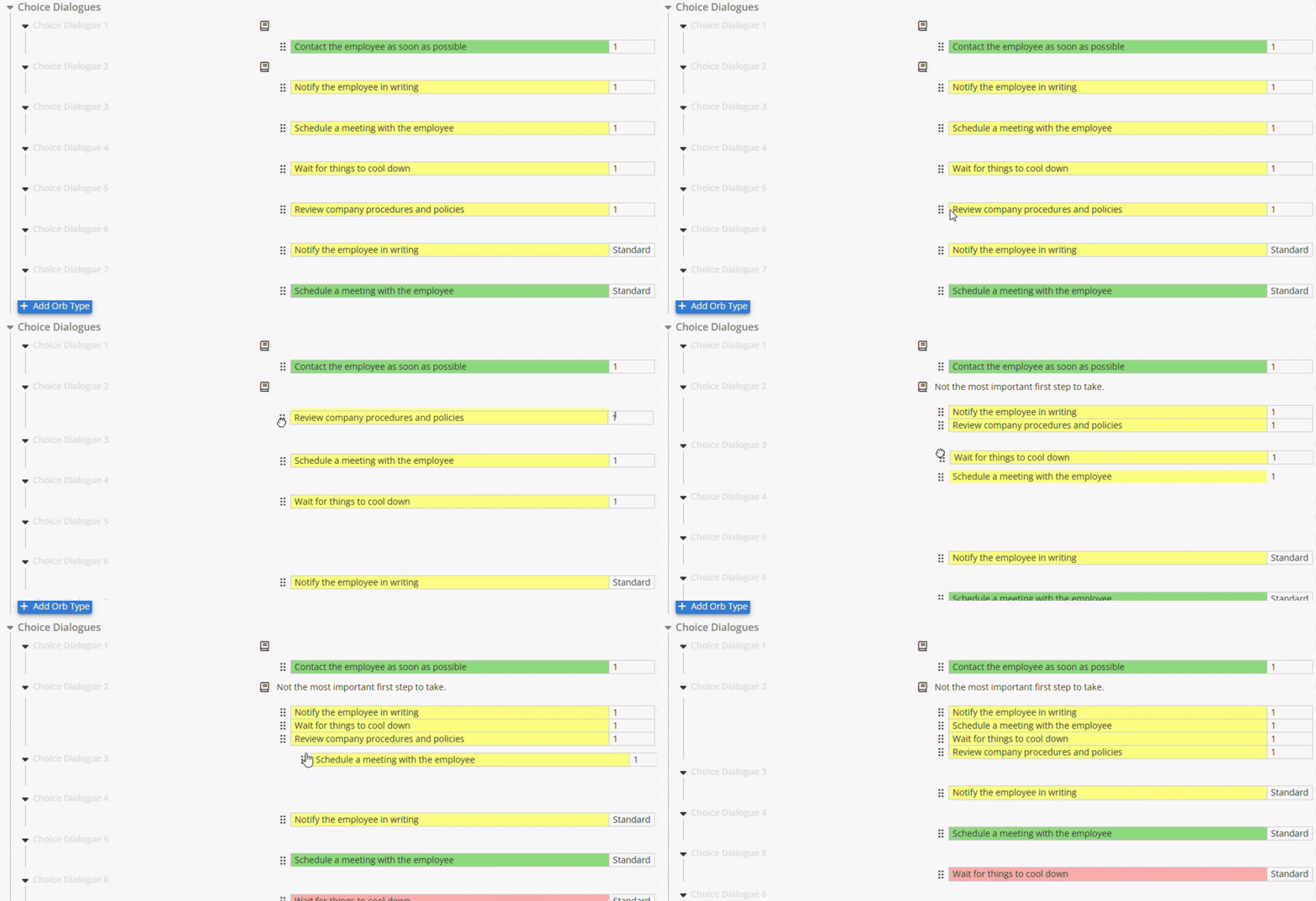
To combine groups:
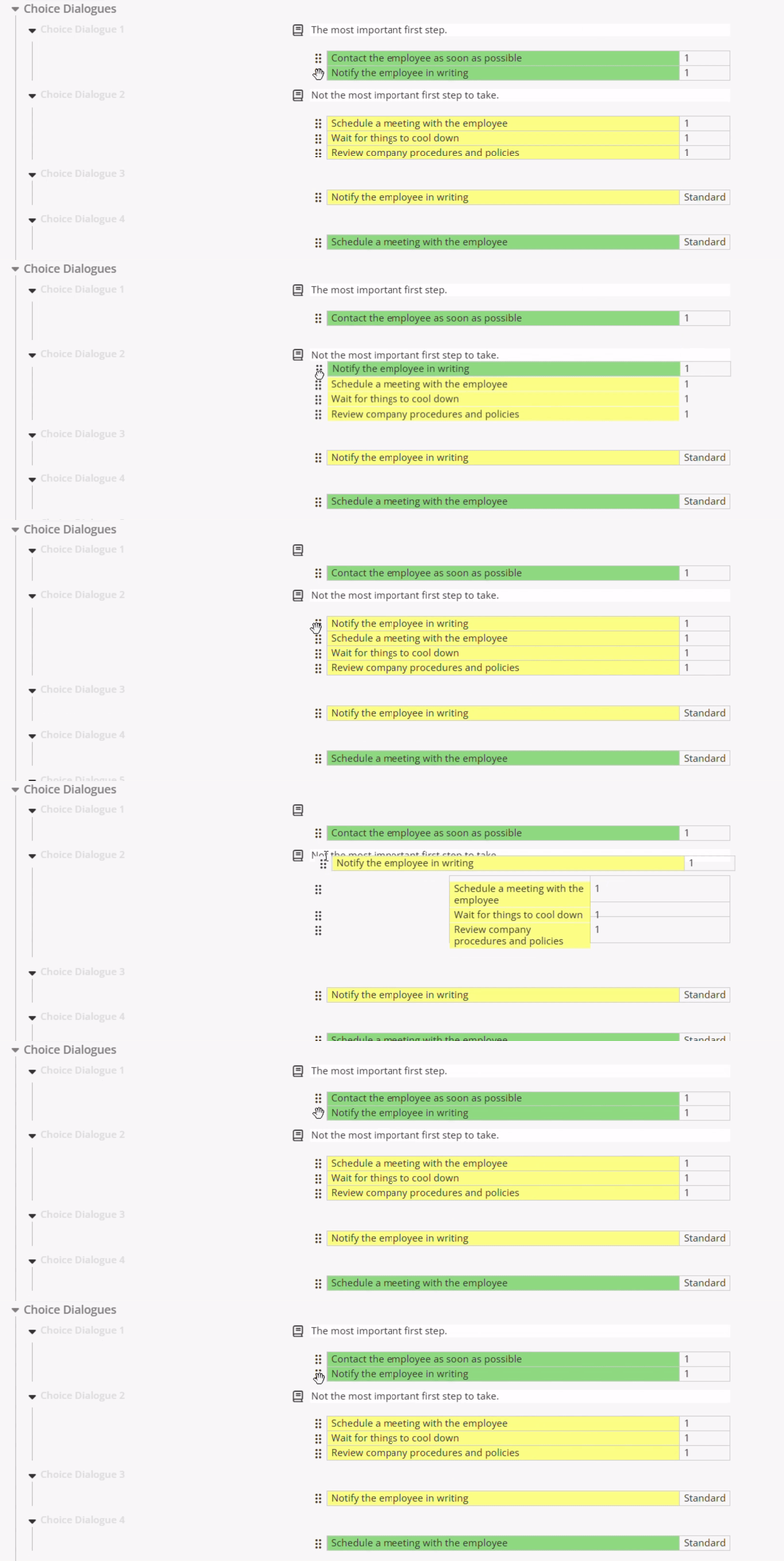
Click and hold the grip dots icon next to a group you want to combine
Drag it to just below another group with the same rationale
Release to combine
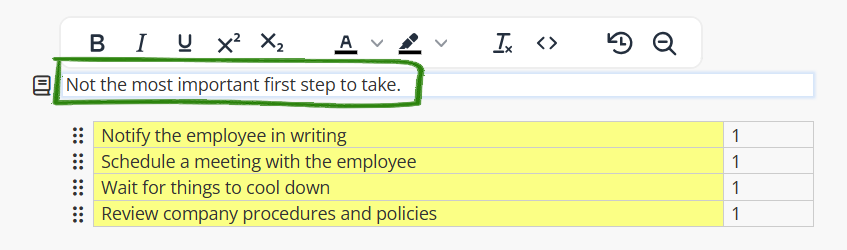
After combining, name the group. AliveSim can't assume the group name should match the rationale since original groups might have had different rationales.
💡 Tip: Minimize other groups:
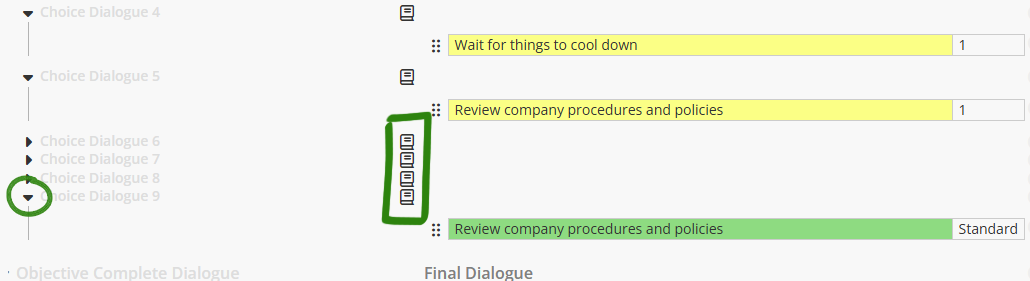
Collapse groups you're not working with to avoid accidentally grabbing the wrong one.
Handling Empty Groups
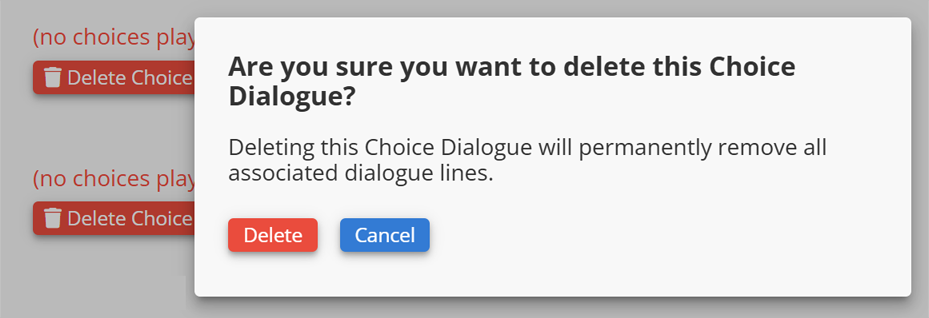
After combining choice dialogue groups, you'll be left with some empty groups at the bottom of the list. These preserve any dialogue, events, or content you created, allowing you to recover work if you combined groups by mistake.
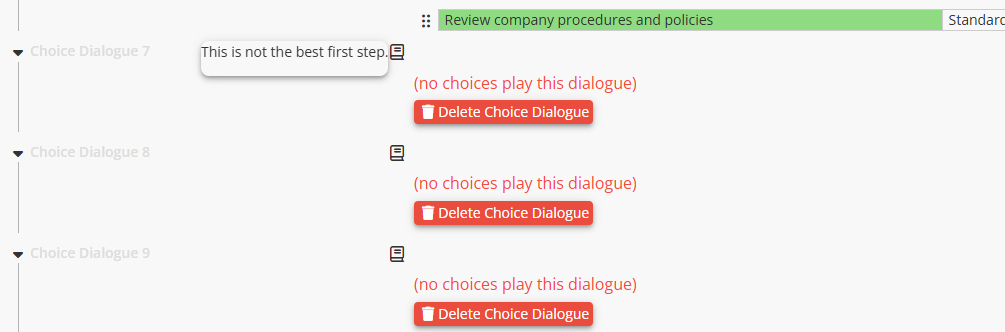
Hover over the book icon on each empty group to verify you don't need it, then delete it by clicking the red button with the trashcan icon.
🔧 Troubleshooting: Moving Choices Between Groups
If you place a choice in the wrong group or change your mind about the organization, simply drag it to a different group using the grip dots icon.
🔧 Troubleshooting: Creating a New Dialogue Group
If you've already deleted empty groups but later need to separate a choice into its own dialogue, use this workaround:
Step 1: Go to Setup and change the choice's color to red (for the relevant orb type).
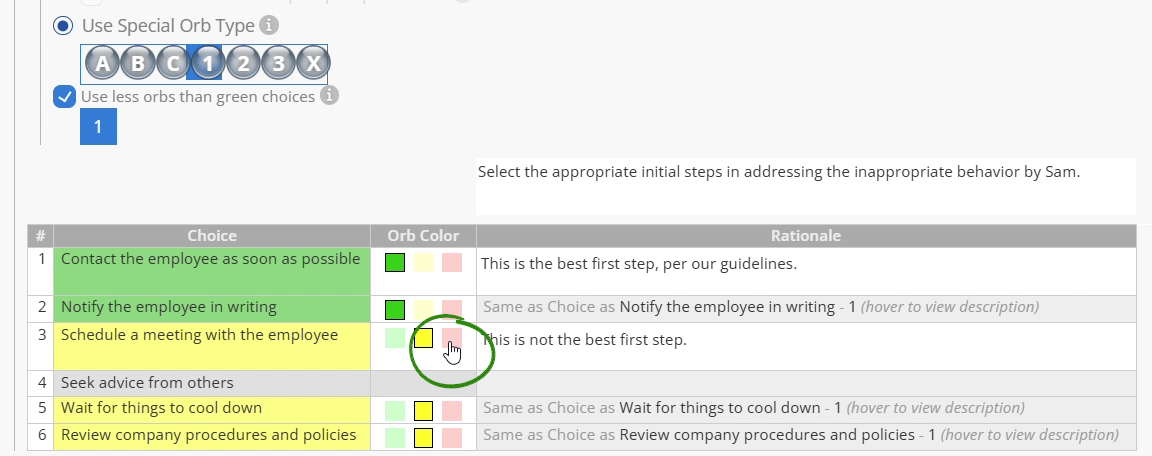
⚠️ Don't select green!
Changing a choice to green adds an additional orb, creating cleanup work. Use red instead.
Step 2: When the split dialogue panel appears, select "Split into New Dialogue."
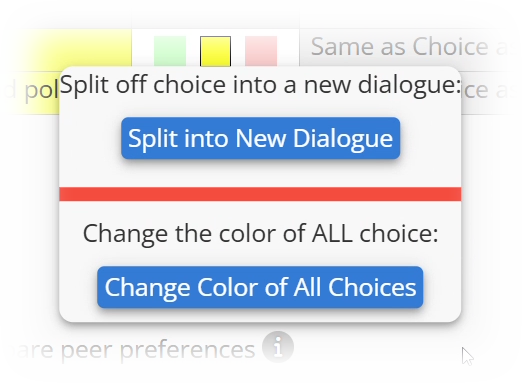
This separates your choice without changing colors for other choices in the group.
Step 3: Change the choice back to its correct color (yellow in this example).
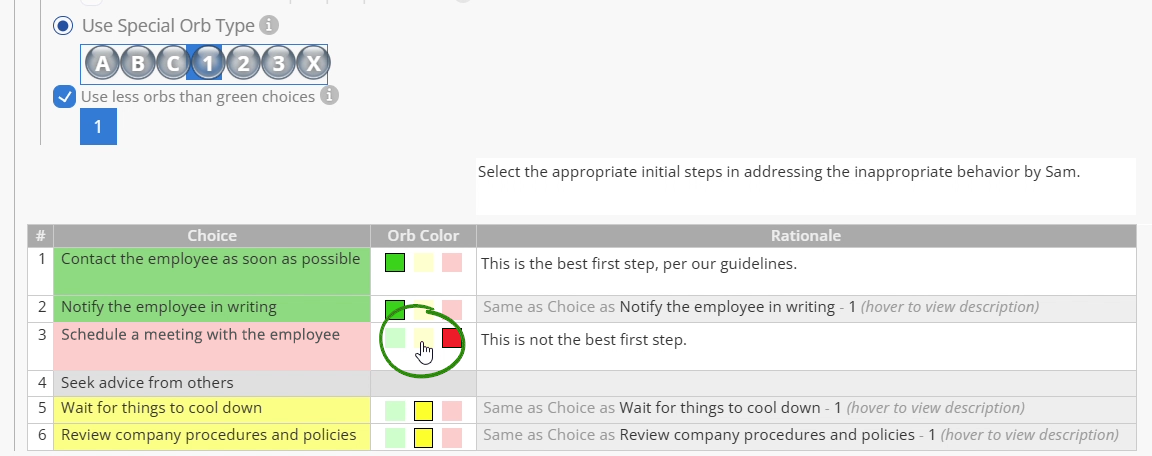
Step 4: The choice now appears in its own group with its own dialogue.
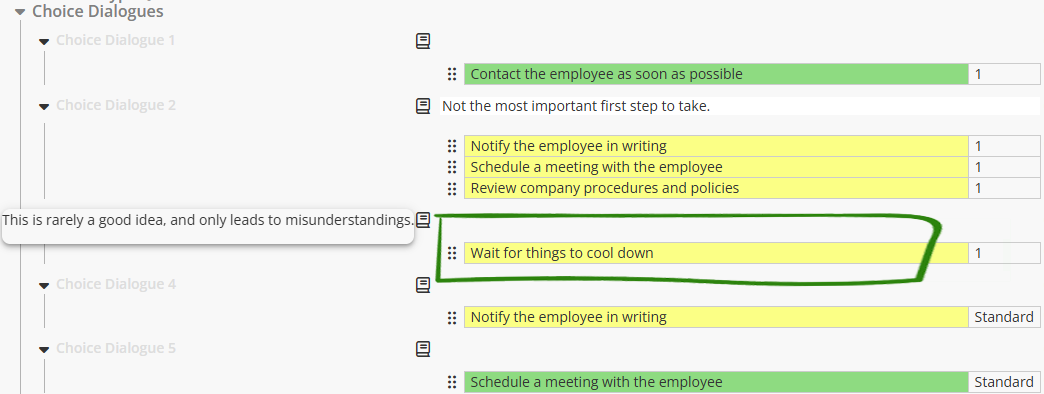
These advanced features give you precise control over decision mechanics and learner experiences. Take time to experiment in Preview builds—mastering these tools opens up sophisticated interaction possibilities.
Powered by Syandus Immersive Learning Technology