Building a Quick Demo From a Sample Module
Last updated 7 months ago
Open this article in a new tab
💡TIP: Duplicate this tab so you can work on one screen and view this article on the other.
You've chosen a template - perfect! We're going to use the Cooking Show Approach to get you to your first win - a quick demo with YOUR content that you can show off.
Here's your journey to build your own quick AliveSim demo in about 30 minutes.
Part A: See the Masterpiece (3 minutes) - Experience the template's best practices
Part B: How to Make It (7 minutes) – Explore how things work
Part C: Make It YOURS (15 minutes) - Transform it with YOUR content
In 30 minutes, you'll have avatars discussing YOUR real workplace situation. Ready to create something amazing?

Part A: “Feast Your Eyes” - See What You're About to Build (3 min)
We're going to show you a finished scenario first - like a cooking show where they pull the perfect soufflé from the oven.
You'll experience how avatars interact, how decisions create learning moments, and how this template's unique approach works. Notice the flow, the character dynamics, and how feedback is delivered.
Just to orient you as we get started, we’re in the Outline Stage of the Scenario as shown in the illustration.
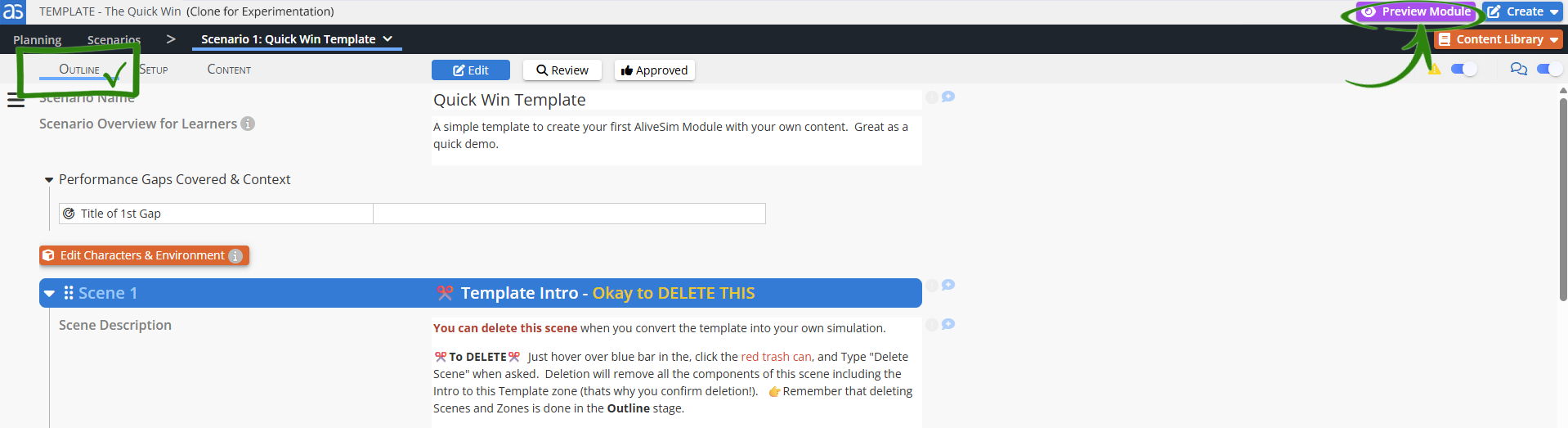
Let's Preview the Template and see what that placeholder content looks like!
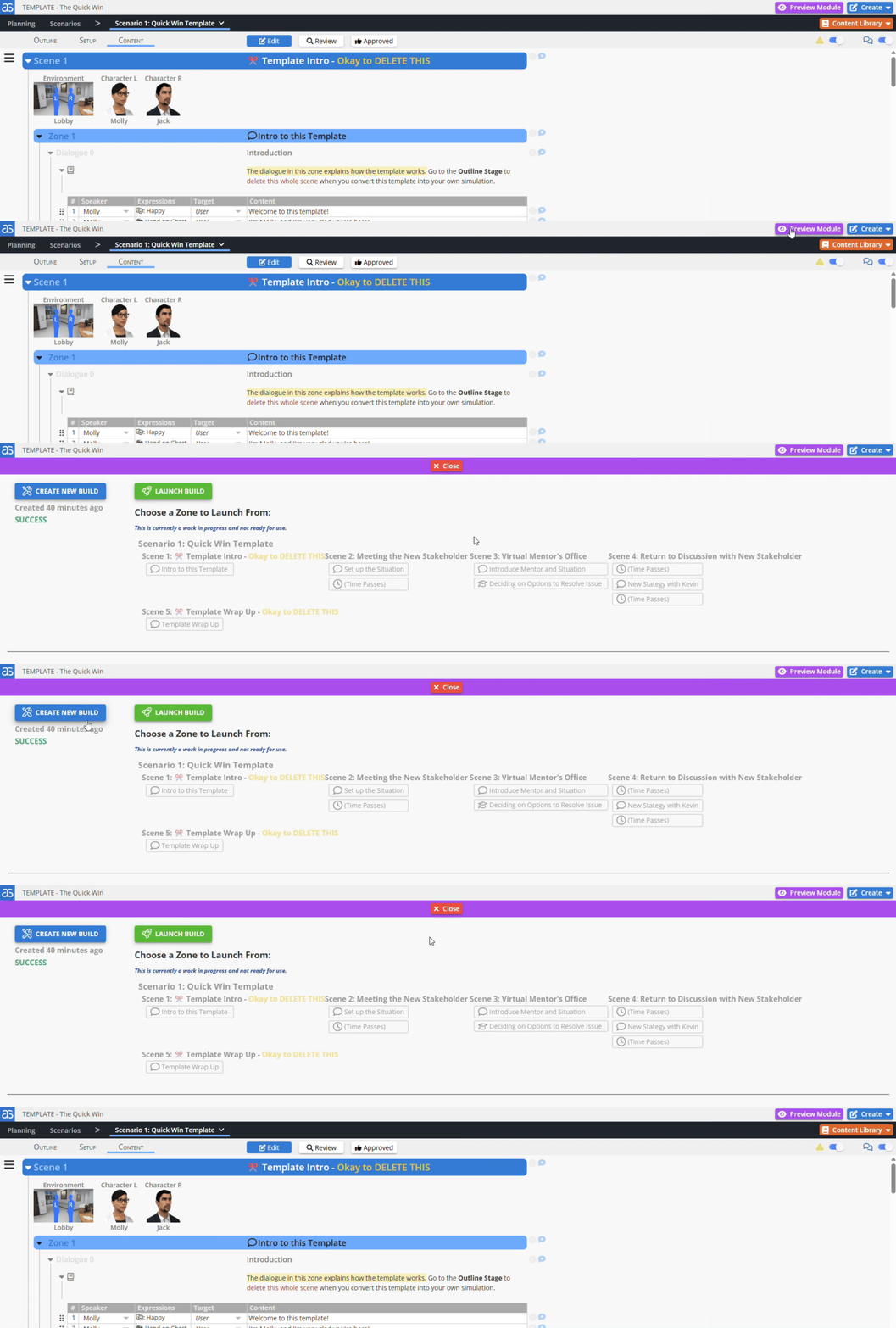
Click on PREVIEW MODULE.
Click on CREATE NEW BUILD. (move your mouse if it does not say SUCCESS within a few seconds.)
Click on LAUNCH BUILD. The simulation will open in a separate tab to experience.
View the simulation. It will provide some examples of best practices and your template with placeholder content.
Close the tab or just click back to the AliveSim Studio tab.
🔍 What to Notice: Pay attention to the flow - how situations lead to decisions, how feedback coaches rather than judges. This is the pattern you'll eventually use with your own content.

Part B: Tour the Kitchen – Explore How Things Work (7 min)
Now let's explore a bit, make some small changes, and learn how things work - but remember, the real transformation comes in Part C!
Remember: we’re working backwards through the stages in this show!
Content Stage = What characters SAY and do
Setup Stage = How it LOOKS and WORKS
Outline Stage = Overall STRUCTURE
Quick Stop 1: Content Stage - Try Simple Edits (3 min)
Click on the CONTENT stage button. Now we see a lot of dialogue lines!
Change a Line. Click on the first dialogue line and type a new greeting. If you want a preview of the audio, click the blue > button on the right.
Create a New Line. Click on NEW LINE at the bottom of the first zone.
Use the 6 dots to drag it up and drop it in under line 1.
Choose a Speaker. For fun, let’s click on Expressions, and add a gesture.
Finally, let's set the Target to User (Aside) so the speaker turns to talk only to the learner, breaking the 4th wall, just like in the theater. Perhaps mention you have created a special visual for them.
Add a Visual Panel. Click on NEW EVENT. Then click to Show Visual Panel. On the dropdown, choose the “smiley face” visual panel. Now let's use that 6 dot icon to drag that visual panel to below line 2.
Preview Our Changes! Click on PREVIEW MODULE and click CREATE NEW BUILD, then click on LAUNCH BUILD, just like before.
Quick Stop 2: Setup Stage – Change Up Scene and Decision Configurations (3 min)
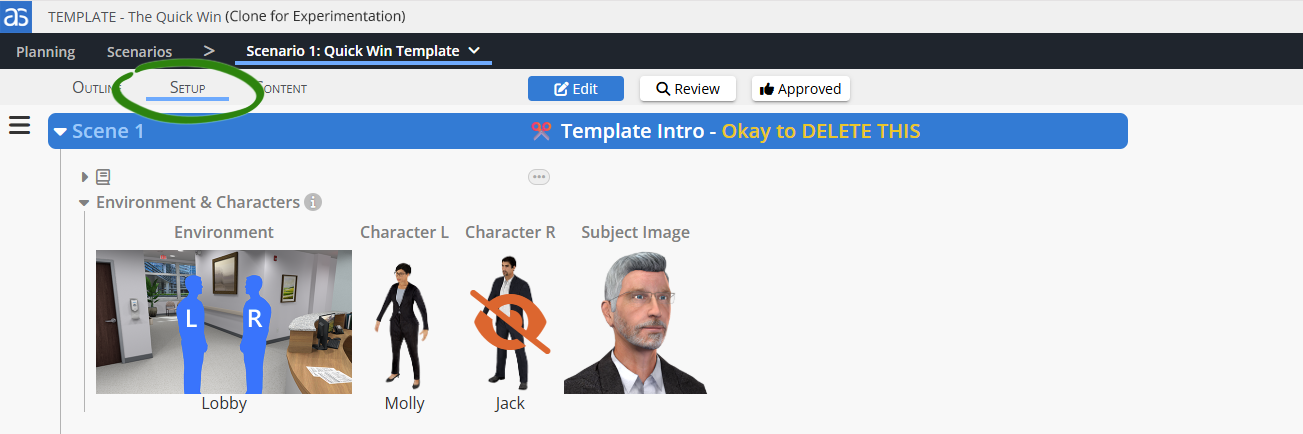
Click on SETUP stage button. This is going back to where we set things up.
Change the Environment. Click on the environment. We have already loaded some environments into the scenario from the Content Library. Click on one of the other environments and choose a camera angle with 2 characters in it.
Change a Character. Click on a character. Like the environments, a few characters are preloaded for this scenario. Click on one of the characters not in the scene to see how easy it is to change them.
Change Decision Colors. Let’s change the color of a choice. Click the color boxes to switch one choice marked red to yellow to see how this works.
Preview Our Changes! Click on PREVIEW MODULE and click CREATE NEW BUILD, then click on LAUNCH BUILD, just like before.
Quick Stop 3. The Outline Stage – where the Scenes and Zone are created. (1 min)
Click on OUTLINE Stage button to return to where we started.
We’re just going to look around here. A few things to notice:
Scenes – where the environments and characters eventually go
Interactive Zones within each scene that creates the action.
Common flow pattern of a Dialogue Zone to set up situations, Decision Zones for, well, making decisions. You can add time passes zones and Questions zones too, but let’s not do that yet. 😊
💡 You're Getting It! You've seen how easy it is to make changes. Now comes the exciting part - making this YOUR demo!

Part C: Make It YOUR Own – Quick Demo Creation (20 min)
Now the fun part - let's swap in YOUR content so you have a quick demo about one of your challenging situations, your decision point, and your coaching feedback.
💡 Remember is this a short demo so don’t go too crazy. Templates are small on purpose!
Quick Demo Recipe:
Step 1: Think about your Demo Topic
Situation: Pick a situation where people struggle. Think about how a 2-minute conversation may go that would lead up to the decision point.
Decision Options: Think about what a novice may do (inappropriate choices), suboptimal choices that are just okay, and what optimal behaviors are.
Adjust for the Template: You may have to tweak your thinking a bit to fit into the flow of the template you chose.
Step 2: Update the Decision to Make it Yours
Head over to the Content Library → Decisions.
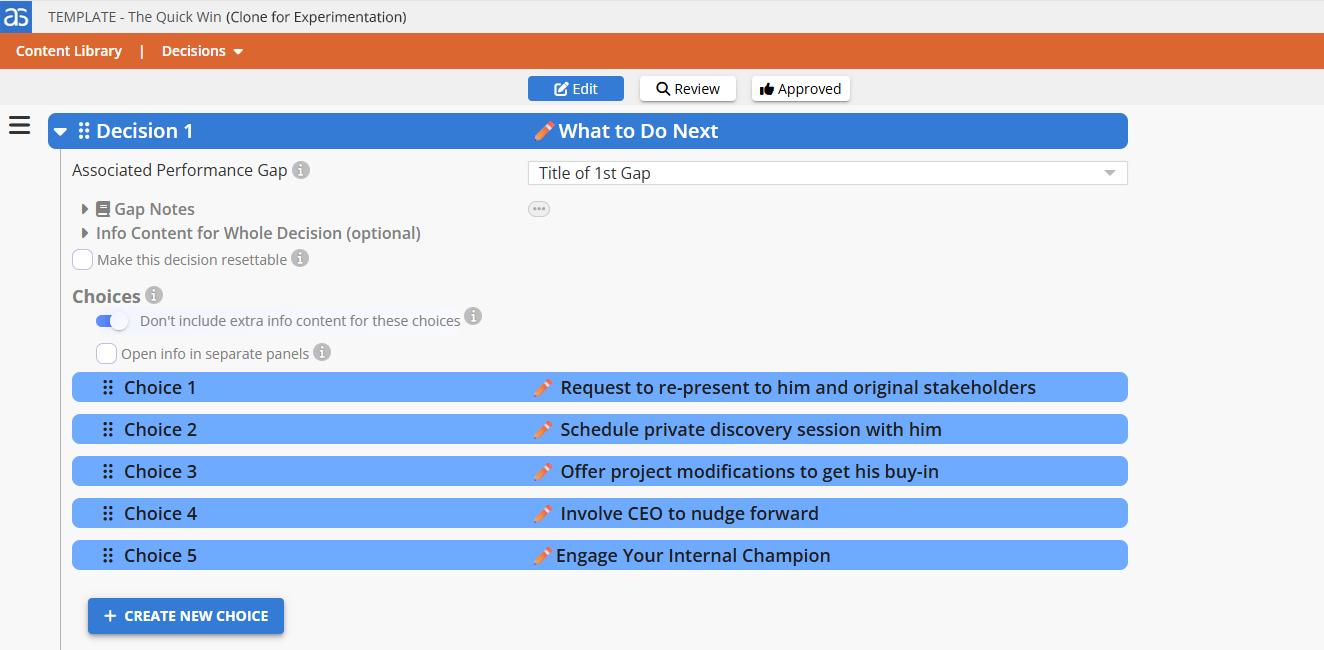
In the Decision section, each decision is listed. Usually there’s only one in a template but sometimes there are two.
Click on a Decision and change the title of each choice to match the options you thought about. A short title will do.
If you come up with 2 optimal choices and 4 that are either suboptimal or inappropriate, that’s perfect.
Click Close Content Library on the upper right.
Now, Let’s Adjust the Decision Colors.
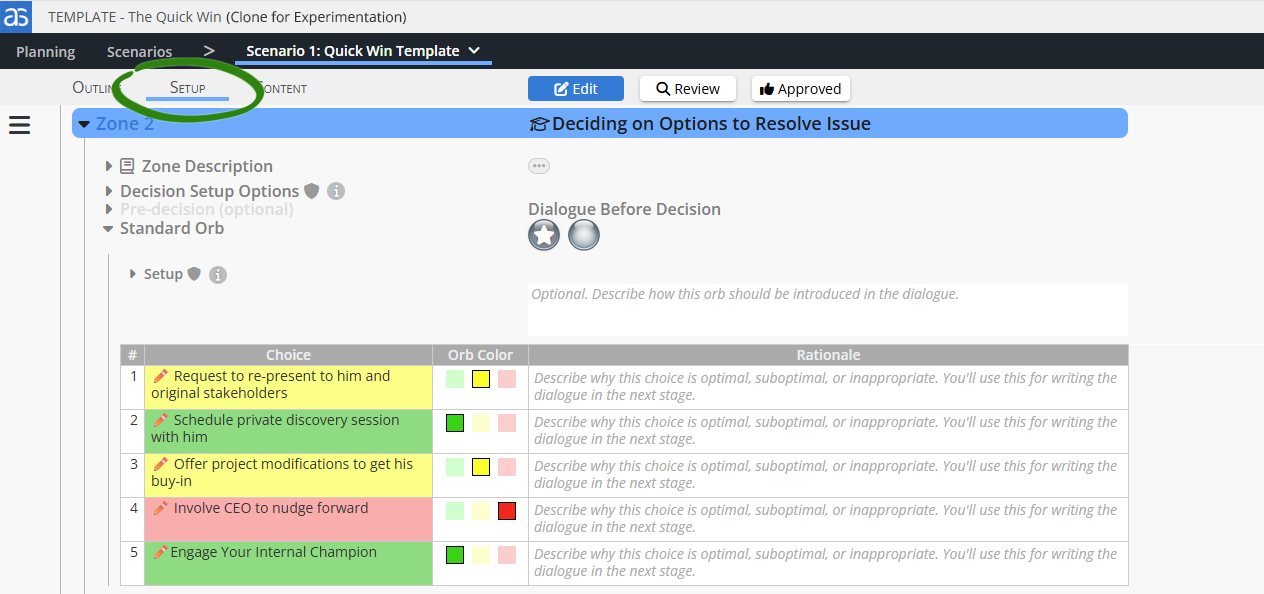
Go to Setup Stage and scroll down to the decision. You will see your new choices there! Adjust the colors by clicking the colored boxes. That’s it.
🔍 The rationale field helps you remember WHY each choice is good/bad - skip it for now.
Step 3. Add Your Dialogue to Bring Your Characters to Life!
🔍 The template includes a lot of best practices in the dialogue to involve the learner in conversations and make the experience more immersive. Leave those! And add additional dialogue to make it specific to your topic.

Dialogue Zone
Tweak the introductions to the learner as appropriate for your content.
Create a conversation between the characters. You can go back and forth a few times, just enough to set up the decision point. Involve the learner if the template encourages that. Basically, you can replace the placeholder content and add new lines if needed.
Keep the transition to the decision
⚠️ If you cut and paste in content, make sure you use “Paste as Plain Text.” Pasting formatted text will often cause errors in AI processing.
Decision Zone
Tweak the intro dialogue for the decision based on your content.
Add coaching feedback for each choice based on the color.
The placeholder template already has best practices on how to provide feedback.
💡 Remember how you dragged the event to show a visual panel? You can drag the event that changes the orb color, to another line in the same way. As you see from the template examples, it’s always best to wait and keep them guessing!
Step 4. Delete the Template Overview Scenes and Preview Your Demo!
Delete the Scenes that say (Okay to Delete). If you want to see them again you can clone the template again.
Click PREVIEW MODULE and create a new build. If everything is good, it will say SUCCESS.
Sharing your Demo with Colleagues
Here are a few options!
You can always run the demo in preview mode on a web call to share.
If colleagues have access to AliveSim Studio, you can give them permission to view your module, and they can run the preview themselves.
Sharing more broadly will require you to make a Module Build, which generates a link.
You can learn more about that in this article.
Congratulations! You've just built your first AliveSim demo. Show it off! When you're ready to build something more substantial with Performance Gaps, we'll be here to guide you.
Remember: This demo is just the beginning. The real power of AliveSim comes when you use Performance Gaps to capture expert judgment and transform it into scalable mentoring. But for now, celebrate - you've got something real to show!
Your Victory Moment!
Congratulations! You've just built your first AliveSim module with YOUR content.
What you’ve accomplished:
✅ Created a working demo you share
✅ Transformed generic content into YOUR real situation
✅ Built something to show stakeholders TODAY
✅ Proved you can create in AliveSim Studio
When you're ready for more, try "Create a Blank Module" to experience the full power of Performance Gaps.
Welcome to the AliveSim creator community. Your first win is just the beginning!
Powered by Syandus Immersive Learning Technology