The Content Stage: Where the Magic Happens
Last updated 7 months ago
Open this article on a separate browser tab.
You've outlined your scenes and zones, configured your environments and characters, and set up your decisions. Now comes the creative payoff: writing the conversations that bring your scenarios to life!
The Content Stage is where your careful planning transforms into an engaging experience. Your characters will discuss realistic situations, your learners will make meaningful decisions, and expert coaching will guide them toward optimal performance. This is where everything comes together.
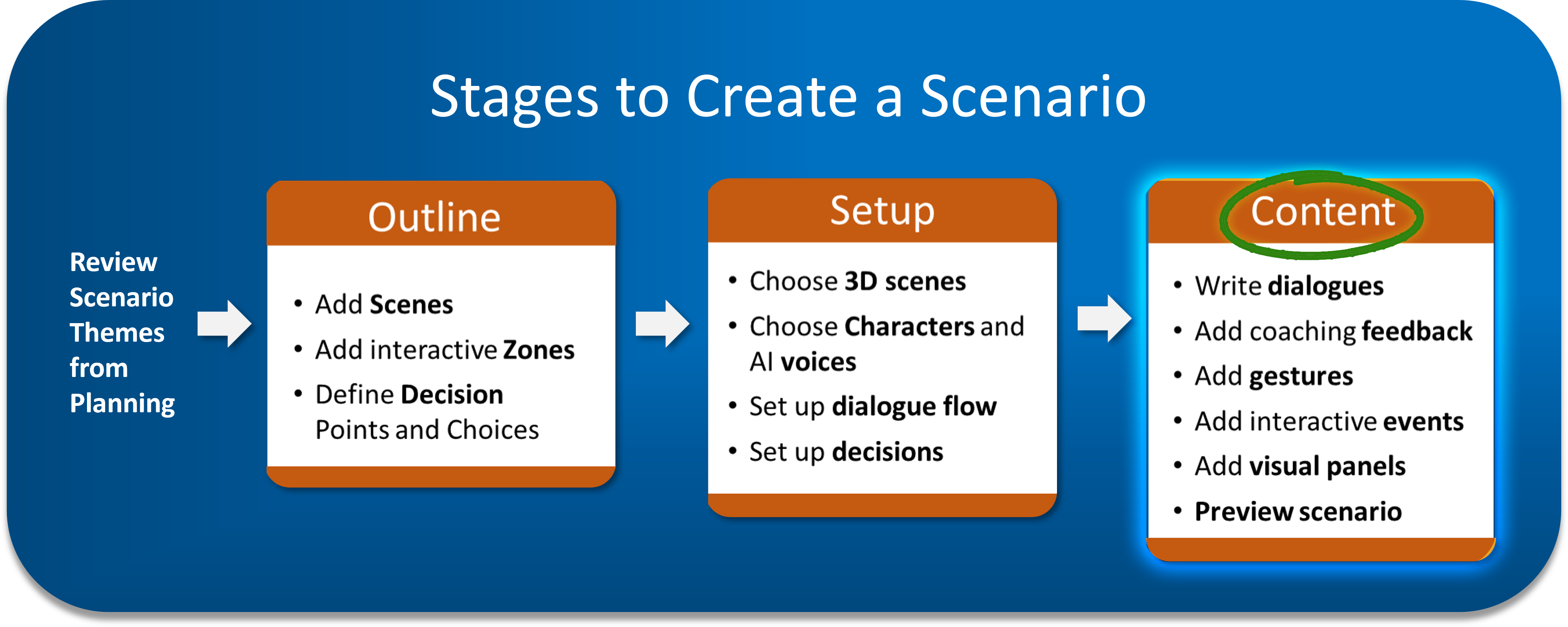
You're in the final creation stage. Like finishing the interior of that house we've been building - the foundation and framing are solid, now it's time to make it feel like home.
🔍 Why This Matters: Well-written dialogue and strategically placed events create the immersive experience that drives behavior change. This is where learners stop feeling like they're just "taking training," and begin to practice their skills in realistic situations.
Your Content Stage Workspace
The Content Stage interface shows all your zones organized by scene, ready for you to add content.
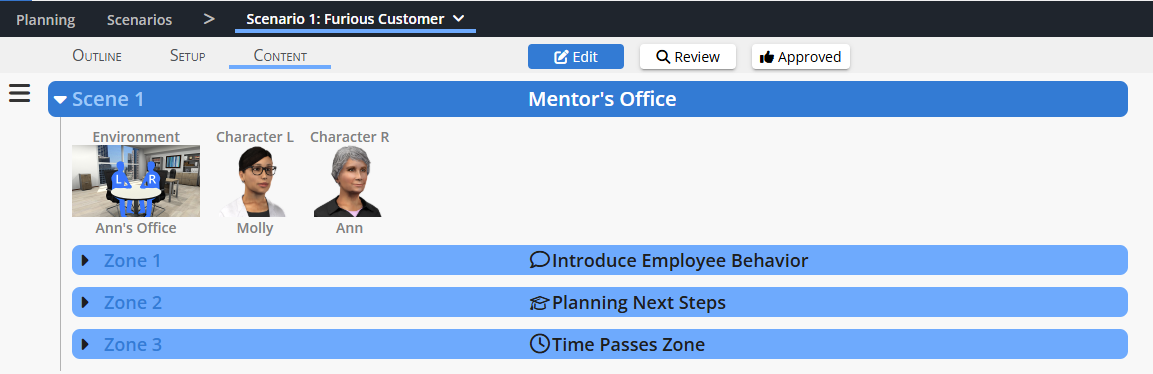
Each zone displays:
Zone type icon (💬 Dialogue, 👆 Decision, 🕓 Time Passes, ❓ Question)
Zone name from your outline
Description you wrote in setup (a helpful reminder of your intent)
Dialogue blocks ready for content
Most of your creative energy will go into Dialogue Zones and Decision Zones: these are where the learning takes place, through conversation and coaching.
The Two Main Tasks: Dialogue and Events
Creating content involves two interconnected activities:
Writing Dialogue Lines: The conversations your characters have with each other, and with the learner.
Adding Interactive Events: Dynamic actions that enhance the conversation - showing panels, revealing information, bringing characters on or off screen.
Think of it like directing a play: you're writing the script and choreographing the action.
Understanding Dialogue Blocks
Every zone contains one or more dialogue blocks - distinct conversation segments that serve specific purposes.
Dialogue Zones typically have:
Introduction: Launches the zone, sets the context.
Select Character Dialogues: Triggered when the learner clicks a flashing character (optional, but valuable for pacing).
Discuss Dialogues: Optional deeper exploration for interested learners.
Final Dialogue: Wraps up the zone, foreshadows what's next.
Decision Zones have:
Pre-Decision Dialogue: Sets up context before choices appear (optional).
Orb Introduction: Plays after the decision panel appears.
Decision Dialogues: One for each decision choice, containing coaching feedback.
Final Dialogue: Triggered when the learner has found an optimal (green) choice for all the orbs in the zone.
Writing Dialogue Lines: The Fundamentals
The Speaker-Target System
Every dialogue line has three essential components:

Speaker: Which character is talking? (Must be someone placed in the scene.)
Target: Who they're addressing? Another character? Or the learner?
Content: What they say. (Keep lines short: under 30 words works best.)
The Three Target Options:
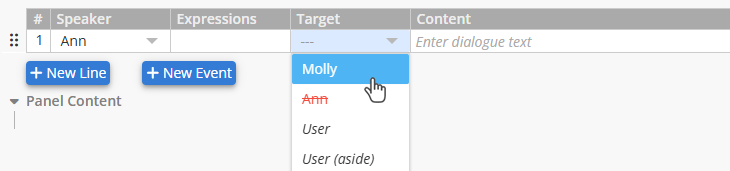
Character to Other Character: Natural conversation between avatars.
Character to User: Direct engagement with the learner.
Character to User (As An Aside): Private insights only the learner hears.
💡 The User is Part of the Conversation: Your learners aren't passive observers. They're active participants.
Characters should address them directly, involve them in discussions, and respond to their interactions. This is what makes AliveSim feel immersive rather than like watching a video.
What Good Dialogue Looks Like
The difference between effective and ineffective dialogue often comes down to a few key principles:

Keep lines short: Break up ideas across multiple lines rather than loading everything into one or two long speeches.
Include back-and-forth: If one character does all the talking, you have a lecture, not a conversation.
Vary your Speaker-Target combinations: Constantly switching who's talking to whom keeps the conversation dynamic and engaging.
Address the learner regularly: Turn to the User to emphasize key points, or acknowledge their presence.
Show, don't tell: Let learners discover through realistic conversation rather than having characters recite information like they’re reading from a textbooks.
Optional: Expressions and Gestures
You can add emphasis to dialogue lines with gestures and emotions from the Expressions column menu.
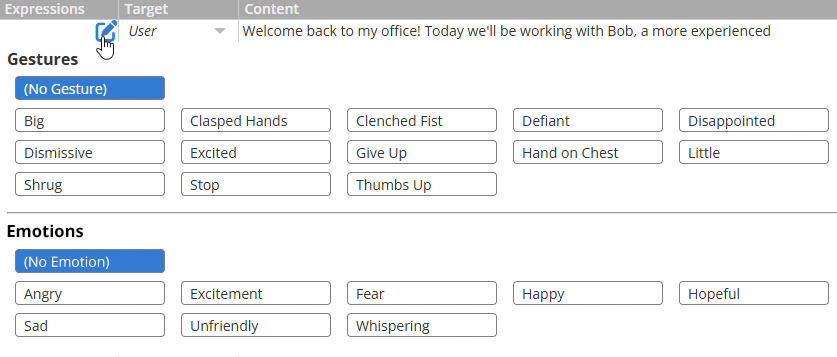
Use these sparingly. Too many gestures make scenes feel melodramatic. Save them for moments that truly need emphasis.
Important timing note: Gestures take 1+ seconds to complete, so avoid using them with very short lines (one or two words). They'll look awkward and rushed.
Testing Your Lines
Hover over any line and click the blue play button to hear how it sounds. If you don't like what you hear, try rearranging it a little. Adding just one extra comma can sometimes help with emphasis and emotion.
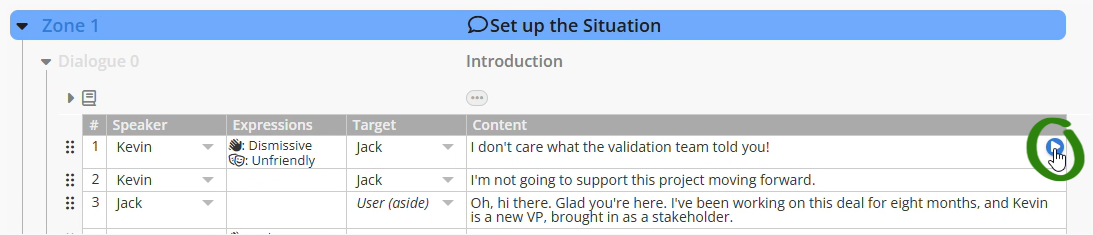
This immediate feedback helps you catch awkward phrasing, pronunciation issues, or lines that feel too long, before you create a preview build.
Interactive Events: Bringing Conversations to Life
Events are dynamic actions triggered between dialogue lines. They enhance conversations without interrupting them.
Click New Event to insert an event after any dialogue line.
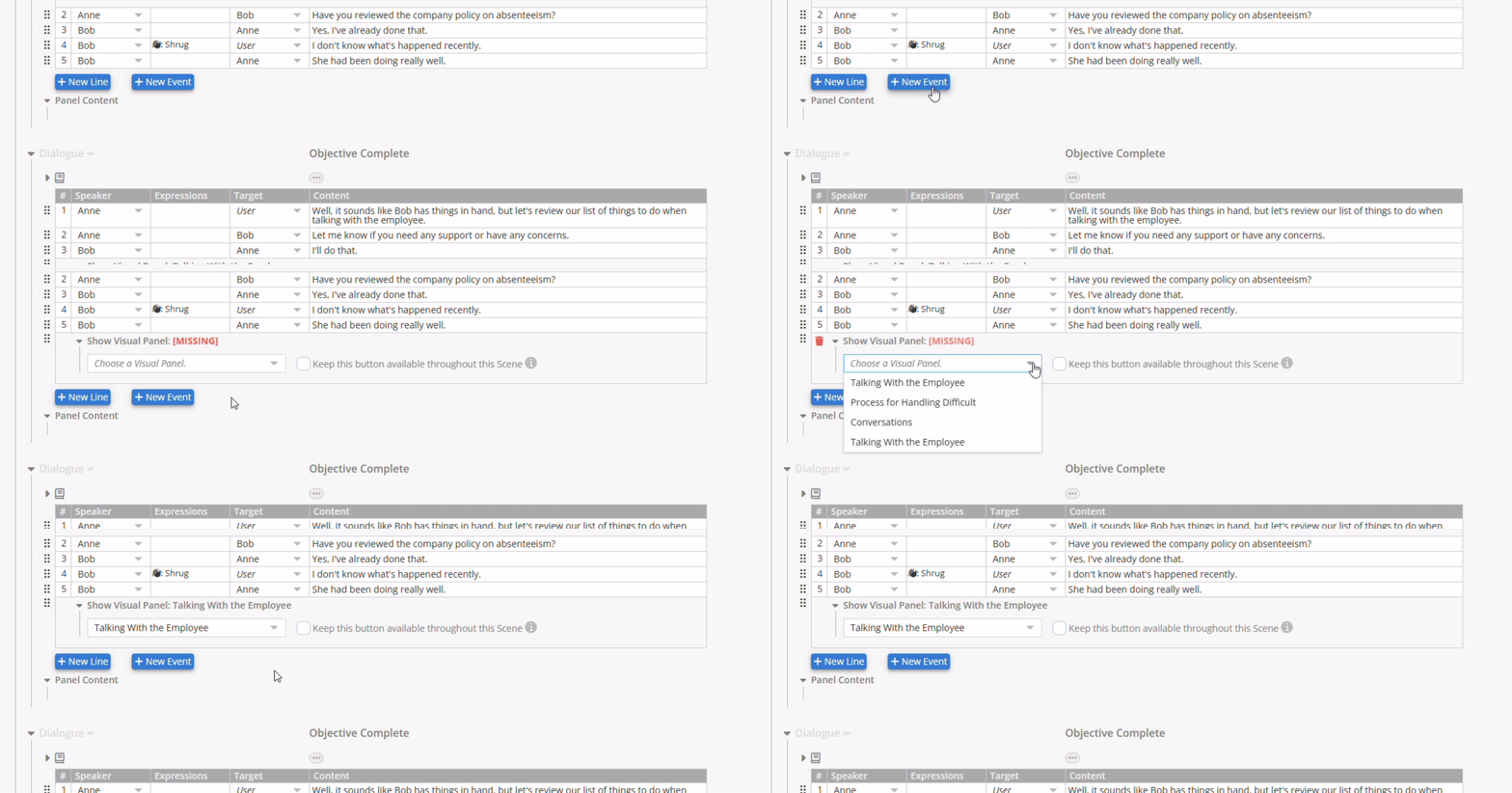
The Five Event Types for Dialogue Zones
Show Visual Panel 📊
Display detailed information without dialogue bloat. Characters can refer to the panel content, rather than reading it verbatim.
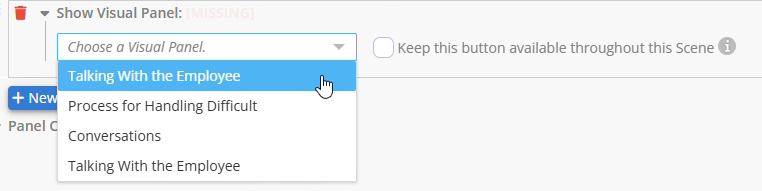
Visual panels add a button on the left for later access. This button will disappear in the next zone, unless you check the box to keep it available throughout the entire scene.
⚠️ One Panel Per Dialogue Block: If you trigger a second visual panel in the same dialogue block, it will cover up the first one - potentially while learners are still reading it. Instead, use a Select Character dialogue to break the conversation into a second block where the next panel can be triggered. This gives learners time to review each panel before continuing.
Show/Hide Characters 👥
Characters can appear or disappear mid-conversation, as the situation evolves.
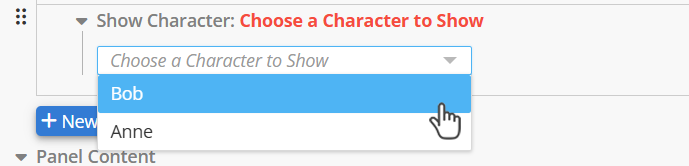
Just be sure hidden characters don't have dialogue lines: they'll still talk but nobody can see them!
Show Discovered Attributes ✔️
Attributes are brief text banners that emphasize key points from the conversation, appearing on the right side of the screen.
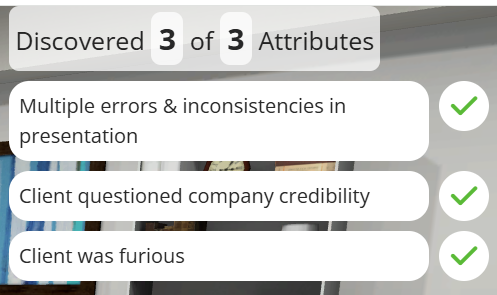
Try to limit these to 3-5 per zone. That’ll help maintain focus. Since this discovered information represents the most important takeaways from the conversation, use it to update Status Panels for later reference.
Update Status Panel 📋
Status Panels have persistent buttons below the subject portrait. Update them as new information emerges through conversation.
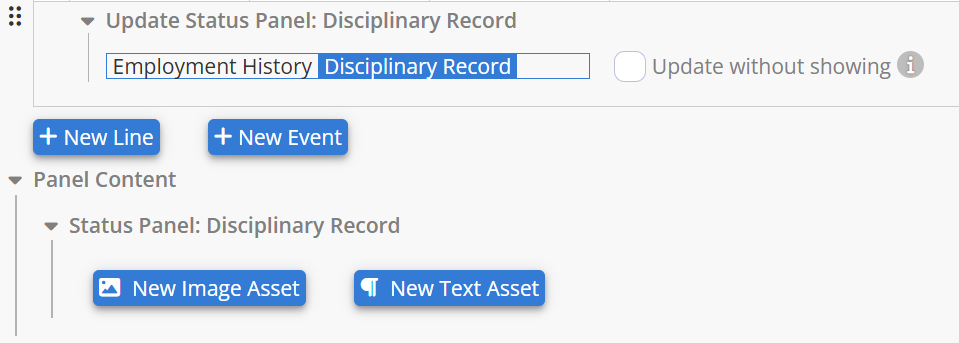
You can update Status Panels without showing them too, so new information is still available for learners to reference during decision-making.
Show Discuss Button 💬
Creates an optional dialogue, triggered by a button on the left side. Great for supplementary information that interested learners can explore without interrupting the main flow.
Breaking Up Conversations with Character Buttons
When you need to show multiple visual panels or simply want to give learners control over pacing, use Select Character dialogues.
A Select Character Dialogue is triggered by clicking on one of the characters in the scene. That character will blink until they're clicked on.
You added these optional dialogue blocks in the Setup Stage. The Content Stage is where you write the lines. But first, you need to understand the pattern.
The Character Button Pattern:
The last speaker in the previous dialogue should be the one who flashes.
Give learners a reason to click: "Click on me when you're ready to review the progress report."
The flashing character speaks first in the new dialogue: it’s as if they’re responding to being "tapped on the shoulder".
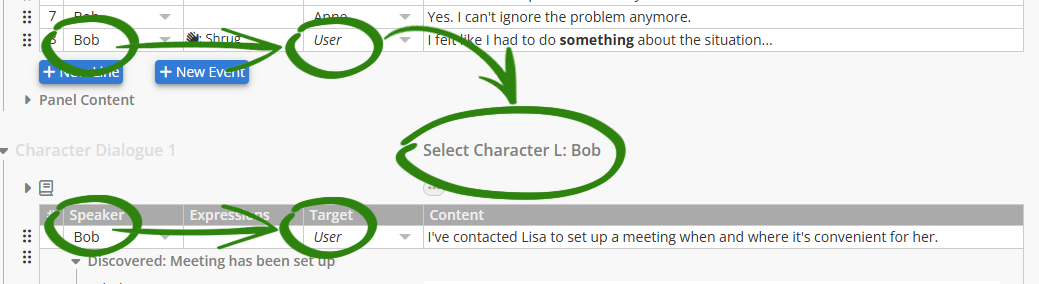
This creates natural pauses where learners control when to continue, prevents panel stacking issues, and maintains the feeling of active participation.
💡 Interaction Every Minute: Aim for a learner interaction approximately every 60 seconds (about 10 dialogue lines). This keeps them engaged as active participants rather than passive observers.
Decision Zone Content: The Coaching Conversation
Decision Zones are where mentored learning happens. You're not just providing feedback. You're creating "aha moments" that help learners recognize optimal patterns.
Decision Zone Dialogue Structure
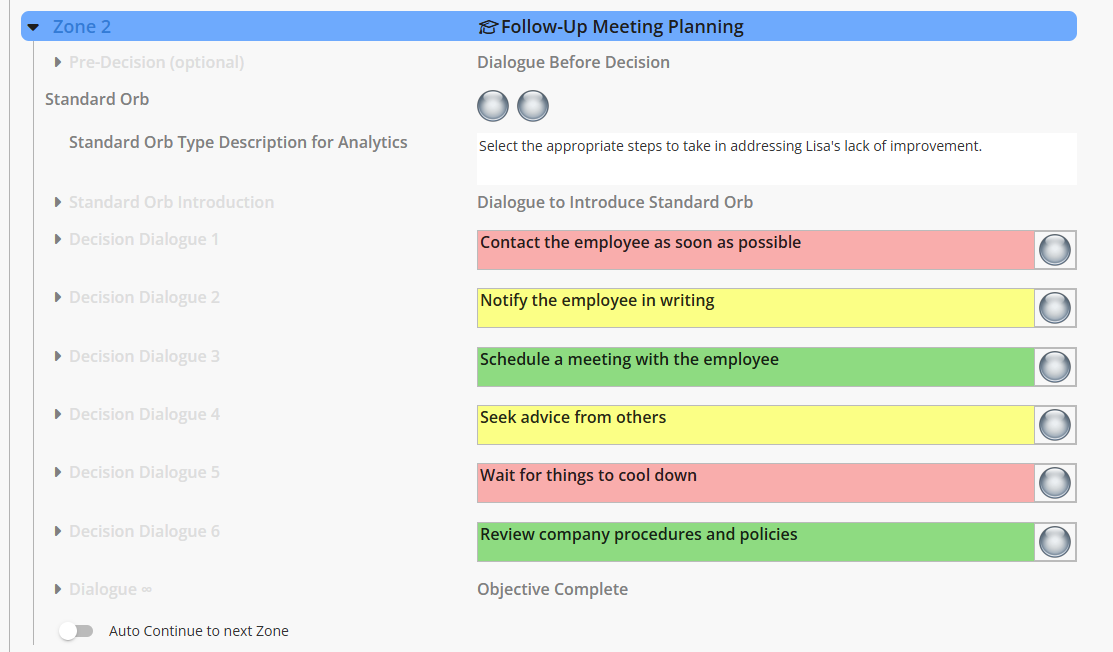
Orb Description for Analytics: A brief explanation of what this decision demonstrates (used in analytics reports).
Pre-Decision Dialogue (optional): Additional context before choices appear, keeping learners focused on the conversation, rather than being distracted by the decision panel.
Orb Introduction: Plays after the decision panel appears to set up the choice moment.
Decision Dialogues: One for each decision choice, containing coaching feedback based on that choice's color.
Final Dialogue: Triggered when the learner has found an optimal (green) choice for all the orbs in the zone - celebrates success and transitions forward.
The "Aha Moment" Feedback Pattern
Effective coaching feedback creates discovery moments rather than simply telling learners the answer. Here's a pattern that works well:
For RED/YELLOW Choices (suboptimal/inappropriate):
Peer character agrees with the learner's choice, paraphrasing their most likely reasoning.
Mentor character corrects both the peer and learner, explaining why.
Discovery happens - both learn together
Peer acknowledges: "I was with you on this one, let's try something else."
For GREEN Choices (optimal):
Peer character questions the learner's choice: "I don't know about that..."
Mentor character validates the learner was right all along.
Confidence builds through validation.
Peer celebrates: "Nice job!"
🔍 Try Not to Reveal the Answer: RED and YELLOW feedback explains why that choice isn't optimal without revealing which choice IS optimal. Let learners discover the right path through exploration.
The Orb Changes Color Event
Each decision dialogue has a special built-in event where the orb changes to its assigned color.
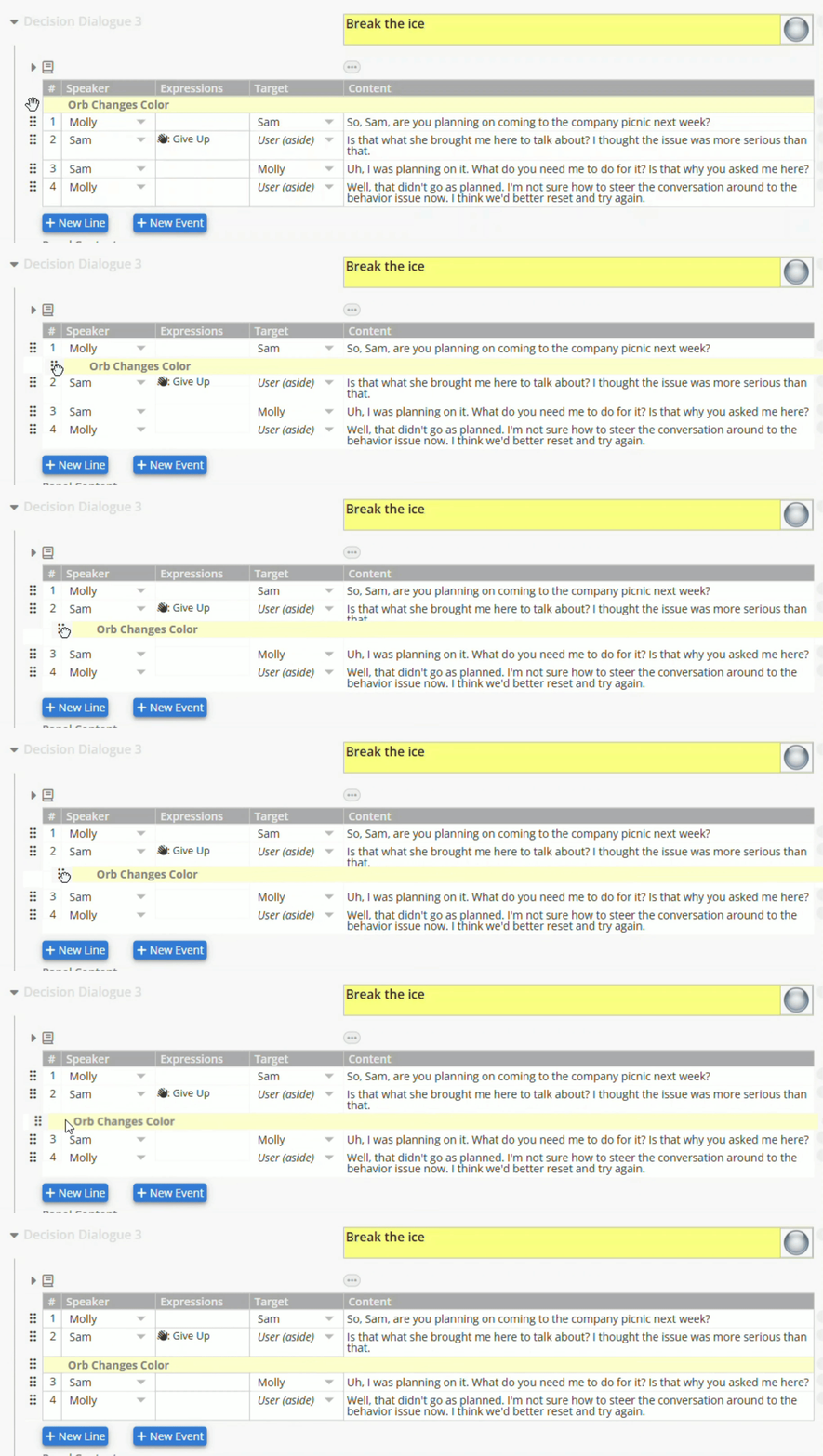
By default, this happens at the beginning of the dialogue. But you can drag it to any position. Revealing the choice color after building tension through character discussion often creates more impact.
Strategic timing: Don't always reveal orb colors immediately. Build evidence through dialogue first, then let the color change reinforce what characters have explained. This makes the feedback feel earned rather than arbitrary.
Limited Events in Decision Dialogues
Because learners can trigger decision dialogues in any order, some events can't be used in these blocks:
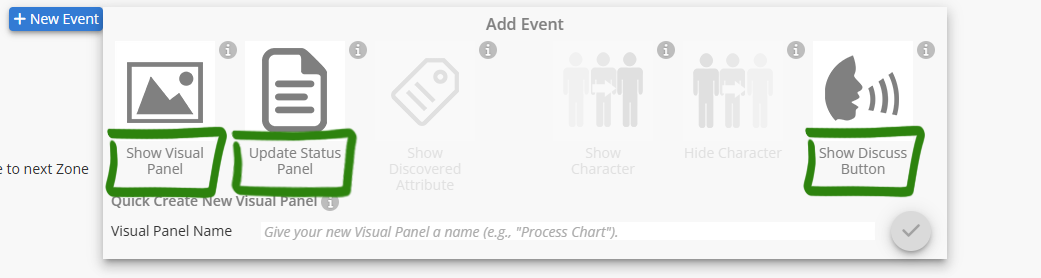
AVAILABLE in Decision Dialogues:
Show Visual Panel
Update Status Panel
Show Discuss Button
NOT AVAILABLE in Decision Dialogues:
Show Discovered Attribute (The Decision Panel occupies the same space as the Discovered Attribute panel would.)
Show/Hide Characters (This might hide someone before their dialogue plays.)
These restrictions prevent situations where the experience breaks due to the unpredictable order of learner choices.
Time Passes and Question Zones: Quick Coverage
Time Passes Zones 🕓
There’s nothing to configure here during Setup: all customization happens in Content Stage where you'll write the brief transition text that appears on screen. You can also customize the clock animation if you want.
Use these zones to skip forward in time, to show consequences or transition to new situations.
Question Zones ❓
Since characters can't react to quiz answers, these zones only have simple Introduction and Final dialogues. Keep these brief and generic: "Just a couple of questions before we wrap up."
The actual questions were configured in the Content Library during Setup. You're just writing the conversational bookends for them here.
Auto Continue to Next Zone
At the bottom of each zone, you'll find a toggle for Auto Continue to Next Zone.
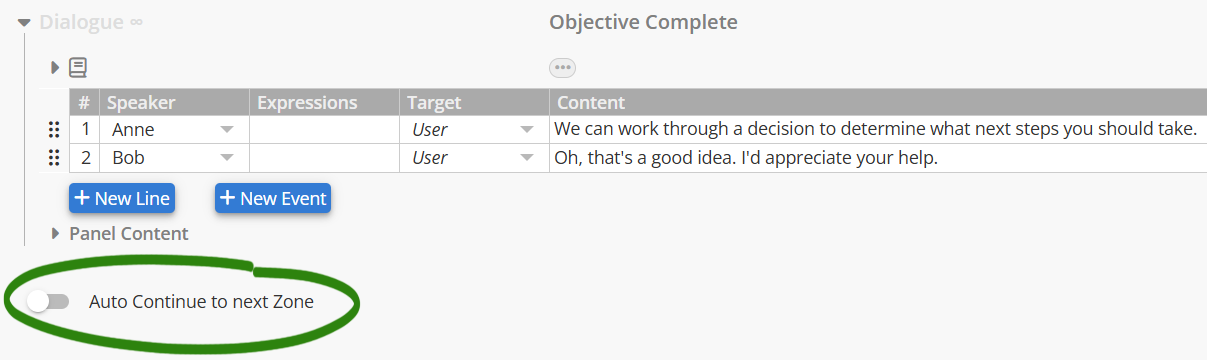
Normally, zones end with a blue "Continue" button that learners must click. This gives them time to explore panels and buttons, controlling their pace.
When Auto Continue is enabled, one zone flows directly into the next without user interaction.
⚠️ Use Sparingly: Too much auto-continue makes the experience feel like watching a video rather than participating in an interactive scenario. Reserve it for specific dramatic effect or tight narrative transitions.
Creating Your First Preview Build
Once you've written content for your zones, it's time to see your scenario in action.
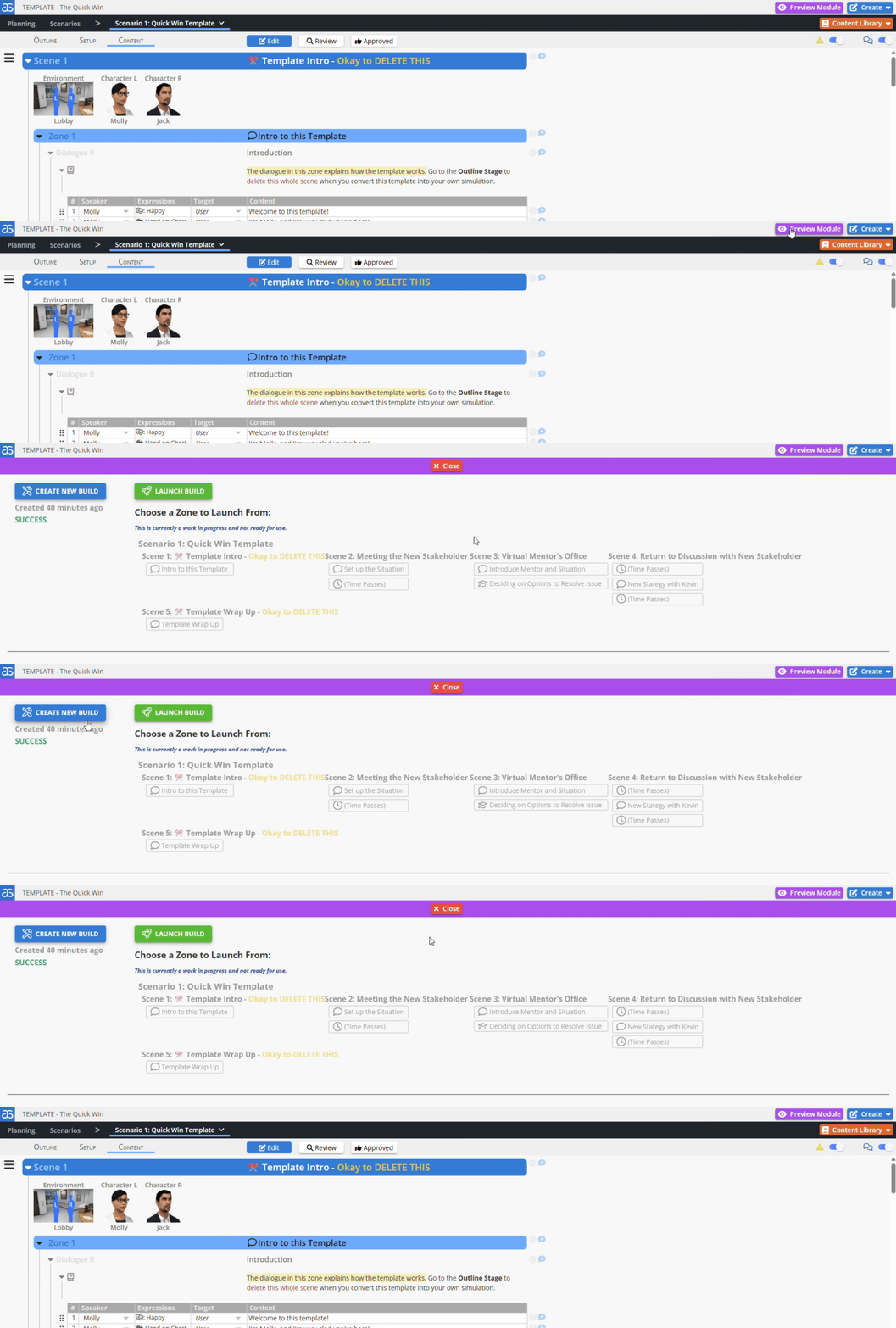
Click Preview Module above the black navigation bar, then create a new preview build. This compiles your work into a playable experience you can run inside AliveSim Studio.
Important limitation: You can't preview partial modules. All zones need dialogue content before a build will work.
💡 The Preview Workflow: Write a thorough pass through the content, testing individual lines as you go → Create a preview build → Experience the full scenario → Gather feedback → Make revisions in Studio → Create a new preview build.
This rhythm helps you catch issues before moving to Development Builds for broader testing.
Preview Module Overview Article
What Happens Next: Development and Final Builds
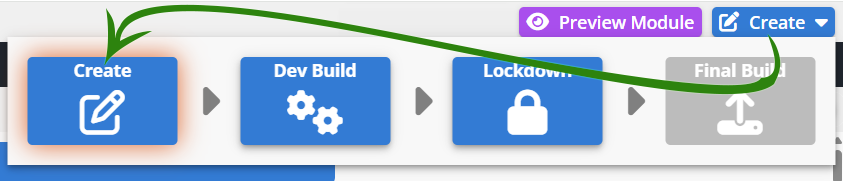
After perfecting your content in Preview builds, you'll progress through the build modes:
Development Build: Published to Groups for beta testing via links or SCORM integration.
Final Build: Your official release with full analytics, distributed widely to end-user Groups.
Module Build Modes Overview Article
Common Dialogue Challenges to Avoid
⚠️ Watch Out For These:
Long monologues: Break up ideas across multiple lines with different speakers.
Repetitive speaker-target patterns: Vary who's talking to whom.
Ignoring the learner: Address them directly, involve them in discussion.
Reading panel content verbatim: Summarize key points, let learners explore the details.
Too many consecutive lines: Insert character button breaks every 8-10 lines.
Overusing gestures: Save emphasis for moments that truly need it.
Ready to Create Compelling Content?
You've got the structure, you understand the mechanics, and you know the patterns that create effective learning experiences. Now it's time to write conversations that capture expert thinking and guide learners toward optimal performance.
Your Content Stage Checklist:
Write conversations for Introduction and Final dialogues in each Zone.
Add Select Character dialogues to break up longer conversations in Dialogue Zones.
Write coaching feedback for each Decision Dialogue.
Add strategic events (Visual Panels, Discovered Attributes, Show/Hide Characters).
Test individual lines as you write.
Create a preview build to experience the full scenario.
Revise your content, based on the preview experience.
Gather feedback from co-creators and colleagues who can run Studio.
Refine and create a new preview build.
💡 Remember the Goal: Every dialogue line and every event should serve your learning objectives. You're not just creating content: you're capturing expert decision-making patterns and making them accessible through realistic practice. When learners finish your scenario, they should think "I know how to handle this situation now" rather than "I know what the answer is."
This is where your planning pays off. This is where scenarios come to life. This is where learning happens.
Your characters are ready to talk. Your decisions are ready to coach. Let's create something that changes how people perform.
Powered by Syandus Immersive Learning Technology