How to Create a Decision
Last updated 7 months ago
Open this article in a separate tab
Creating a Decision
All the decisions for your module are created in the Decision section of the Content Library.
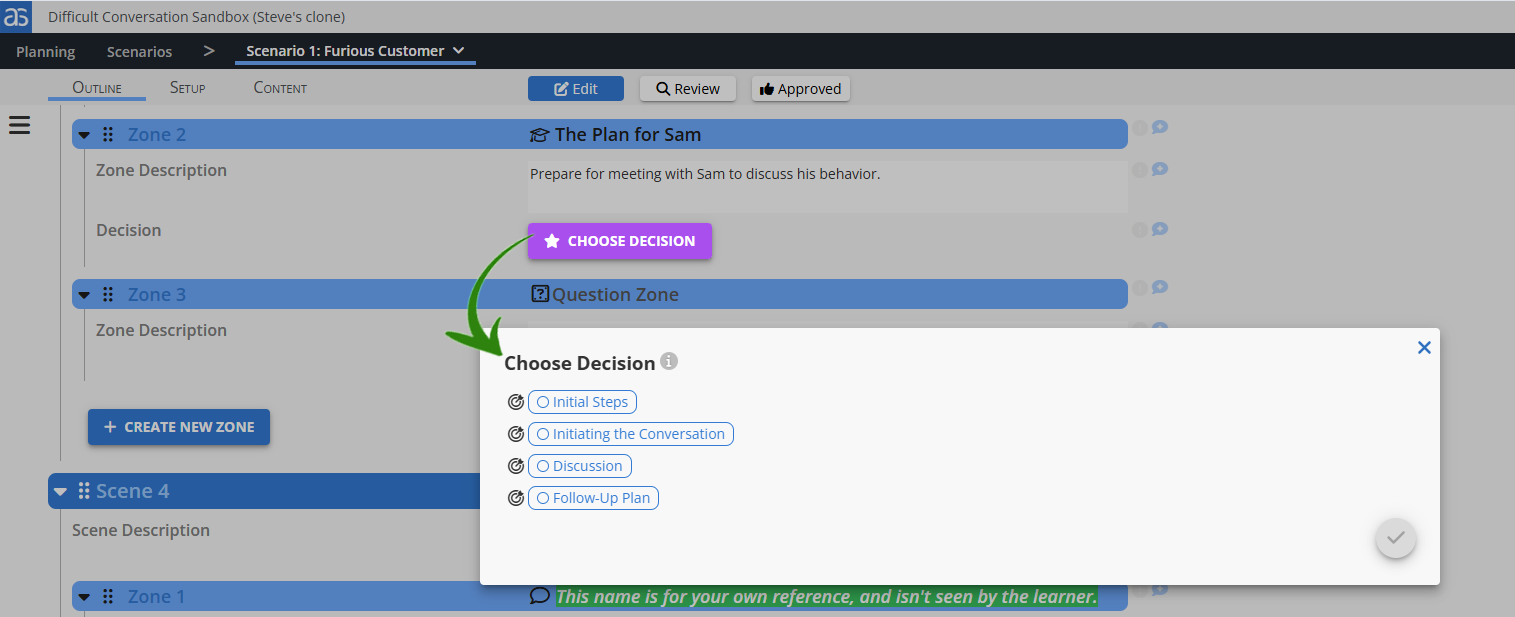
Simple Process:
Step 1: Create your decisions in the Content Library
Step 2: In the Outline Stage, decide which decision from this list to use in each Decision Zone.
Ready to build your first decision?
Here's your creative workspace:
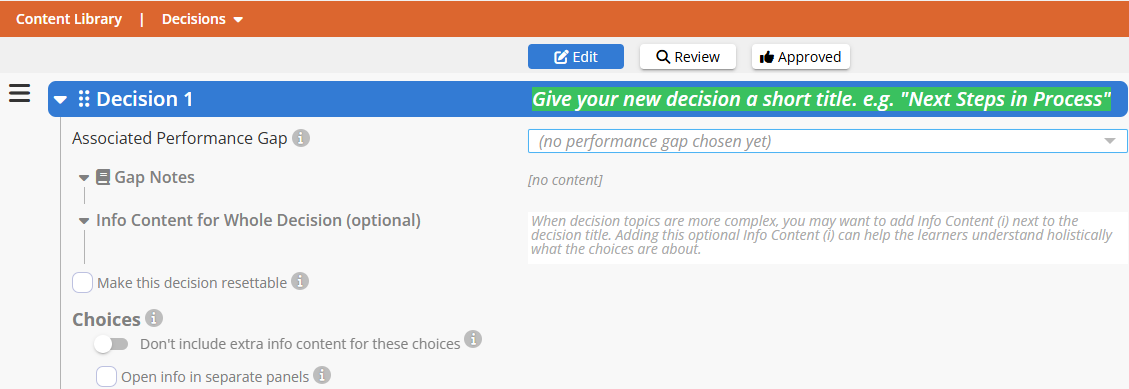
Name Your Decision
It will appear in the scenario above the choices. Keep it short!
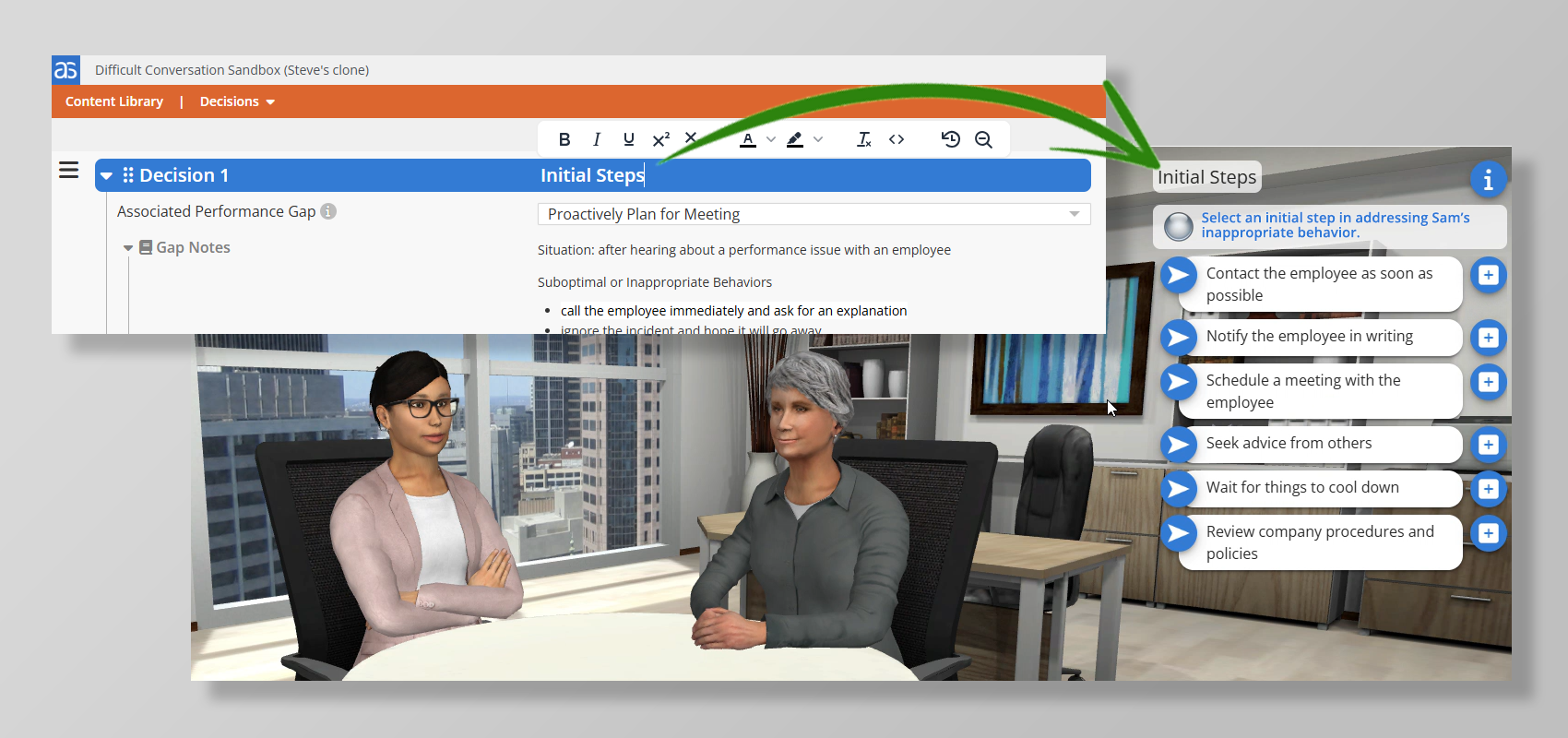
Choosing a Performance Gap
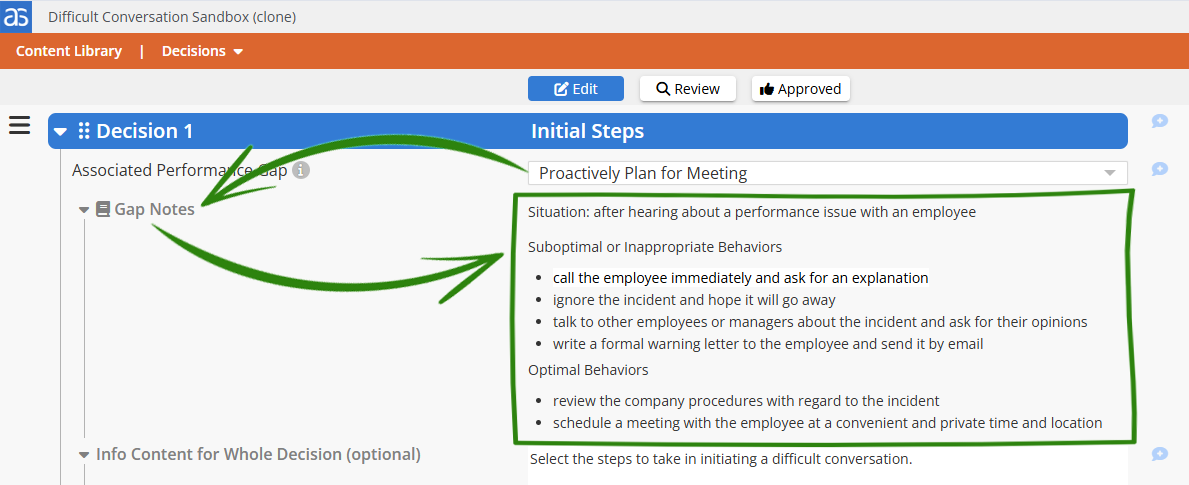
Remember the magic we talked about for the performance gaps? When you associate a gap, those gap notes are displayed that will be the starting point for your choices.
This connection ensures your decision isn't just a quiz question - it's authentic practice for real-world challenges.
Add Choices
Now for the fun part - creating choices that feel real, not like a multiple-choice test!
The performance gap notes will provide a starting list of choices. Some options will be optimal (often more than one), some suboptimal, and some inappropriate
💡 Smart Design Tip: The same choice can be optimal in one situation and suboptimal in another. That's the beauty of reusable decisions - context changes everything!
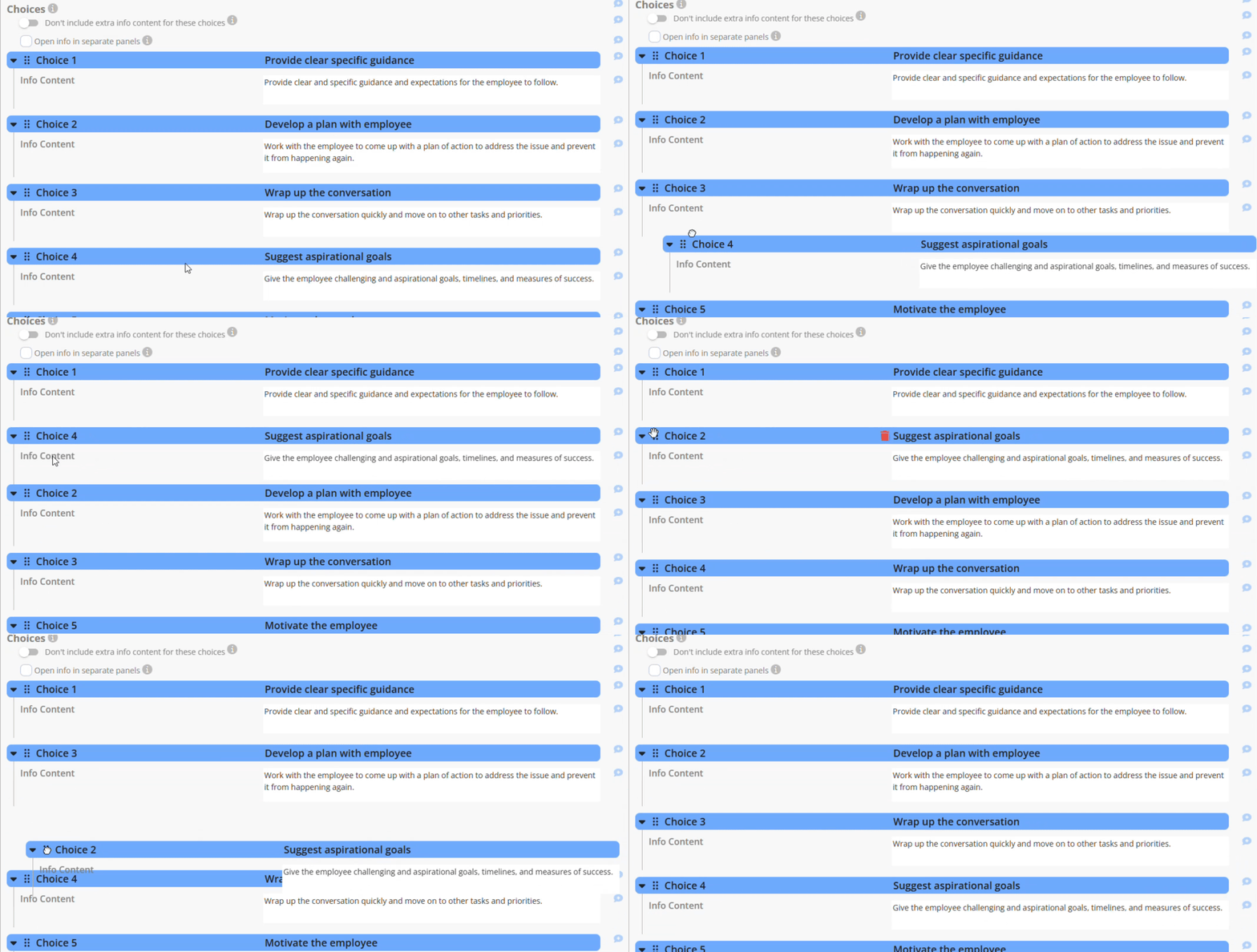
You can rearrange the order of the choices by dragging them with the grab dots icon.
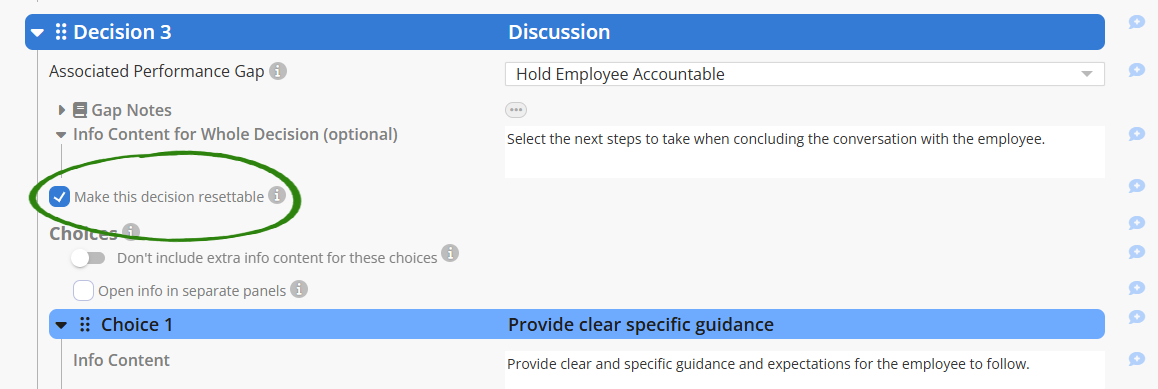
Resettable Decision Needed?
If learners pick a suboptimal choice, they go back in time to try again. This creates mini-branches where they can see how a poor choice plays out, then get a chance to back up and remake the decision as if their mistake never happened.
You'll add a dialogue line to prompt them when they reset: something like "What should we do now?" to get them back on track.
Info Panels to Describe Choices
Your learners need enough context to make informed decisions, just like in real life.
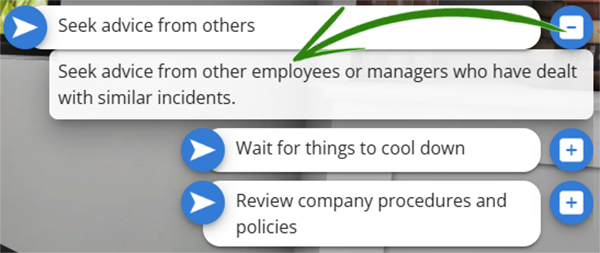
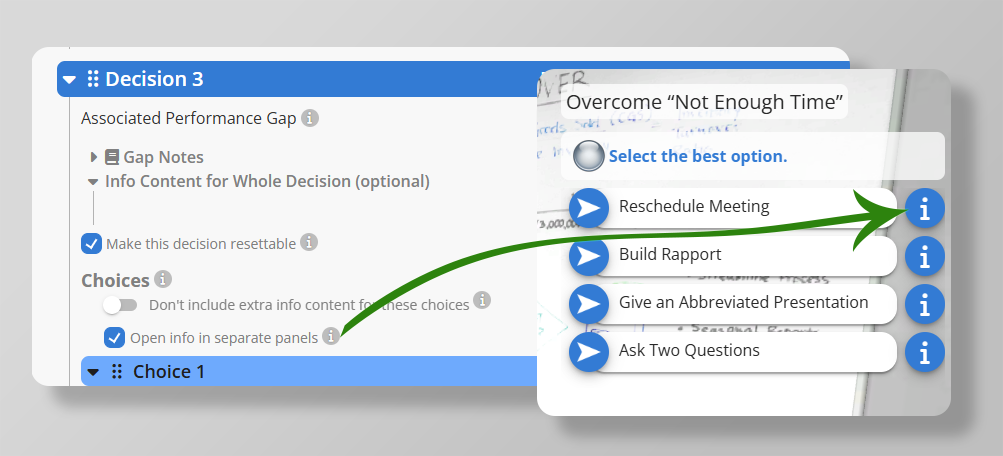
There are two types of info panels: ✚ for short descriptions, and 🛈 to display lots of information.
🛈 Panel: These are separate panels that can display lots of information to help the learner make an informed choice.
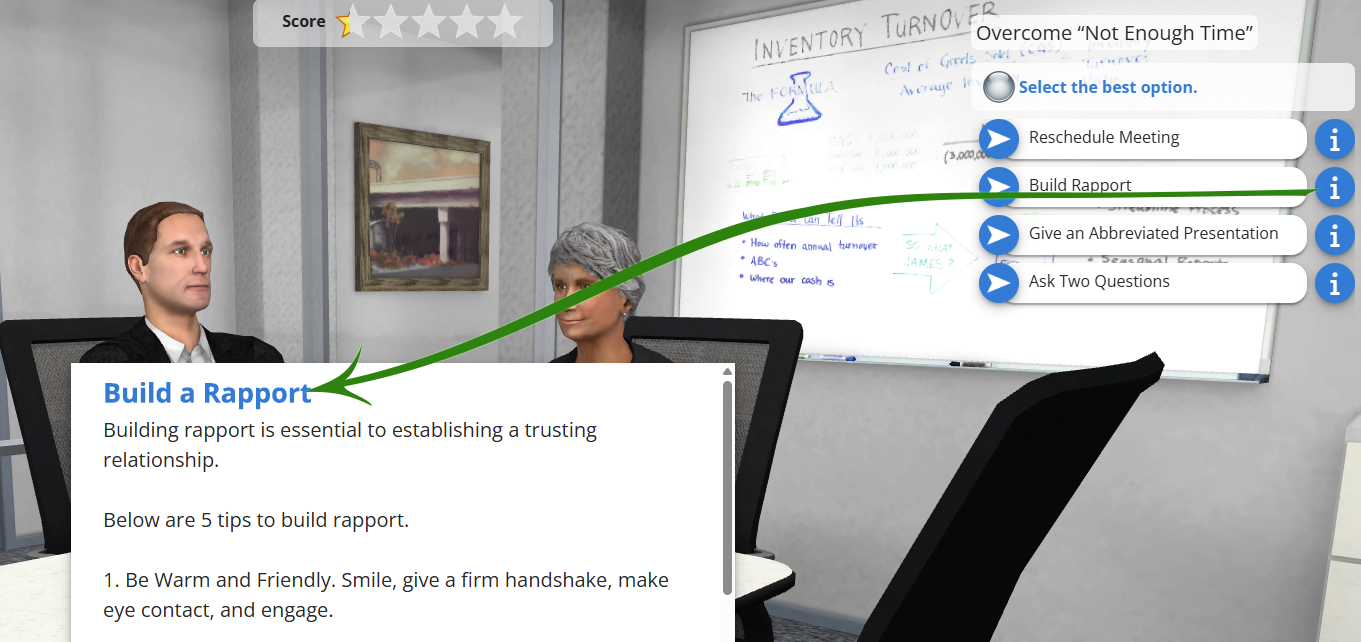
Finally you can include an 🛈 for the entire decision if more explanation for the choices is needed. For example, if there is jargon or acronyms and you can explain it here.
Powered by Syandus Immersive Learning Technology