Introduction to Module Creation
Last updated 7 months ago
Open this article in a new tab
You've made it! You're now in the module creation workspace where your ideas transform into immersive scenarios. Whether you started with a sample module or chose to build from scratch, you're about to discover the creative process that makes AliveSim scenarios so engaging.
This isn't just about building content - you're crafting experiences where learners face real decisions, get personalized feedback, and develop skills that transfer to the real world. Ready to see how it all comes together?
🔍 Why This Matters: Understanding the creation process helps you work faster and build better scenarios. You'll see why AliveSim is organized the way it is, and how each piece connects to create powerful learning experiences.
The Big Picture: Your Creation Journey
Let’s start with a big picture view of the creation journey:
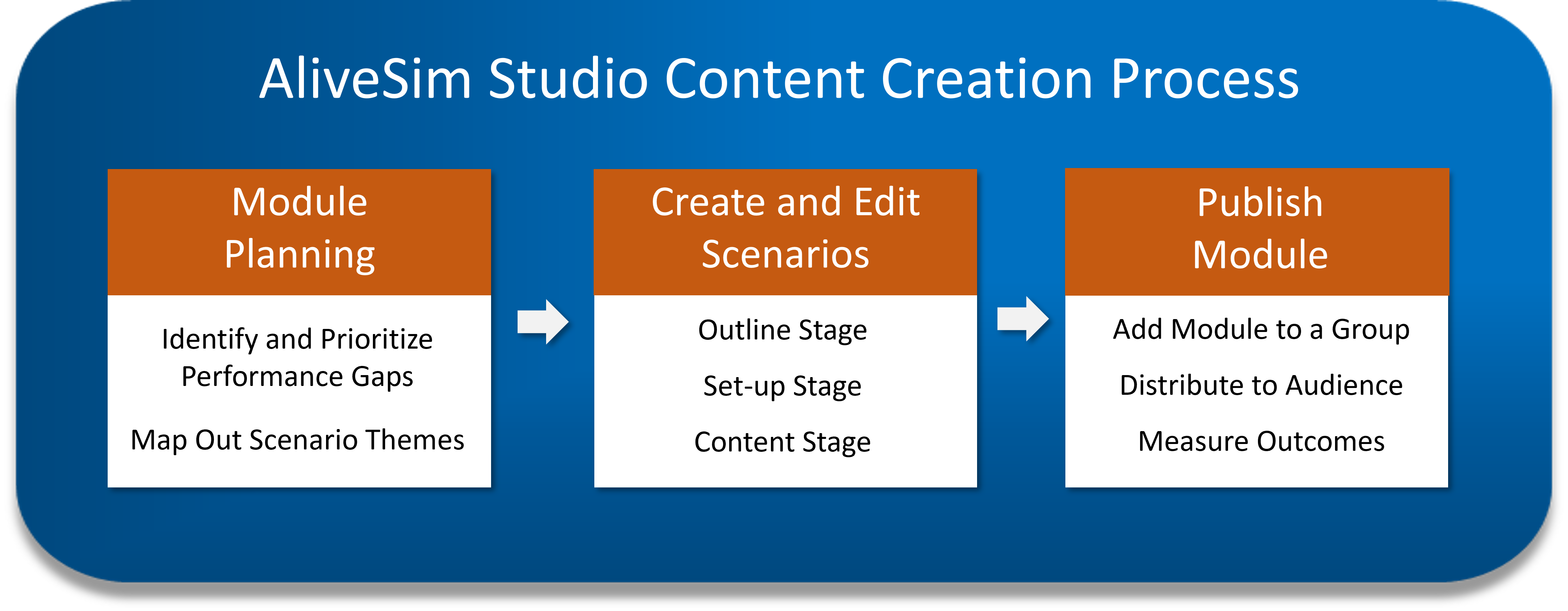
Module Planning: Use the magic of Performance Gaps to frame out your vision for the module.
Building Scenarios: Create interactive experiences with characters, conversations, and decisions. You’ll use most of your creative juices here.
Publishing: Where you publish modules to Groups as development builds for testing, or final builds for learners.
What Makes a Module? The Building Blocks
Think of creating scenarios just like making movies. You need scenes, characters, and action - but in AliveSim, the learners are the stars making the key decisions.
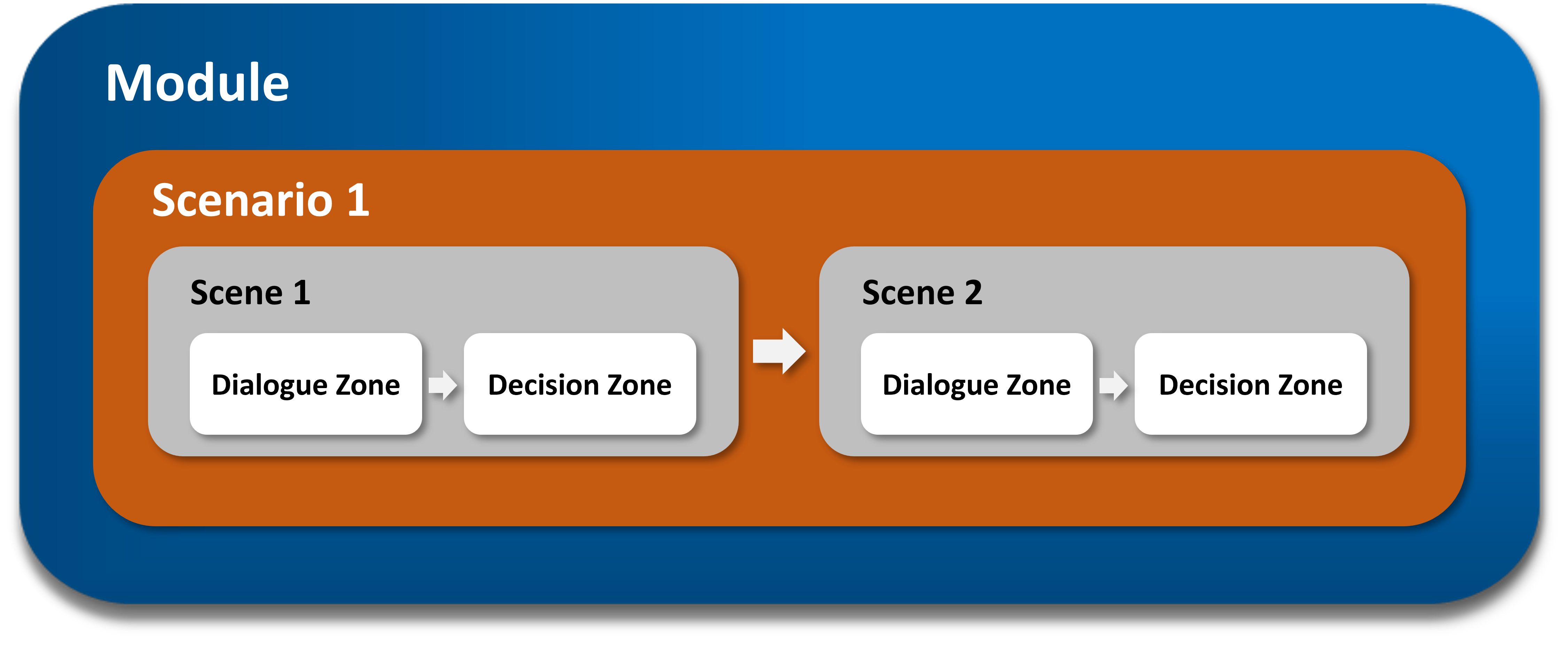
Scenarios: Your complete story arcs that address specific learning goals. Like movie plots, each scenario has a beginning, middle, and resolution.
Scenes: Just like in movies, you need different locations! Each scene has a 3D environment (office, hospital, restaurant) and the avatars who appear there.
Zones: Here's where it gets exciting - these are your interaction types:
Dialogue zones: Engaging conversations that set up realistic situations
Decision zones: Where learners make choices that matter
Time passes zones: Skip ahead minutes, hours, or even months (virtual time travel!)
Question zones: Test knowledge (different from decision-making)
The Creative Dance: Scenarios and the Content Library
Here's where many creators get confused at first - you'll find yourself bouncing between building scenarios and creating content library elements. This isn't a bug, it's a feature!
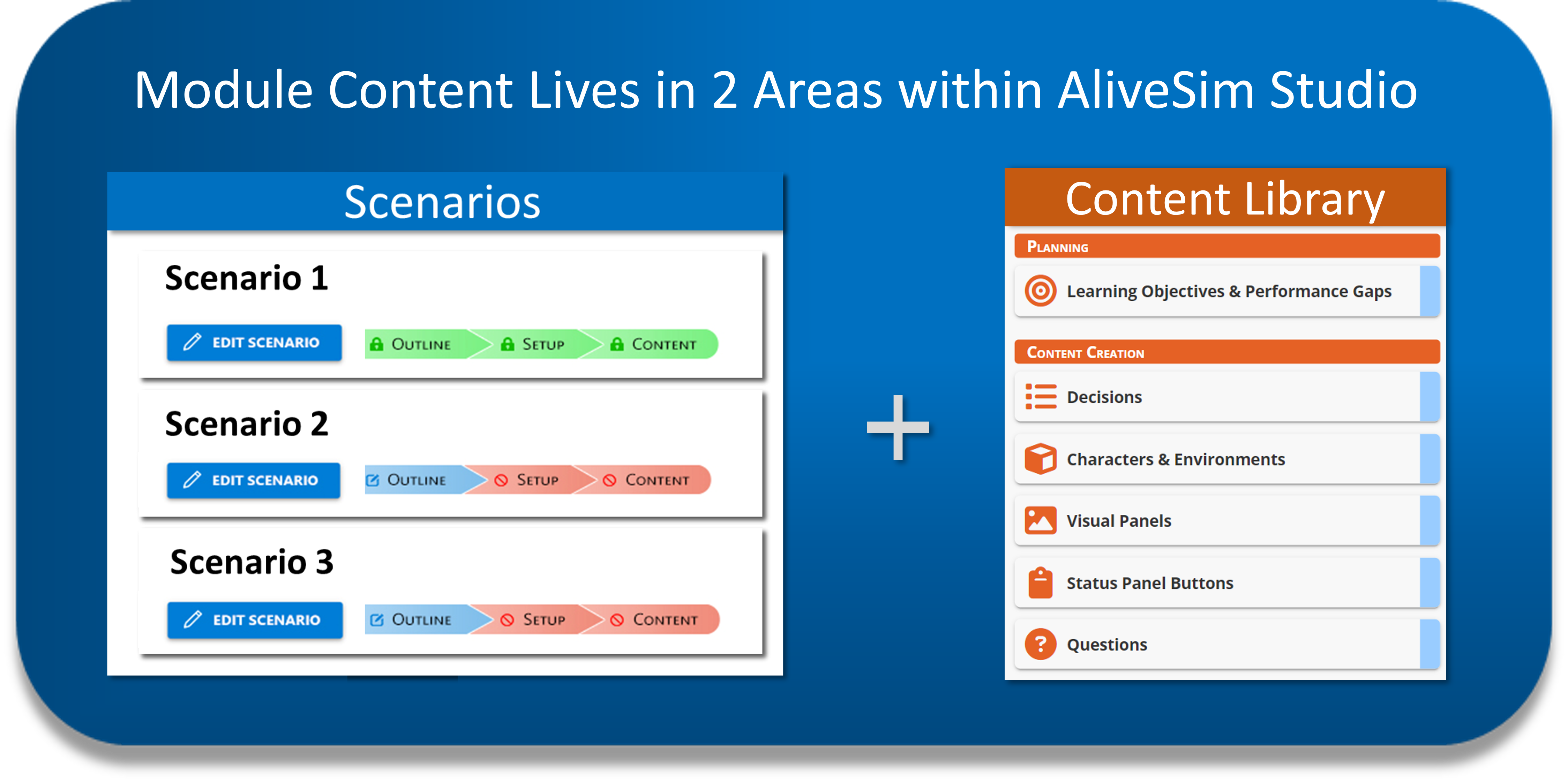
Why the back-and-forth? As you build scenarios, you'll discover you need to reference elements from your Content Library.
The Content Library is your asset warehouse: Characters, environments, decisions, visual panels - everything you create here can be used in any scenario. Build once, use many times.
Building Scenarios – The Three Creation Stages
Once you understand the building blocks, here's how you actually create them in three stages:
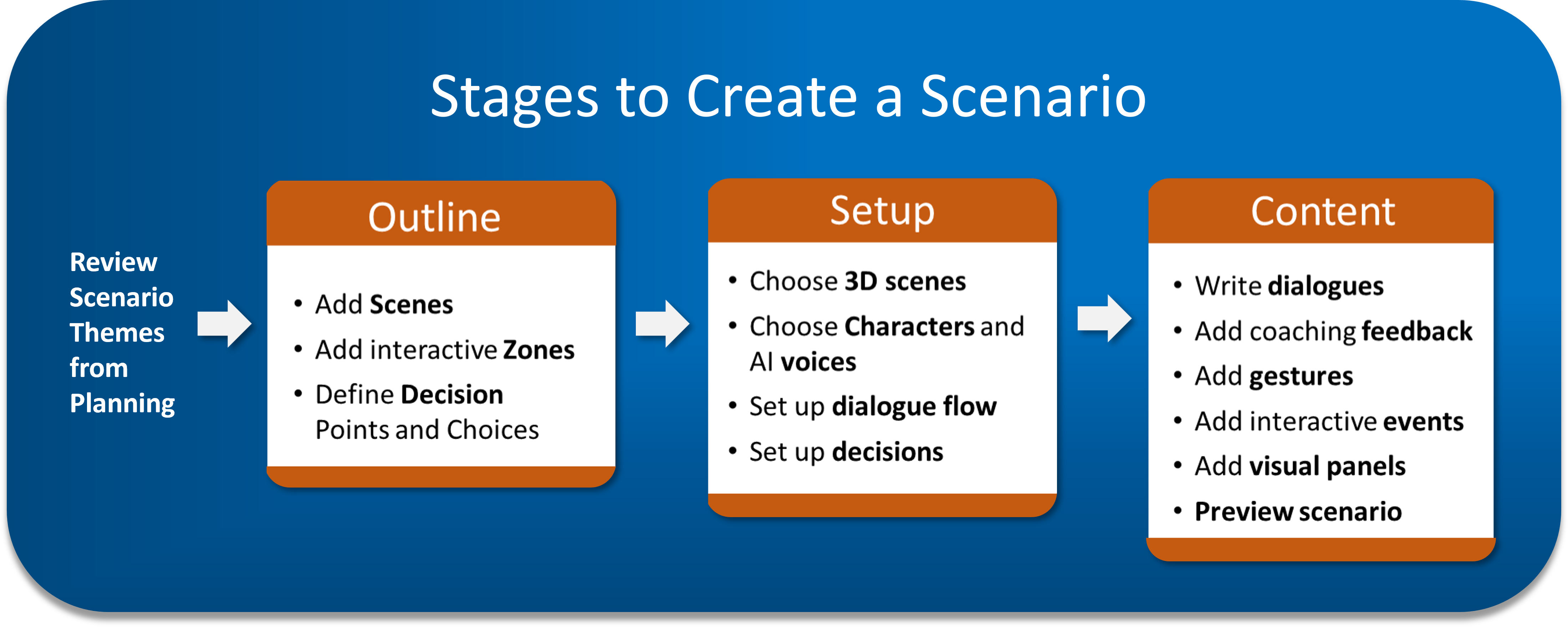
Outline Stage: Set up your scenes and add the interactive zones. Name them, organize them, and add your decisions. This is where you'll start, and it’s quick.
Setup Stage: Choose environments, add characters to scenes, set up your decisions and other zones, and configure everything. Make it look and feel right.
Content Stage: Here's where you bring the avatars to life with dialogue, add the mentoring feedback, and add interactive events like bringing up visual panels.
Your Mission Control: The Interface
Now you understand WHY the interface is organized this way. Here's where you'll do everything:
Planning. Use the magic of the Performance Gaps to organize your scenario themes.

Scenarios. Your main workspace to build out your vision in three stages (Outline → Setup → Content).

Content Library. Your asset warehouse for reusable elements.

Preview Module: See your work come to life anytime.

Build Modes: From Draft to Live. Usually it's set to "Create" until you're ready to create a Development Build to test within a Group, or lock the module down and make a Final Build to add to a Group for your End Users.

Ready to Start Creating?
You've got the big picture - now it's time to start the creative journey!
If you’re starting from a Sample Module…
The module planning is complete, and you have some placeholder performance gaps to start with.
This article explains how to clone a template to make your first module.
Click the Scenarios Tab on the black bar and Click EDIT SCENARIO.
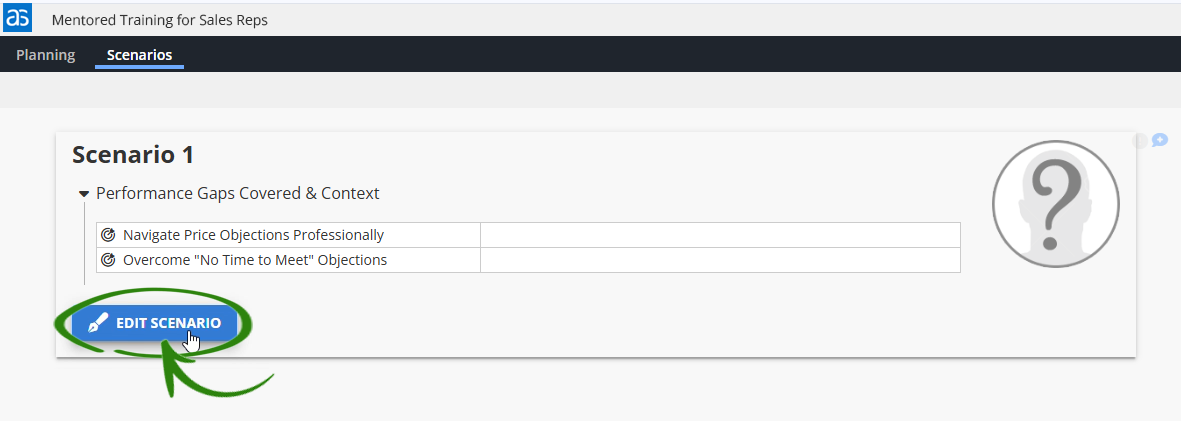
⚠️ If you don’t see the help panel pop up, click the lower right help widget, select help, and type template instructions.
If you’re starting from a Blank Module…
You’ll start your creation journey at module planning by setting up those magical performance gaps. They’ll help you organize your vision into a working structure.
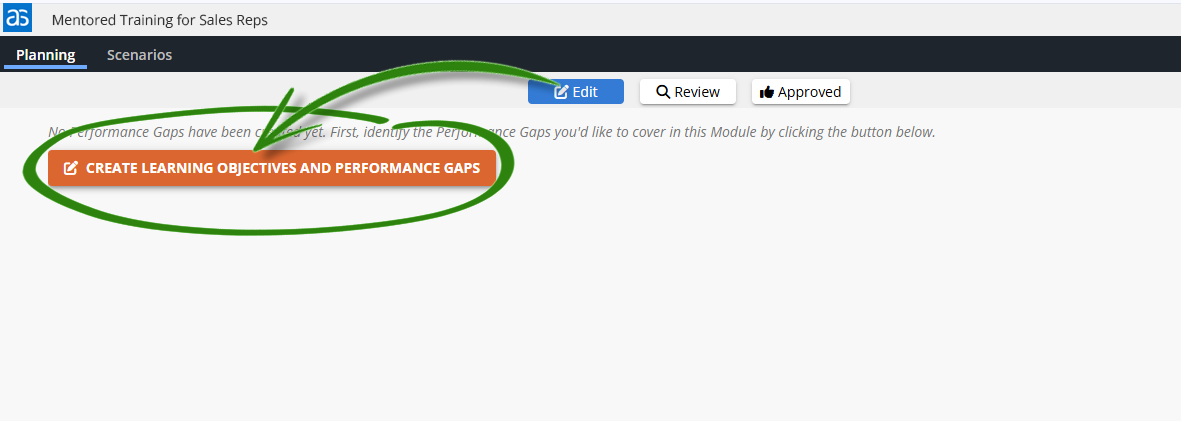
The creative process is about to begin - and it's going to be fun!
We’ll start off with something simple, so you can discover just how intuitive the scenario creation process is.
Powered by Syandus Immersive Learning Technology