Preview Module: Your Internal Testing Tool
Last updated 7 months ago
Open this article on a new browser tab.
Ready to See Your Work in Action?
You've been building your scenario - now it's time to experience it as your learners will. A Preview Module is your internal testing environment, where you can review your complete scenarios exactly as they will appear to users.
Think of Preview as your quality control checkpoint. Before sharing with clients or external reviewers, you'll test the flow, verify your dialogues, and catch any issues in a safe, private space.
🔍 Why This Matters: Preview Builds run within AliveSim Studio, giving you and your team a fast way to test and refine your work before making Development Builds for external review.
What Preview Builds Are (And Aren't)
Preview Builds are your internal testing tool:
Run directly within AliveSim Studio
Available only to you and other Studio subscribers in your organization
Perfect for internal reviews and catching issues before distributing to a wider audience
Look and behave just like Development Builds (with a few exceptions)
Important limitations:
Requires a complete module - all scenes and zones must have content.
Cannot be viewed outside AliveSim Studio - no external sharing.
No functionality outside of Module Creation - no Analytics and no Profile Questions, so no checking Certificates.
💡 Think of it this way: Preview = Dev Build that only runs inside Studio. Same testing features, same watermark, but private and internal.
Creating and Launching Your First Preview Build
Let's walk through the process. It's quick: usually just seconds for smaller modules.
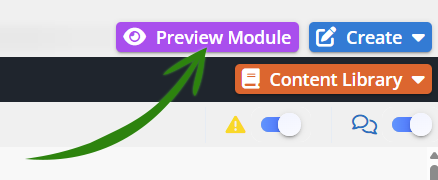
Step 1: Click PREVIEW MODULE
The purple button in the upper right opens the Preview Module interface.
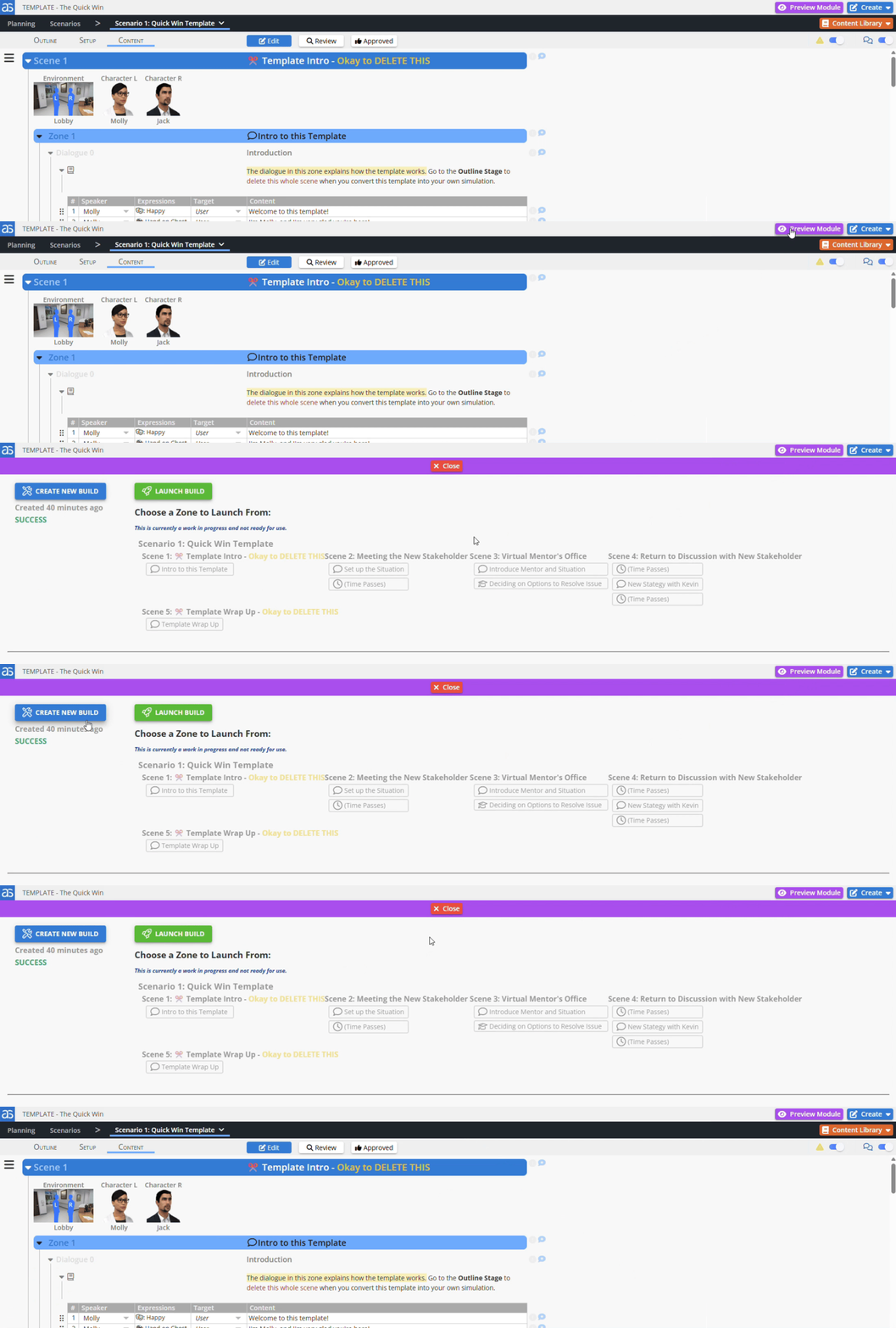
Step 2: Click CREATE NEW BUILD
AliveSim automagically assembles all the components - your game engine, conversation engine, and decision engine - into a working simulation.
Move your mouse if you don't see SUCCESS within a few seconds.
The build process is usually very fast for most modules.
Step 3: Click LAUNCH BUILD
Your module opens in a separate browser tab, ready to experience.
You'll see the Development Build watermark on the splash screen.
The Special Review Features are also available in the Main Menu, to help with testing.
Everything works just like it will in a Dev Build.
Step 4: Experience Your Module
Click through your scenario as a learner would. Notice:
How situations flow into decisions
Whether character interactions feel natural
If coaching feedback lands effectively
Overall pacing and engagement
Step 5: Return to Editing
When you're done reviewing:
Close the Preview browser tab.
Return to your AliveSim Studio tab.
Click the red X Close button on the purple bar at top of the Preview Module interface.
You're right back where you left off, so you can continue working.
The Edit-Test-Refine Cycle
Preview shines during the polishing phase when you're making refinements and want quick feedback.
Your typical workflow:
Make changes in any stage (Outline, Setup, or Content)
Click PREVIEW MODULE → CREATE NEW BUILD
Click LAUNCH BUILD to test
Close the preview and return to Studio
Make more refinements
Repeat as needed
💡 New builds are fast! Since Preview builds generate in seconds, you can iterate quickly through multiple test cycles while polishing your module.
When a Build Fails
Sometimes when AliveSim assembles all the components, it runs into an error and fails to create a new build. Then you'll see FAILURE instead of SUCCESS. Don't panic!
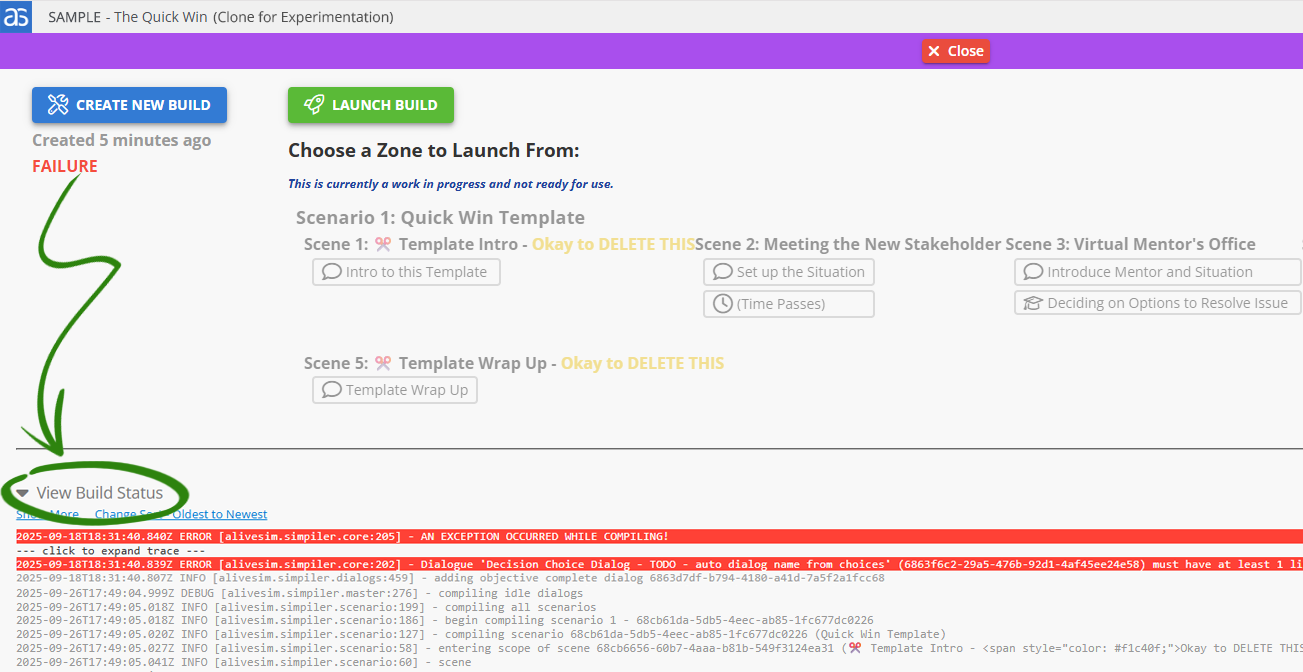
⚠️ Troubleshooting Failed Builds
Click the View Build Status triangle to see what went wrong. Yes, the technical details are a bit cryptic and we're working on that!
Most common causes:
Empty dialogue lines (missing content in zones)
Missing required content in scenes or zones
Configuration issues in Setup stage
Once you fix the issue, simply try to build again. The error log will update each time you attempt a new build.
Best Practices for Preview Testing
When to create Preview builds:
After completing each major draft of your module
When you want to check overall flow and pacing
Before internal team reviews with colleagues
After making significant dialogue or decision changes
Before creating Development Builds for external reviewers
What to check during Preview:
Character interactions: Do conversations feel natural?
Decision flow: Do situations lead smoothly to decision points?
Coaching feedback: Does feedback guide without feeling judgmental?
Pacing: Are interaction points spaced well? (Remember the one-minute rule.)
Visual elements: Do panels appear when expected?
Technical function: Do all zones, decisions, and events work?
Preview vs. Development vs. Final Builds
Understanding when to use each build type helps you work efficiently:
Ready to Test Your Work?
You've built something amazing - now see it in action! Click that purple PREVIEW MODULE button and experience what your learners will.
Remember: every Preview is an opportunity to make your scenario even better. Test early, test often, and refine until it's exactly what you envisioned.
Your Next Steps:
Create your first Preview build and experience the module.
Check dialogue flow and character interactions.
Verify that decision points work as intended.
Share with internal team members for feedback.
Make refinements based on what you discover.
When ready for external review, create a Development Build.
Your module is waiting to come alive. Let's see what you've created!
Powered by Syandus Immersive Learning Technology