Groups Tab Overview
Last updated 6 months ago
Open this article in a new browser tab.
A Gateway for Learner Access
You've built something impactful - now it's time to get it to the people who need it! The Groups tab is where you control exactly who can access your modules and how you'll measure their success.
Think of Groups as portals that allow you to control who can access your modules, strategically and with precision. You're about to take complete control of your module distribution.
🔍 Why Groups Matter: Every audience is different. Your new hire training shouldn't go to senior managers, and your refresher content needs different tracking than your initial certification modules. Groups solve this beautifully.
What Groups Actually Are
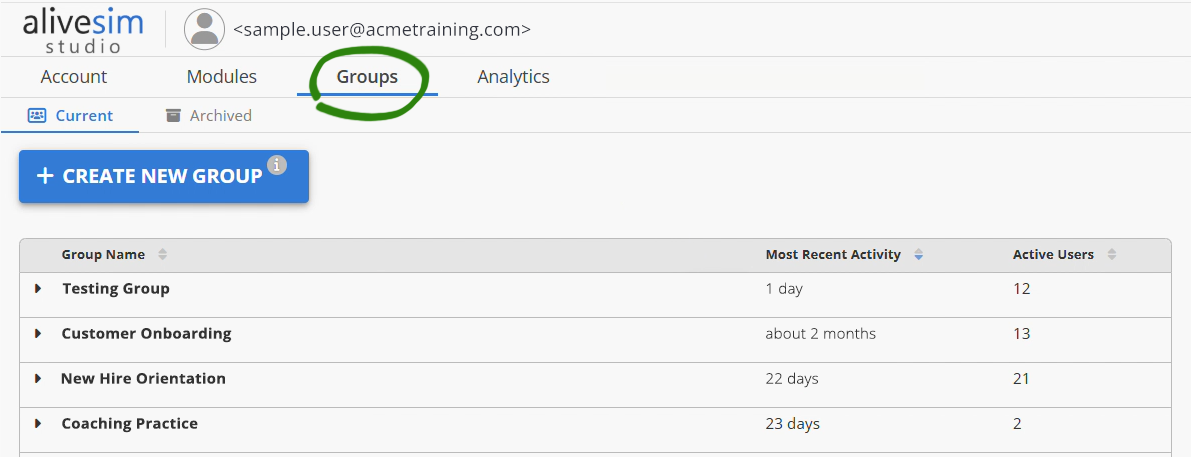
A Group is simply a definitive set of module builds, and the specific audience of reviewers and end-users who has access to them. But it’s more powerful than that.
Each Group Creates Its Own Universe:
Unique access link for that specific audience
Separate analytics tracking so you can see how different groups perform
Custom access controls: only the right people get in
Flexible module combinations: mix and match what each audience sees
How Groups Connect Your Work to Your Audience
Here's the workflow that puts you in complete control:
Create Your Group. Define your audience with a meaningful name like "Q2 Sales Training" or "New Manager Onboarding."
Add Modules to the Group. Choose which modules this audience should access – there could be one module or several.
Set Access Permissions. Control who can get in, using email addresses or domain names (like @yourcompany.com).
Share the Link. Each Group generates unique launch links for the modules you assign to it. You then share those links with the intended audience.
💡 Why Separate Groups Matter: Create separate Groups for testing vs. real deployment to keep your analytics organized.
When you create a "Manager Training - BETA" for internal review and "Manager Training - LIVE" for actual learners, your analytics users can see clear, separate options for each audience. Without this separation, people trying to view live learner data might accidentally click on beta testing results, making it harder to get the insights they need.
Building Your First Group
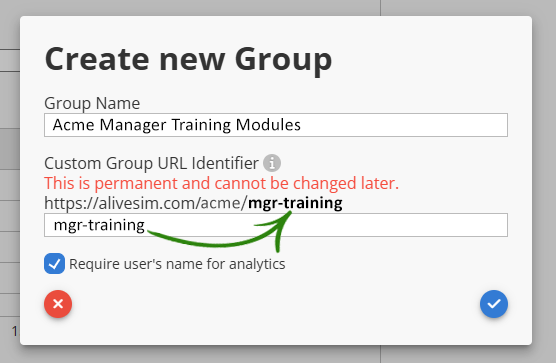
Group Name: Make it meaningful! "Sales Team Q3" tells you exactly what this is six months from now.
Custom URL Identifier: This becomes part of your launch link, making it easy for you to recognize which Group a link came from when you're managing multiple distributions. Choose something meaningful like "acme-sales-training" rather than some generic identifier.
⚠️ One-Time Decision: The URL identifier can't be changed later, so choose thoughtfully. Your learners will see this in their link!
Access Control - Controlling Who Gets In
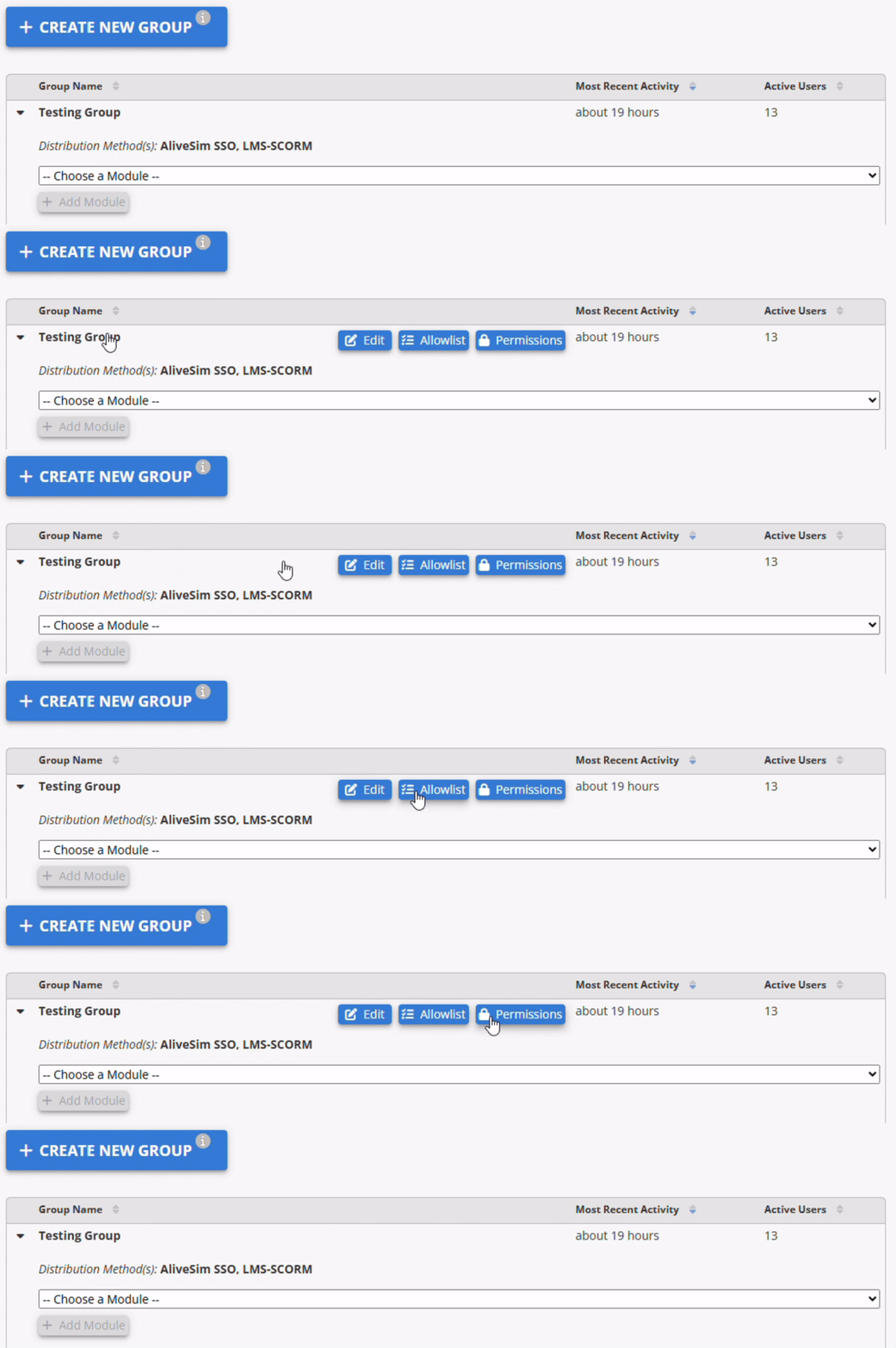
Just hover over a Group Name to reveal the access control interface. The Allowlist is where you set up access to all modules added to the Group.
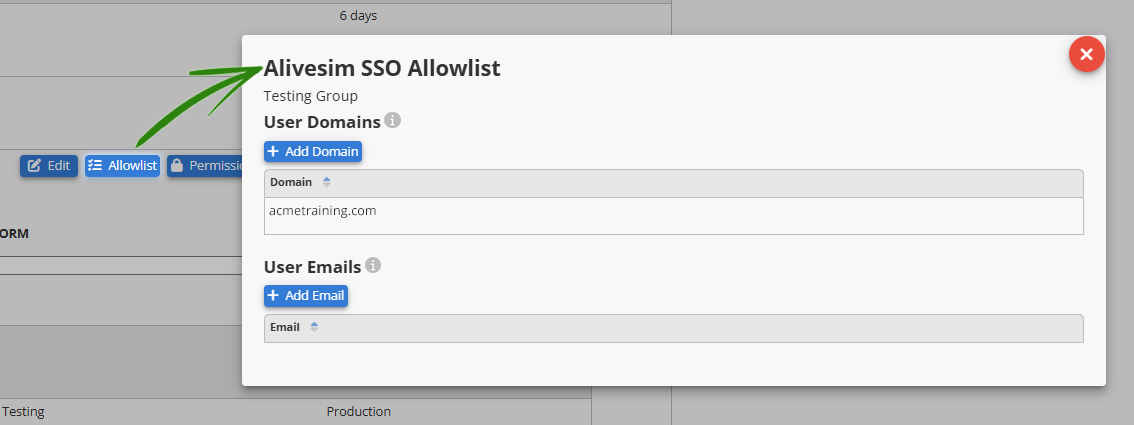
Groups give you precise control over who gets access to the module builds that are added to that Group:
Individual Email Addresses: Perfect for small, specific groups or when you need exact control.
Domain Access: Add "@yourcompany.com" and everyone with that email domain can access. Great for company-wide training.
Now, you can just select the module builds that you want to add to your group.
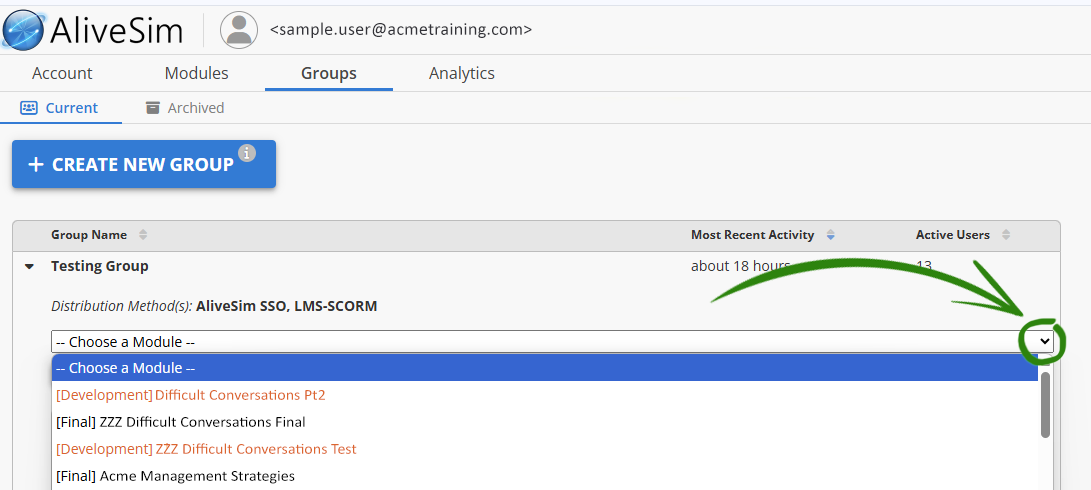
From Groups to Launch Links
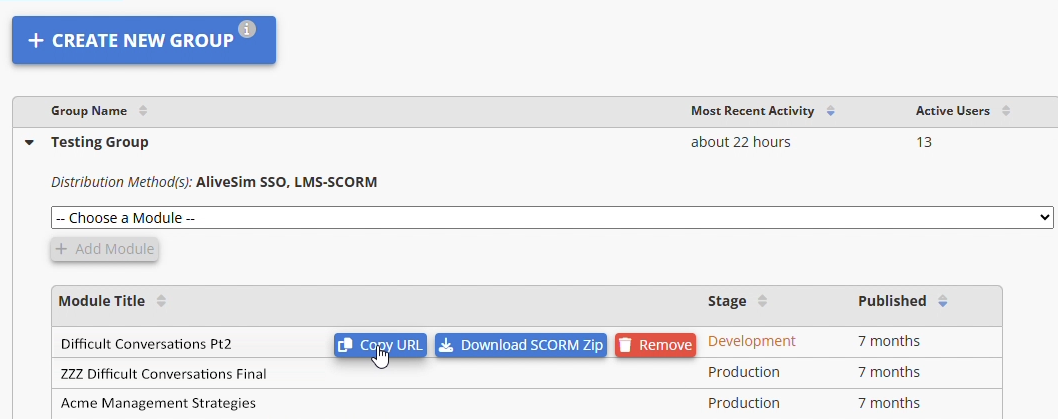
Hover over module builds in a Group to show the launch link options.
Once your Group is set up, here's how learners access your modules:
Automatic Link Generation: Each module in your Group gets its own unique launch link.
Access Verification: When someone clicks the link, they verify their email with a simple code. If they’re not on the Allowlist, they can’t get in.
Separate Analytics: Each Group tracks separately, so you can measure specific audience performance.
💡 Distribution Made Easy: Copy the launch link, send it in emails, post it on a Teams site, or share it in chat. The access control travels with the link!
Enterprise Distribution: SCORM Integration
For organizations with Learning Management Systems, AliveSim supports SCORM 1.2 integration. Instead of sharing launch links, you can download a SCORM package for any module in the Group, and upload it directly to your LMS.
🔍 LMS Integration: SCORM packages work with most learning management systems and don't require the email verification process. We'll cover the technical setup details in our SCORM Integration guide for LMS administrators.
Analytics Organization - The Hidden Superpower
Groups don't just control access, they organize your analytics too.
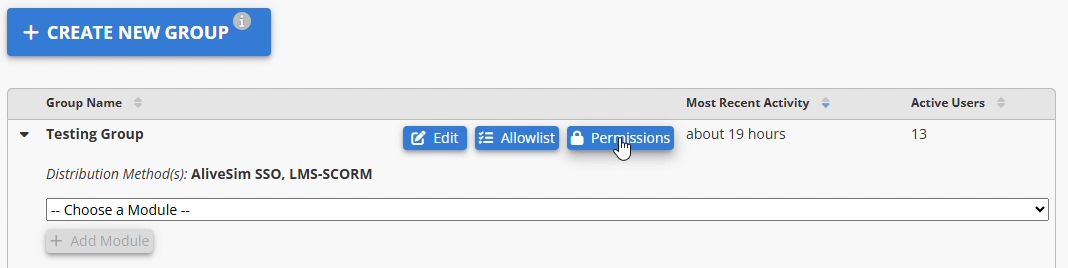
The Permissions button is where you designate who can look at the Analytics for all the modules that are added to the Group.
Analytics Benefits You'll Love:
Audience Comparison: How do new hires perform vs. experienced staff on the same content?
Content Performance: Which modules resonate most with managers vs. individual contributors?
Rollout Tracking: Compare pilot group results before broad deployment.
Continuous Improvement: Use Group analytics to refine your targeting and content strategy.
Your Module Distribution Hub
There are multiple strategies for organizing and distributing your modules to different audiences.
Common Group Strategies:
The Testing Strategy: Create "Module Name - BETA" groups for internal review before creating "Module Name - LIVE" groups for learners.
The Audience Strategy: Segment by role, experience level, or geography for targeted analytics.
The Rollout Strategy: Start with pilot groups, measure success, then expand to broader groups.
The Update Strategy: Create new Groups for updated content while keeping historical analytics separate.
Ready to Connect Your Creation to Your Audience?
🔍 Haven't Created Builds Yet? No problem! You'll need Development or Final Builds before you can add modules to Groups. Check out our Module Build Modes article to get started with that process.
Your Next Steps:
Plan Your Audiences - Who needs access to what content?
Create Your Groups - Start with your most important audience.
Add Your Modules - Connect your builds to the right Groups.
Set Access Controls - Define who gets in.
Share and Measure - Distribute links and watch the impact happen.
The Impact You've Been Working Toward
You've poured creativity and expertise into your modules. Groups ensure they reach exactly the right people at exactly the right time, with the measurement tools you need to prove their value.
💡 Remember: Every Group you create is a strategic decision about audience, access, and analytics. Use this power wisely, and your modules will create measurable impact across your organization!
Your audience is waiting. Let's get your amazing content into their hands!
Powered by Syandus Immersive Learning Technology