Profile Questions
Last updated 7 months ago
Open this article on a separate browser tab.
Welcome to Profile Questions
This is where you'll create questions that gather important information about your learners before they begin any module in this Group. Profile questions help you understand who your learners are, and their responses become powerful filters for analyzing performance data in Analytics.
🔍 The Question System in AliveSim: AliveSim Studio has three separate question tools that share similar components but serve different purposes. This article describes the Profile Questions interface, which gathers learner demographics and background information at the Group level. The other two tools are Questions (for assessment and opinion questions in pretests and scenarios), and Survey (for post-module feedback). We'll point out the key differences as we go.
How to Access Profile Questions
Profile Questions is accessed from the Groups tab, not the Content Library like Questions and Survey.
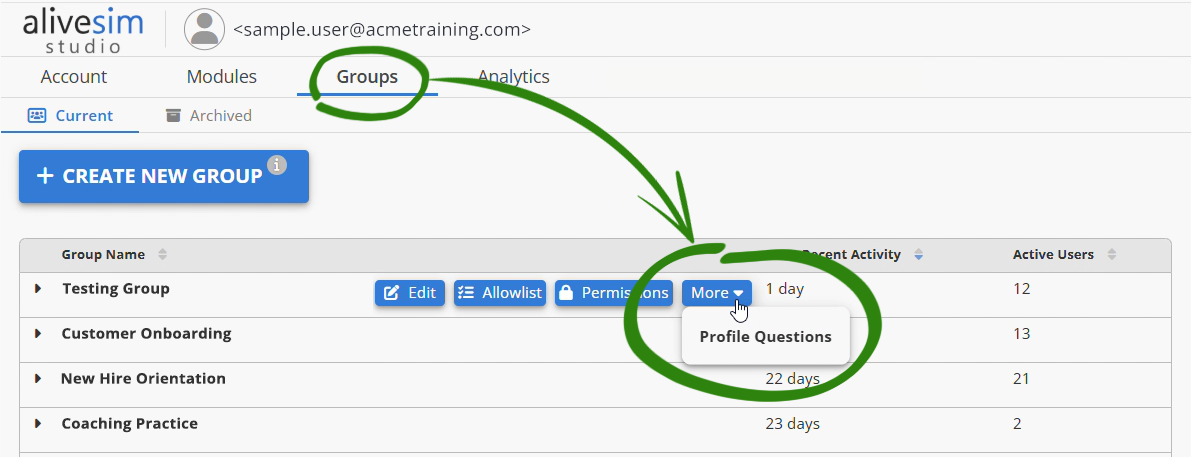
When viewing your Groups, hover over a Group name to reveal action buttons, then click More > Profile Questions to access this interface.
Understanding Profile Questions
Profile questions serve a unique purpose in the learning experience:
When Learners See Them: Profile questions appear to the learner the first time they launch each module in the Group. The questions must be answered before the module can begin.
What They're For: Use them to gather demographic information, background experience, job roles, specialties, and other learner characteristics that help you segment and analyze performance data.
Why They Matter: Profile responses become filters in Analytics, letting you compare how different learner segments perform. For example, you might filter results by department, experience level, or specialty to identify targeted training needs.
⚠️ Keep Profile Questions Brief: Profile questions are never optional - learners must answer them before accessing any module content. Too many Profile questions create a barrier to participation. Ask only what you truly need for meaningful analytics filtering. If learners also face pretest questions after the Profile, the barrier becomes even higher.
🔍 Profile vs. Questions vs. Survey: Profile asks "Who are you?" before modules begin. Questions ask "What do you know?" before and during scenarios. Survey asks "How was the experience?" after module completion. Each serves a distinct purpose at different points in the learning journey.
The Profile Questions Interface
When you open Profile Questions, you'll see four blue component buttons that let you gather different types of learner information.

Important: None of the Profile components can be used for knowledge assessment. You cannot mark any responses as "correct." Profile questions gather information about learners, they're not meant to evaluate learner knowledge.
Each component serves a specific purpose:
Name: Pre-formatted fields for capturing learner names.
Dropdown: Selection from longer lists (3+ options).
Multiple Choice: Standard questions with 2-8 response options.
Text: Static labels, headings, or instructions (not a question). You can add as many instances of the last three components as you need. However, the Name component can only be used once per profile.
Rearrange components by dragging the six-dot icon on the left edge of their blue name bars.
Name Component
The Name component provides pre-formatted fields for capturing learner names.

When to Use Name
Use the Name component when you need to:
Identify learners in analytics reports.
Track individual learner progress.
Match learner data with organizational records.
Pre-Formatted Fields
The Name component automatically creates four text entry fields:
Honorific Prefix (Dr., Mr., Ms., etc.)
First Name
Last Name
Honorific Suffix (Jr., Ph.D., etc.)
Learners simply type their information into each field.
Dropdown Questions
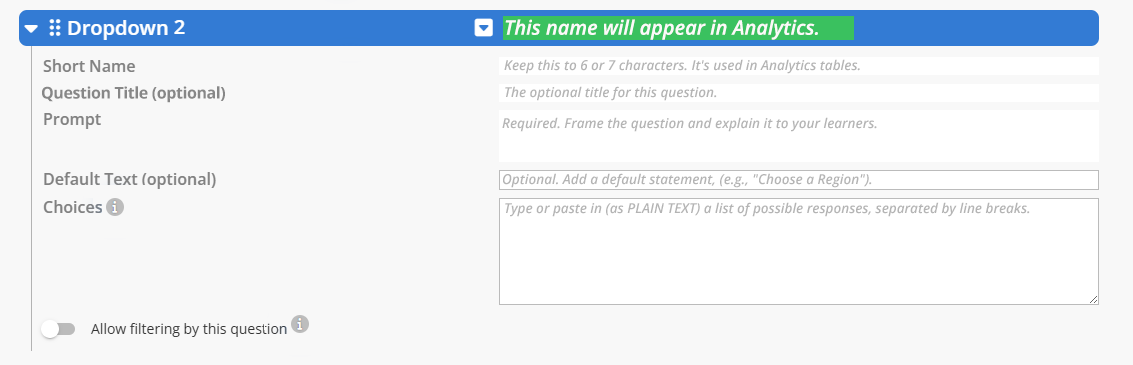
Dropdown questions present learners with a selection menu - ideal for longer lists where displaying all options at once would be overwhelming.
When to Use Dropdown
Dropdown questions work best for:
Long lists: Professional roles, departments, regions, specialties.
Categorization: "Which department do you work in?"
Experience levels: "How many years have you worked in this field?"
Reducing visual clutter: When you have 5+ options.
🔍 Dropdown vs. Multiple Choice: If you have 2-4 options, use Multiple Choice so learners can see all choices at once. Save Dropdown for 5+ options where scanning a list makes more sense than viewing everything simultaneously.
Required Fields
Question Name: The name that appears in the blue component bar and in Analytics.
Short Name: An abbreviated version used in Analytics tables where space is limited.
Prompt: The question learners see.
Choices: The list of options learners can select from.
Optional Fields
Question Title: A header that appears above the prompt.
Default Text: Placeholder that appears at the top of the dropdown before learners make a selection (like "Select your department...").
Creating the Choice List
Enter each choice on a separate line in the Choices field. You need at least 3 choices for a dropdown.

Analytics Options
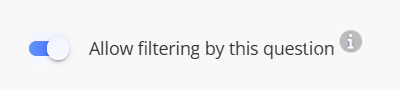
Allow filtering by this question: Turn this ON to use responses as a filter in Analytics (to segment aggregated learner performance data by responses to this question). This is typically what you want for Profile questions.
Multiple Choice Questions
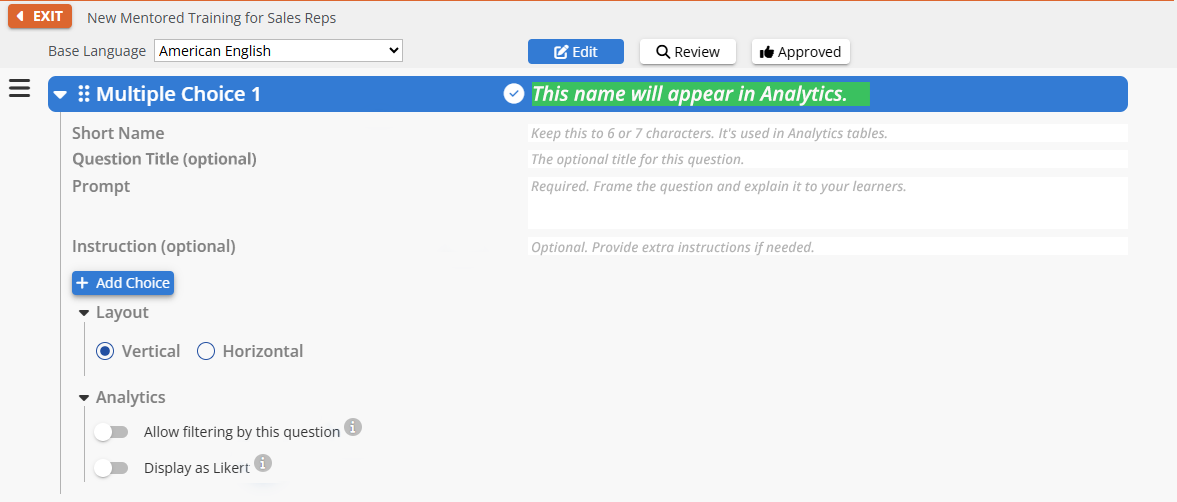
Multiple Choice questions in Profile gather information about learners using a limited set of response options. Unlike the Questions interface, Profile questions cannot have correct answers or rationales.
⚠️ Always Opinion Questions: If you're coming from the Questions interface, note that Multiple Choice questions in Profile are always for gathering information, never for assessment. You cannot mark answers as correct or provide rationales. This tool asks learners about themselves, not about their knowledge.
When to Use Multiple Choice
Multiple Choice questions work best for:
Experience levels: "How familiar are you with this topic?"
Role information: "Which best describes your current role?"
Background assessment: "Have you completed training on this topic before?"
Preference gathering: "What is your preferred learning format?"
Required Fields
Question Name: The name that appears in the blue component bar and in Analytics.
Short Name: An abbreviated version used in Analytics tables where space is limited.
Prompt: The question learners see.
Optional Fields
Question Title: A header that appears above the prompt.
Instruction: Additional guidance for learners, formatted to stand out from the prompt.
Adding Choices
Click the "+Add Choice" button to create response options. You need at least two choices, but three to six typically works best.
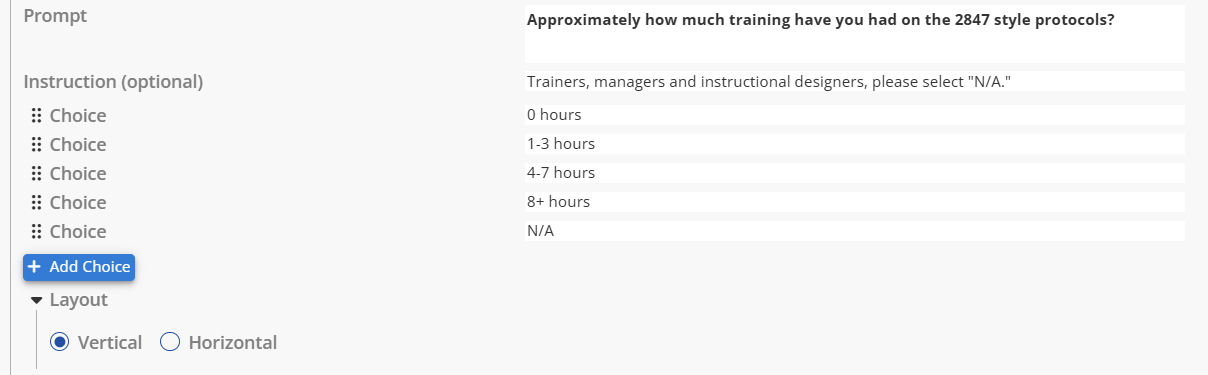
For each choice, you'll enter the choice text that learners will see.
Layout Options
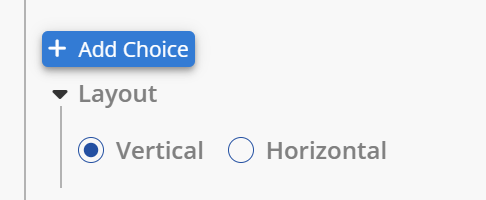
Choose whether choices appear vertically (stacked) or horizontally (side-by-side). Vertical works better for longer choice text, horizontal for short phrases or single words.
Analytics Options
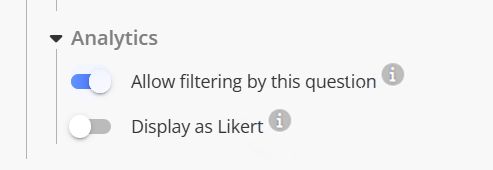
Two toggle buttons control how this question's data appears in Analytics:
Allow filtering by this question: Turn this ON to use responses as a filter in Analytics (to segment aggregated learner performance data by responses to this question).
Display as Likert: Turn this ON when choices represent a scale (i.e., "strongly agree" to "strongly disagree"). You can configure Likert data to display as either an ascending or descending scale in Analytics, as well as exclude specific choices from the scale.
Text Components
Text components aren't questions at all: they're labels, headers, or instructions you can insert into your Profile.

When to Use Text
Text components work best for:
Section headers: "About Your Background."
Instructions: "Please select the options that best describe your current role and experience."
Context: "This information is used only for analytics and will not be shared."
Visual breaks: Separating different types or topics of questions.
The Text Field
Simply enter the text you want learners to see. The text field includes full formatting options:

You can format text with:
Various heading styles and text sizes
Bold, italic, underline, superscript, subscript
Text and highlight colors
Bulleted and numbered lists with multiple indent levels
Left, center, and right justification
💡 Organization Tip: Use Text components to explain why you're asking for learner information. A brief note like "This helps us analyze training effectiveness across different roles and experience levels" can increase completion rates and data quality.
Required Fields
Question Name: How the component is identified in the system.
Text: The text that is displayed to learners.
Organizing Your Profile
Rearranging Components
Drag any component using the six-dot icon on the left edge of the blue name bar to reorder your Profile questions.
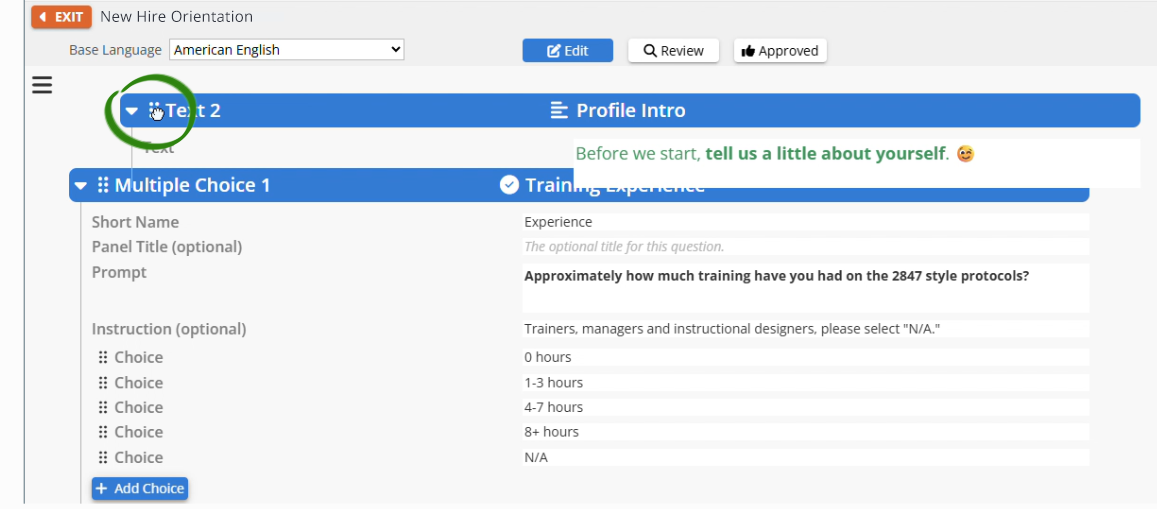
This lets you arrange questions in a logical flow that makes sense for learners.
Deleting Components
Hover over a component's blue name bar to reveal the red trashcan icon. Click it to delete that component.
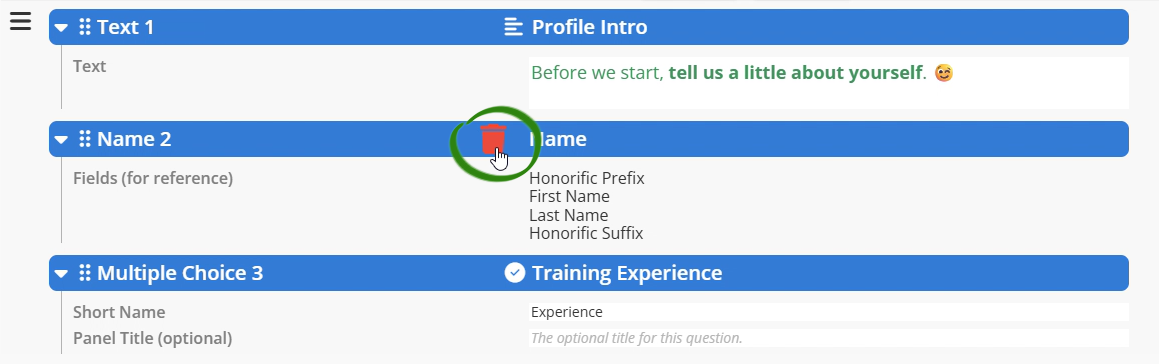
⚠️ Deletion is Permanent: Once you delete a component, you can't undo it. The question or text, along with all the features and formatting you set up for it, is removed from your Profile.
Publishing Your Profile
Profile questions must be published before learners will see them.
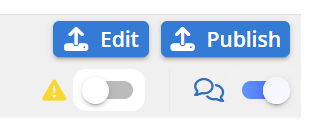
The Edit and Publish Workflow
When you're creating or editing Profile questions, you're in Edit mode. Changes you make here don't affect learners until you publish them.
To publish your Profile:
Click the Publish button in the upper right corner
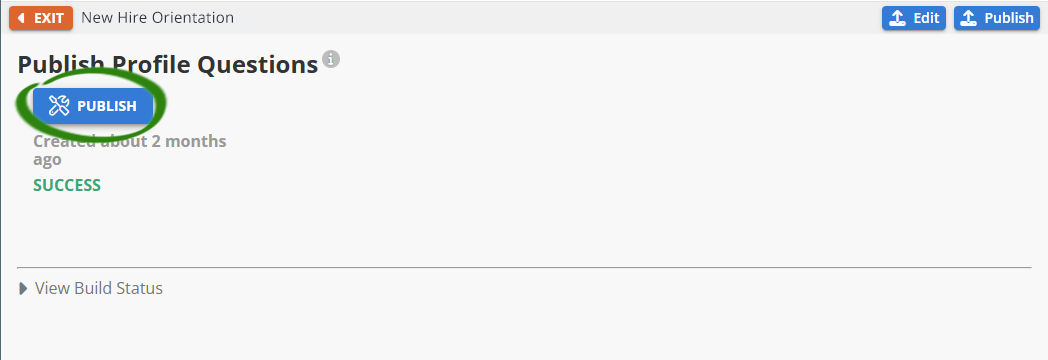
The interface switches to show publishing options
Click the blue PUBLISH button to make your changes live
Click the Edit button in the upper right to return to editing mode
When Learners See Profile Changes
New Profile questions: When you publish new questions, all learners will see them the next time they access any module in this Group - even if they've already answered previous Profile questions.
Edited questions: If you modify a question that was previously published, learners who already answered the original version won't see the edited version again. Only learners who haven't yet accessed modules in this Group will see your changes.
🔍 One Profile Per Group: All modules in a Group share the same Profile questions. If you need different questions for specific modules, create separate Groups for those modules. Remember, the same module can be published to multiple Groups if you want to collect different demographic information from different learner populations.
Strategic Profile Design Tips
Ask Only What You'll Use
Every Profile question is a hurdle before learners reach the content they came for. Make each question count.
Better Practice: 3-5 essential questions that enable meaningful analytics filtering.
Avoid: 10+ questions that gather "nice to have" information you won't actually use.
Match Question Type to Purpose
Use Dropdown for: Long lists of departments, roles, specialties, or regions.
Use Multiple Choice for: Short lists of experience levels, training history, or preferences.
Use Text for: Clear explanations of why you're gathering this information.
Use Name for: Identifying individual learners in reports.
Enable Analytics Filtering
For questions you'll use to segment performance data, always turn ON "Allow filtering by this question." This makes responses available as filters in Analytics, letting you compare how different learner groups perform.
💡 Think About Your Reports: Before adding a Profile question, ask yourself: "Will I use this to filter analytics data?" If the answer is no, consider whether you really need it. Profile questions should serve your analytical goals, not just satisfy curiosity.
Consider Learner Privacy
Profile questions are required. Learners can't skip them. Be thoughtful about sensitive information:
Ask only what's necessary for legitimate educational or analytical purposes.
Use Text components to explain how data will be used.
Consider whether demographic categories are inclusive and appropriate.
Remember that learners may share devices or be in public spaces.
Profile vs. The Other Question Tools
We're describing the Profile Questions interface here, but AliveSim has two other question tools. Here's when to use each:
Profile Questions (this article):
Information about the learners themselves (not about module content).
Gathered at the Group level before modules begin.
Used for analytics filtering.
Questions:
Assessment and opinion questions for pretests and scenarios.
Can have correct answers and rationales.
Used for measuring knowledge and gathering perspectives during the learning experience.
Survey:
Post-module feedback and evaluation.
Appears after the module completion.
Used for course improvement and learner satisfaction data.
🔍 Wrong Place? If you're trying to assess knowledge or measure learning gain, you want the Questions system instead. If you're trying to gather feedback after the module, you want Survey. Those are both found in the Content Library on the Modules tab.
Ready to Create Your Profile?
You now understand how to use Profile Questions to gather essential learner information at the Group level.
TASK LIST:
Keep Profile questions brief (3-5 questions maximum).
Ask only what you'll use for analytics filtering.
Enable filtering for question responses you'll use to segment data.
Use Text components to explain why you're gathering information.
Publish your Profile so learners can see the questions.
Remember that new questions trigger for all learners, but edited questions don't retrigger.
Test your Profile by accessing a module in the Group yourself.
Profile questions are your foundation for understanding your learners and analyzing performance patterns. Use them strategically to gather the insights that will help you identify learning needs and measure training effectiveness across different learner populations.
Your Profile is ready. Your learner data will illuminate your analytics. Let's understand who we're teaching.
Powered by Syandus Immersive Learning Technology