Clone and Edit Your First Module
Last updated 7 months ago
Open this article in a new tab
Ready to Create? Let's Go!
In the next 30 minutes (or less), you'll transform placeholder content into your own interactive demo.
Think of this as your AliveSim test drive.
1️⃣ Test Drive with + Sample Module.
START HERE. Clone the working ⭐Start Here - Your First Demo module and customize it to create your first demo.
Explore other sample modules that showcase and best practices.
2️⃣ Create Learning Experiences with + Create New Module.
The complete AliveSim Studio creation experience where you start with Performance Gaps - the foundation that sets up your situations, decision points, choices, and coaching feedback all at once.
When you’re ready, this is where you go to create each learning module.
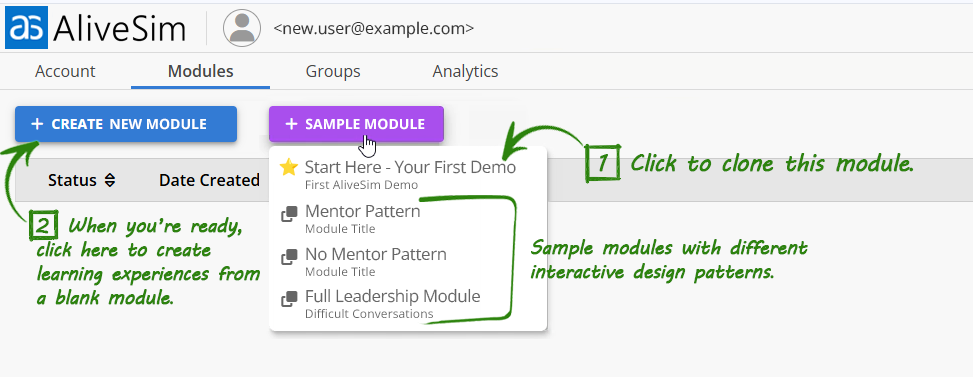
How to Clone a Sample Module
Step 1. Click on + SAMPLE MODULE.
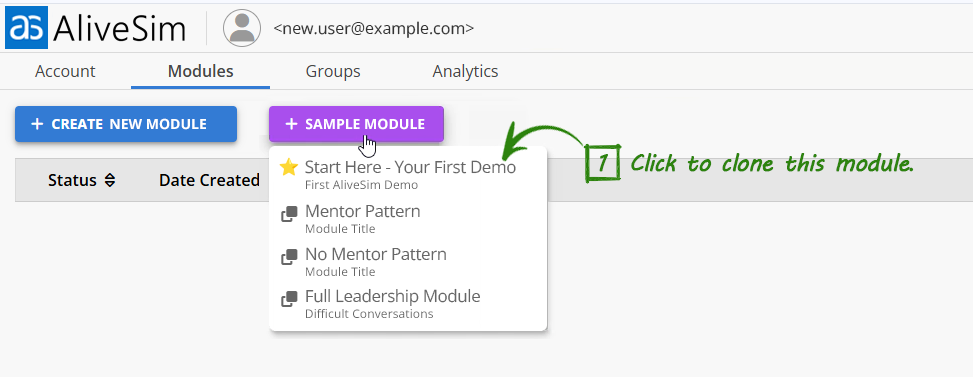
Step 2. Click on ⭐Start Here - Your First Demo module to clone it.
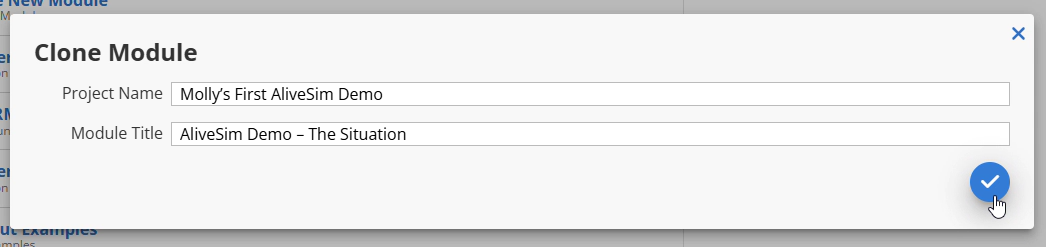
Step 3. Give your module clone its own Project Name and Module Title (you can change these later). Click the ✓ to start the cloning process.
Step 4. Your new template clone will show in your module list.
⚠️ The cloning process may take several seconds to complete, but your new module will appear in the list!
Your Module List
Once you clone a template, you'll see it appear in your module list alongside any other modules you create or get permission to see.
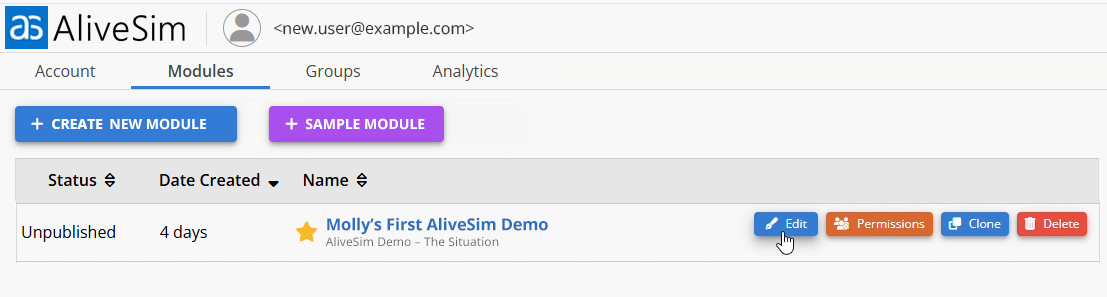
In this view, you can do several things with any module:
Edit: What you'll do next! This opens the module for customization.
Permissions: Share the module with team members for collaboration.
Clone: Make a copy (great for backups and creating variations).
Delete: Remove modules you no longer need.
Star: Mark your favorites for easy access.
What's Next: Your First Edit
Find your renamed template clone in the module list and hover over it to show the options.
Click EDIT and we’ll take a look inside!
You’ll get another Help article, like this one, to explore the Module Creation Process.
⚠️ If you don’t see the Module Creation Process help panel pop up, click the lower right help widget, select help, and type “module creation process”.
The Bigger Picture
This test drive approach gets you creating quickly, but it's just the beginning. Once you see how AliveSim works - how conversations flow, how decisions create impact, how feedback shapes learning - you'll be ready for the full AliveSim Studio creation experience.
💡 Your Learning Path: Start with templates to get a quick win and experience different interactive approaches → Then transition to creating from a blank module with module planning (which is actually faster when starting fresh!)
Ready to Transform That Placeholder Content?
Your first AliveSim module is about to come to life. Let's make it happen!
You're about to experience why creators love building with AliveSim. The power is in seeing your ideas become conversations, pivotal decisions, and expert guidance that actually change how people perform.
Powered by Syandus Immersive Learning Technology