Questions in Content Library
Last updated 7 months ago
Open this article on a separate tab.
Welcome to the Questions Interface
This is where you'll create questions that can appear either before your module begins (as a pretest) or within scenarios themselves (in Question Zones).
🔍 The Question System in AliveSim:
AliveSim Studio has three separate question tools that share similar components but serve different purposes.
You're currently in the Questions interface, which creates assessment and opinion questions for your modules.
The other two tools are Profile Questions (for gathering learner information at the Group level), and Survey (for post-module feedback). We'll point out the key differences as we go.
Why Question Zones vs. Decision Zones?
You might wonder: "When should I use a Question Zone instead of a Decision Zone in my scenarios?" Here's the key distinction:
Question Zones are best for:
Knowledge checks (can learners recall the correct information?)
Pre/post-testing to measure knowledge gain
Gathering opinions about scenarios or approaches
Simple assessment without coaching
Decision Zones are best for:
Applying knowledge in realistic situations
Multiple optimal approaches that all work
Providing personalized coaching feedback
Building pattern recognition through practice
💡 Strategic Tip:
Decision Zones with expert coaching are more powerful learning tools than traditional Question Zones. Use Question Zones strategically for knowledge verification, but rely on Decision Zones for the behavior-changing practice that makes AliveSim unique.
The Questions Interface Overview
When you open the Questions section of the Content Library, you'll see four blue component buttons. These will allow you to set up three different question types for use in any Question Zone in your module.
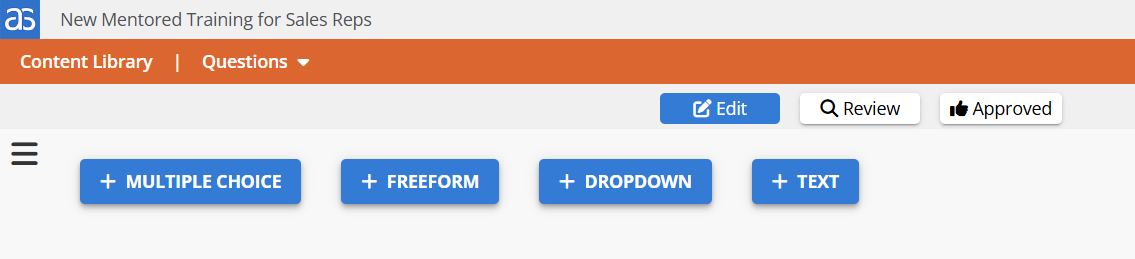
Each component serves a specific purpose:
Multiple Choice: Standard questions with 2-8 response options
Freeform: Open text responses from learners
Dropdown: Selection from longer lists (3+ options)
Text: Static labels, headings, or instructions (not a question)
You can add as many of each component as you need, and rearrange them by dragging the six-dot icon on the left edge of each component's blue name bar.
⚠️ Remember: Questions you create here don't automatically appear in your scenarios. You'll need to either enable them as pretest questions (which appear before the module begins), or add Question Zones to your scenarios during the Outline Stage, and assign these questions to those zones during the Setup Stage.
The same question can also appear in both places to measure learning progress.
Multiple Choice Questions
This is your primary assessment tool - the only question type in AliveSim Studio that can have "correct" answers with rationales.
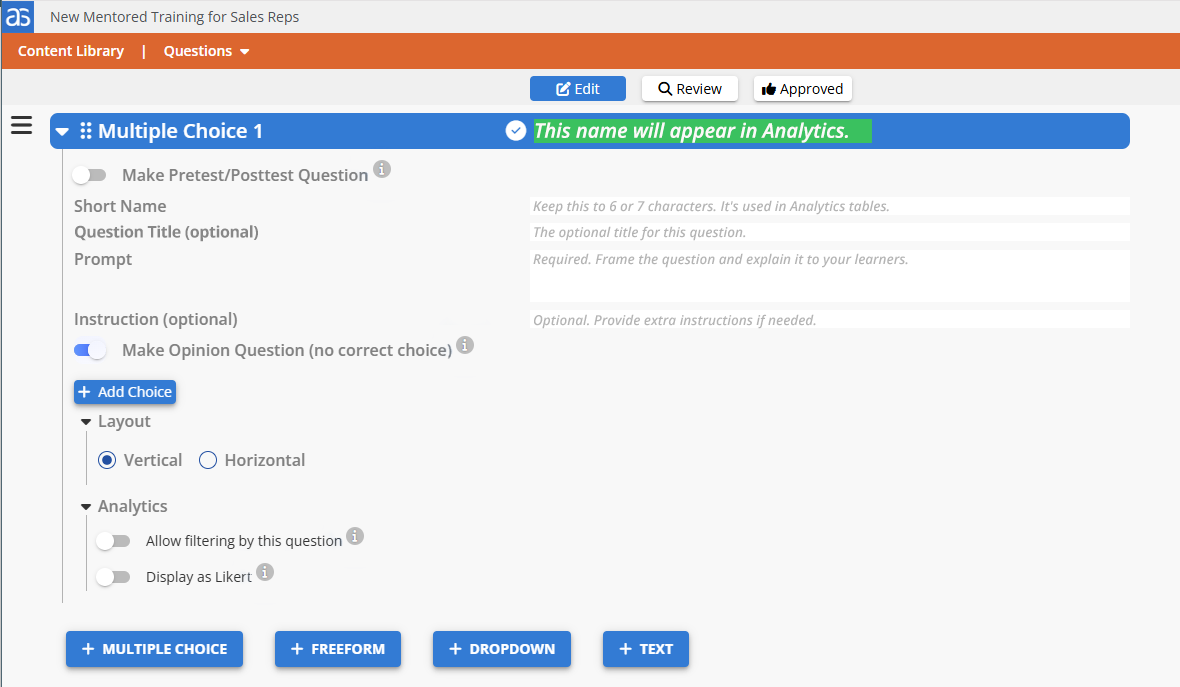
When to Use Multiple Choice
Multiple Choice questions work best for:
Testing knowledge recall: "What is the first step in the procedure?"
Assessing comprehension: "Which approach best addresses this concern?"
Pre/post-testing: Compare learner knowledge before and after the module.
Opinion gathering: "Which factor matters most in your experience?"
Required Fields
Question Name: The name that appears in the blue component bar and in Analytics (this is the full name).
Short Name: An abbreviated version used in Analytics tables where space is limited(keep it brief).
Prompt: The actual question learners will see.
Optional Fields
Panel Title: A header that appears above the prompt (use sparingly)
Instruction: Additional guidance for learners, formatted to stand out from the prompt
Adding Choices
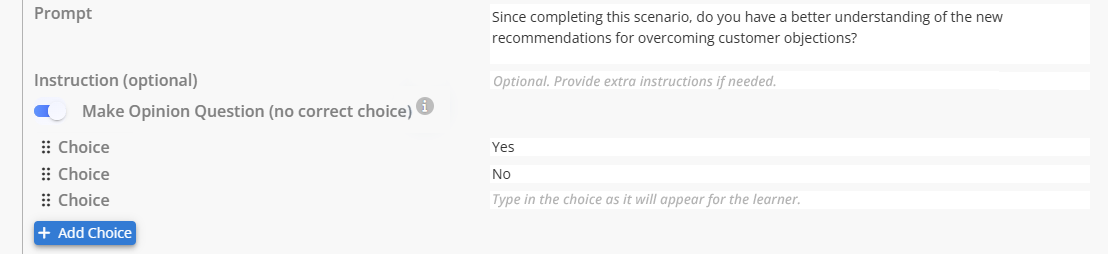
Click the "+Add Choice" button to create response options. You need at least 2 choices, but 3-6 typically works best. Too many choices can overwhelm learners.
Layout Options
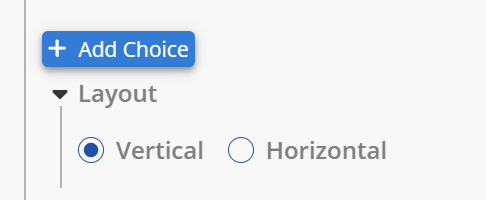
Decide whether choices appear vertically (stacked) or horizontally (side-by-side). Vertical works better for longer choice text, horizontal for short phrases or single words.
Question Type Toggles
This is where Multiple Choice questions in the Questions interface differ from those in Profile or Survey:
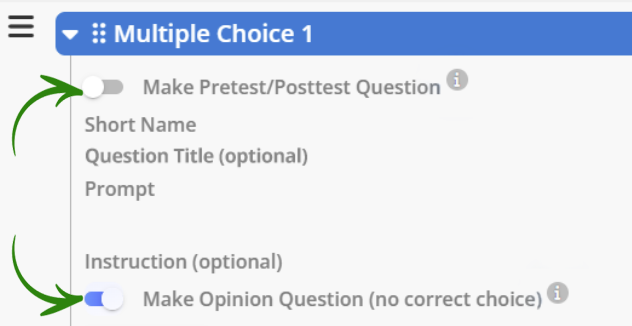
Make Pretest/Posttest Question: Turn this ON to have the question appear before your module begins. You can then re-ask the same question in a Question Zone later in your scenario to measure knowledge gain. This creates a before-and-after comparison that shows learning progress.
Make Opinion Question (no correct choice): Turn this ON when you want learner perspectives rather than assessment. When OFF, the question becomes an assessment where you will then flag one of the responses as the correct answer, and provide a rationale for why that response is correct.
Analytics Options
Two toggle buttons control how this question's data appears in analytics:
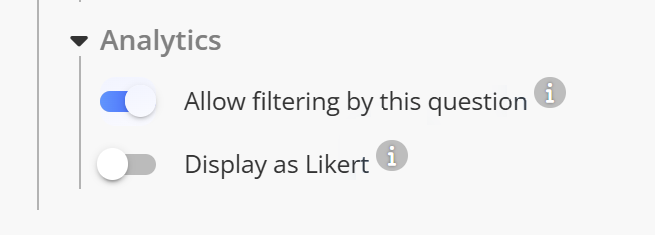
Allow filtering by this question: Turn this ON to use responses as a filter in analytics (to segment aggregated learner performance data by responses to this question).
Display as Likert: Turn this ON when choices represent a scale (i.e., "strongly agree" to "strongly disagree"). You can configure Likert data to display as either an ascending or descending scale in Analytics, as well as exclude specific choices from the scale.
Freeform Questions
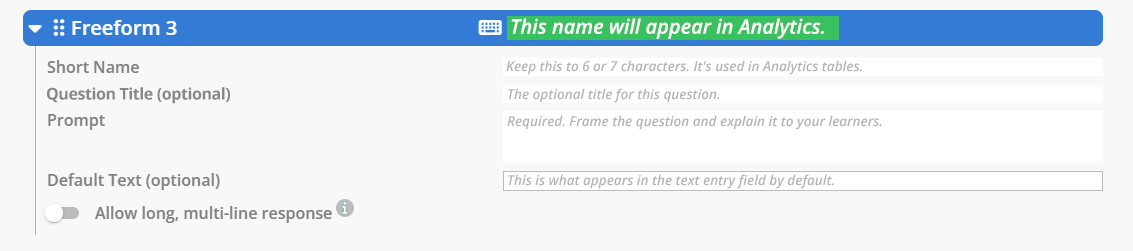
Freeform questions let learners type their own responses instead of selecting from predetermined choices.
When to Use Freeform
Freeform questions work best for:
Gathering detailed feedback: "What challenges did you face in this scenario?"
Capturing personal experiences: "Describe a time when you used this approach."
Collecting specific information: "Enter your employee ID or license number."
Required Fields
Question Name: The name that appears in the blue component bar and in Analytics.
Short Name: An abbreviated version used in Analytics tables where space is limited.
Prompt: The question learners will see.
Optional Fields
Panel Title: Header above the prompt
Default Text: Placeholder text that appears in the entry field before learners type (It disappears when they start typing.)
Response Length Toggle
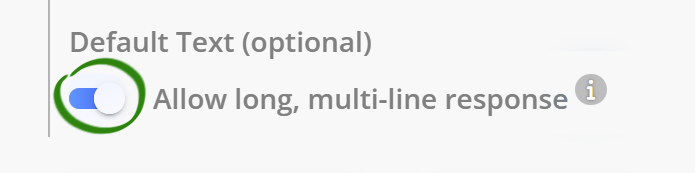
Allow long, multi-line response: Turn this ON for detailed answers that need a sentence or more. Leave OFF for short responses like names, codes, or brief phrases.
Dropdown Questions
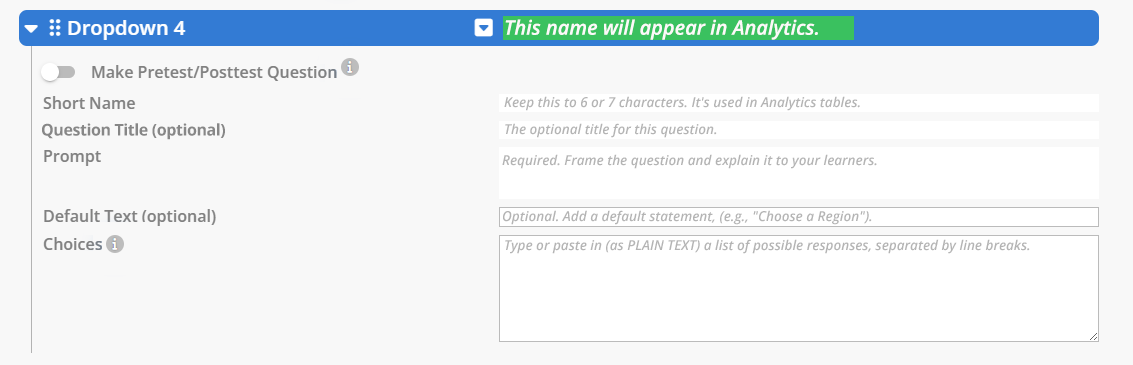
Dropdown questions present learners with a selection menu - ideal for longer lists where displaying all options at once would be overwhelming.
When to Use Dropdown
Dropdown questions work best for:
Long lists: Professional roles, departments, regions, specialties.
Categorization: "Which category best describes your experience level?"
Reducing visual clutter: When you have 5+ options.
🔍 Dropdown vs. Multiple Choice: If you have 2-4 options, use Multiple Choice so learners can see all choices at once. Save Dropdown for 5+ options where scanning a list makes more sense than viewing everything simultaneously.
Required Fields
Question Name: The name that appears in the blue component bar and in Analytics.
Short Name: An abbreviated version used in Analytics tables where space is limited.
Prompt: The question learners see.
Choices: The list of options learners can select from.
Optional Fields
Panel Title: Header above the prompt.
Default Text: Placeholder that appears at the top of the dropdown before learners make a selection (like, "Select your role...").
Creating the Choice List
Enter each choice on a separate line in the Choices field. You need at least three choices for a dropdown.

Pretest/Posttest Toggle
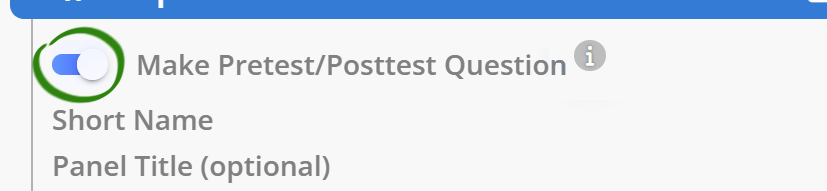
Make Pretest/Posttest Question: Turn this ON to have the dropdown appear before your module begins, allowing you to re-ask the same question in a Question Zone later, to track changes in learner responses or opinions.
⚠️ Behavior Difference: Unlike Multiple Choice questions in the Questions interface, Dropdowns cannot be configured as assessment questions with correct answers. They're always opinion/information gathering tools. However, they can still be used in pretest/posttest pairs to measure shifts in learner perspectives.
Text Components
Text components aren't questions at all. They're labels, headers, or instructions you can insert into your question list.

When to Use Text
Text components work best for:
Section headers: "Questions About Your Experience."
Instructions: "Please answer the following questions about your training needs."
Context: "The next questions relate to the scenario you just completed."
Visual breaks: Separating different types or topics of questions.
Required Fields
Component Name: The name that appears in the blue component bar.
The Text Field
Simply enter the text you want learners to see. The text field includes full formatting options:

You can format text with:
Various heading styles and text sizes
Bold, italic, underline, superscript, subscript
Text and highlight colors
Bulleted and numbered lists with multiple indent levels
Left, center, and right justification
💡 Organization Tip: Use Text components to group related questions together. A clear header like "Pre-Test Questions" or "Scenario Impacts" helps learners understand what you're asking and why.
And don't forget that you can use emojis in the text field too. They're a great way to call attention to an important group of questions.
Organizing Your Questions
Rearranging Components
Drag any component using the six-dot icon on the left edge of the blue name bar to reorder your questions.
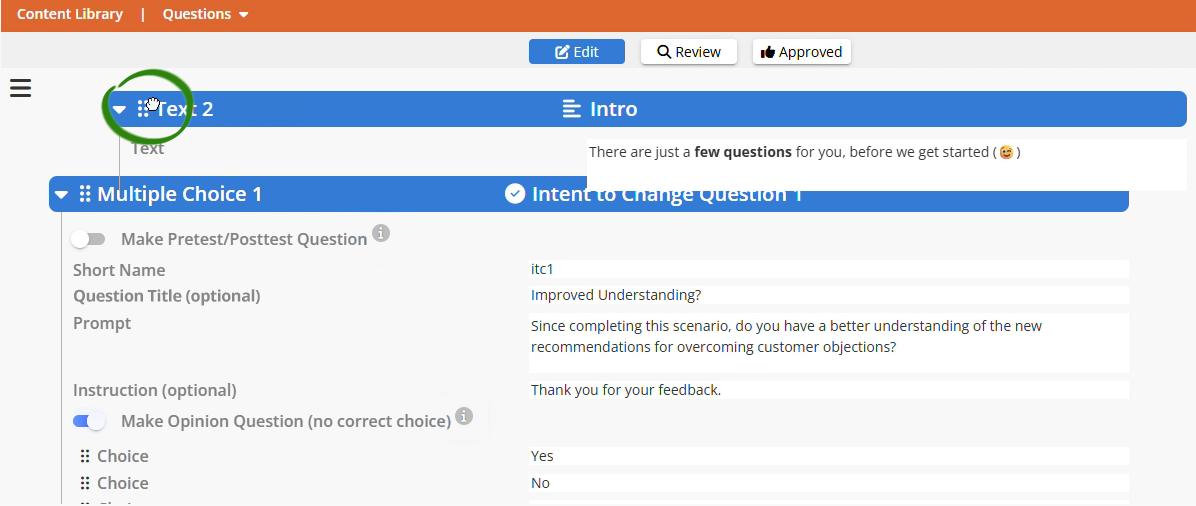
This lets you arrange Multiple Choice and Dropdown questions into a logical order for the Pretest, as well as helping to keep things organized for your own benefit. (The order that components appear inside the Module is determined by how you set them up in your Question Zones.)
Deleting Components
Hover over a component's blue name bar to reveal the red trashcan icon. Click it to delete that component.
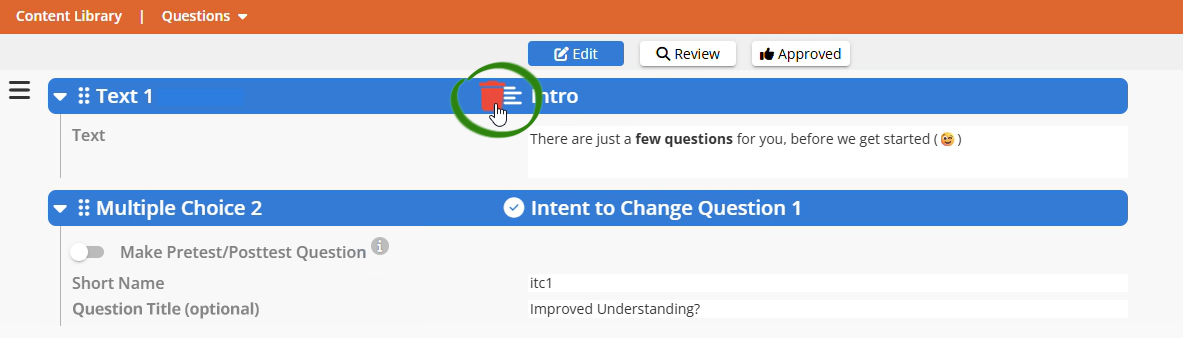
⚠️ Deletion is Permanent: Once you delete a question component, you can't undo it. The question or text, along with all the features and formatting you set up for it, is removed from the Content Library and any zones where it was assigned.
Using Questions in Your Module
Creating questions in the Content Library is just the first step. Here's how they actually reach your learners:
Pretest Questions
Questions with "Make Pretest/Posttest Question" enabled will automatically appear before your module begins. Learners answer these before entering any scenario.
Why this matters: Pretests establish a baseline without revealing correct answers or providing feedback. This measures what learners know coming in, so you can compare it to what they know after the learning experience.
Question Zones - Where Questions Appear in Scenarios
To use questions inside your scenarios, you'll need to:
Create Question Zones during the Outline Stage (where you want questions to appear).
Assign questions and text components from your Content Library to those zones during the Setup Stage.
The questions appear at that point in your scenario when as learners experience it.

🔍 Link to Other Articles: For details on creating and configuring Question Zones, see the Outline Stage Overview and Setup Stage Overview articles.
The Pretest/Posttest Pattern
A common use of questions in AliveSim follows this pattern:
Step 1: Create assessment questions in the Questions interface (Content Library).
Step 2: Enable "Make Pretest/Posttest Question".
Step 3: Questions appear before module with no feedback shown.
Step 4: Create a Question Zone near the end of your scenario.
Step 5: Assign the same questions to that Question Zone.
Step 6: Questions appear again (posttest) - this time showing correct answers and rationales.
The result: Learners experience what they knew before, engage with your learning content, then discover how much they've learned. Analytics tracks the improvement automatically.
💡 Works for Opinion Questions Too: You can use the same pretest/posttest pattern with opinion questions (with no correct answers) to measure shifts in learner perspectives or confidence levels. Did their attitude toward a practice change after experiencing realistic scenarios? The data will show you.
Questions vs. The Other Question Tools
This article is about the Questions interface, but AliveSim has two other question tools. Here's when to use each:
Questions (what we’ve just covered):
Assessment and opinion questions for pretests and scenarios.
Can have correct answers and rationales.
Used for measuring knowledge and gathering perspectives.
Profile Questions:
Information about learners themselves (not about module content).
Gathered at the Group level when learners first access modules.
Used for analytics filtering and personalization.
Survey:
Post-module feedback about the learning experience.
Appears after module completion.
Used for course evaluation and improvement.
🔍 Wrong Place? If you're trying to gather information about who your learners are (job role, experience level, department), you want Profile Questions instead. If you're trying to get feedback after the module, you want Survey.
Ready to Create Your Questions?
You now understand how to use the Questions interface to create assessment and opinion tools for your modules.
Task List:
Decide which knowledge needs verification vs. which skills need Decision Zone practice.
Create Multiple Choice questions for key knowledge checks.
Consider pretest/posttest pairs to measure learning gain.
Use Freeform for detailed feedback that matters.
Add Dropdown only when lists are long enough to warrant it.
Organize with Text components for clarity.
Test your questions in preview builds before final publication.
Questions are your knowledge verification tool. Use them strategically alongside AliveSim's powerful Decision Zones to create a complete learning experiences that both tests knowledge and builds performance skills.
Your questions are ready. Your assessments are configured. Let's help learners demonstrate what they know.
Powered by Syandus Immersive Learning Technology