Outline Stage Overview
Last updated 7 months ago
Open this article in a separate tab
Ready to Create Your Scenario?
You've got your strategic foundation from Module Planning - now let's turn that into an actual interactive experience! The Outline Stage is quick and easy. You're setting up the basic framework: scenes and interactive zones.
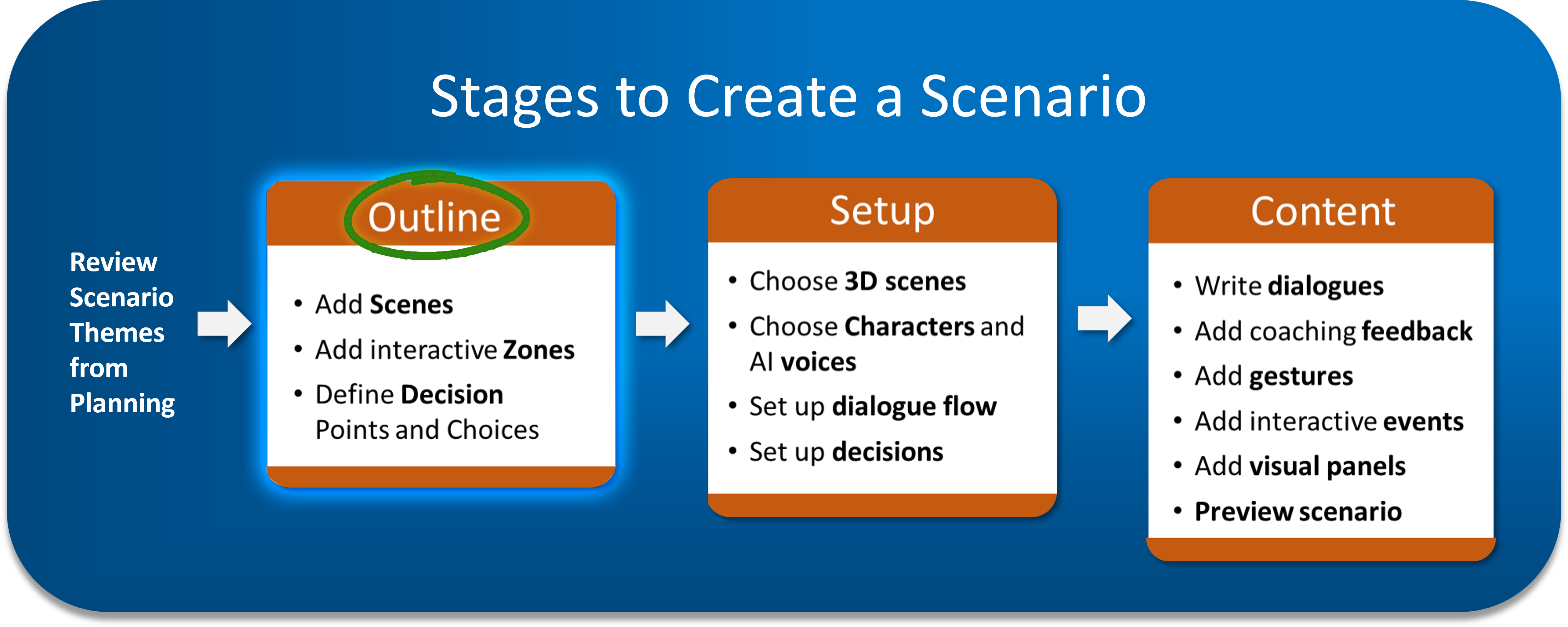
You're in the first of three creation stages. Like building a house, you want the foundation right before adding details - moving the kitchen after the walls are up is painful!
Don't Miss This: Name Your Scenario
At the top of the interface are fields many people skip:
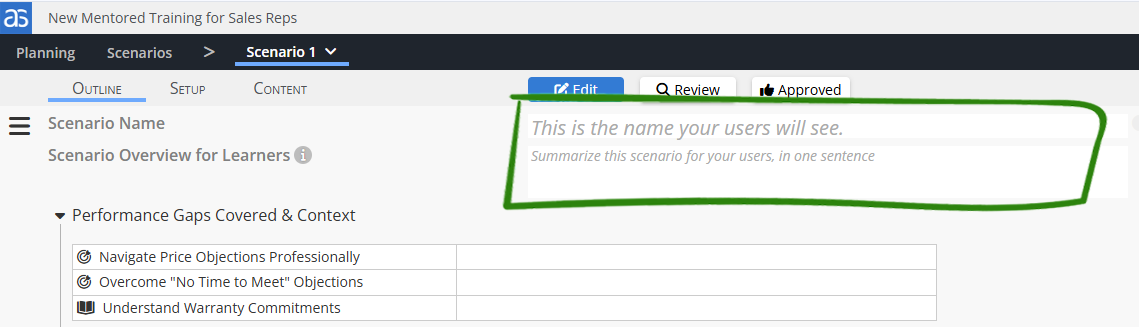
Scenario Name: What learners see - "Handling a Difficult Customer" beats "Scenario 1."
Brief Overview: Help learners understand what they'll experience.
💡 Keep It Intriguing: Don't give away the specific Performance Gaps in your scenario name or overview - let learners discover the learning through the experience!
Scenes and Interactive Zones
Think movies - you need different locations where your story unfolds, and interactive moments where learners participate.
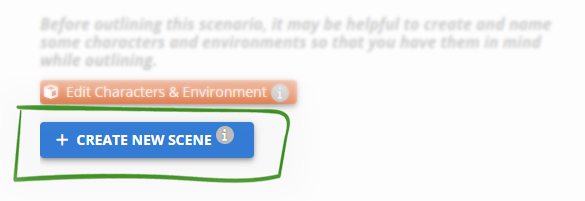
Scenes are your locations: "The Manager's Office," "Conference Room," "Customer Service Desk." Most scenarios work well with 2-4 scenes.
Zones are where the action happens: The interactive moments within each scene where learners engage through conversation, decisions, and assessments.
Preview Available Environments
Before planning too deeply, take a quick look at available characters and environments.
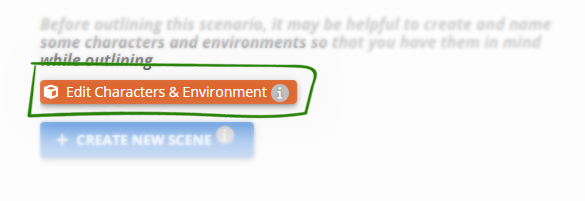
💡 Quick Check: You don't have to assign anything now, but checking what's available prevents planning characters in a park when there's no park environment!
The Four Zone Types
Now for the fun part - deciding what interactions happen in each scene:
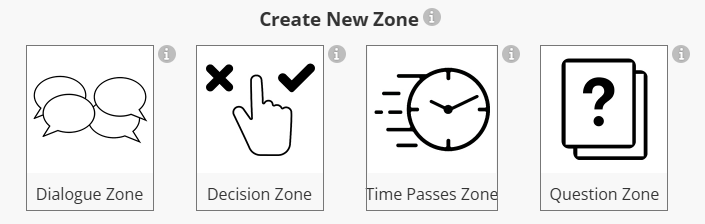
Dialogue Zones (💬)
Where characters have conversations and learners discover information.
Decision Zones (👆)
You'll need to create decisions in the Content Library first, then assign them to these zones. Check out this article for more details on how decisions are created.

Time Passes Zones (🕓)
You're in a simulation - you have time travel! Travel just a few minutes, a few days, or even years to show consequences or move to new situations.
Question Zones (❓)
Ask opinions, check knowledge, create pre/post assessments. Use conversation to introduce them creatively - not just a boring knowledge check!
🔍 Strategic Tip: Questions aren't as powerful as decisions with coaching, so use both strategically.
Common Scenario Flows
Organizing Your Zones
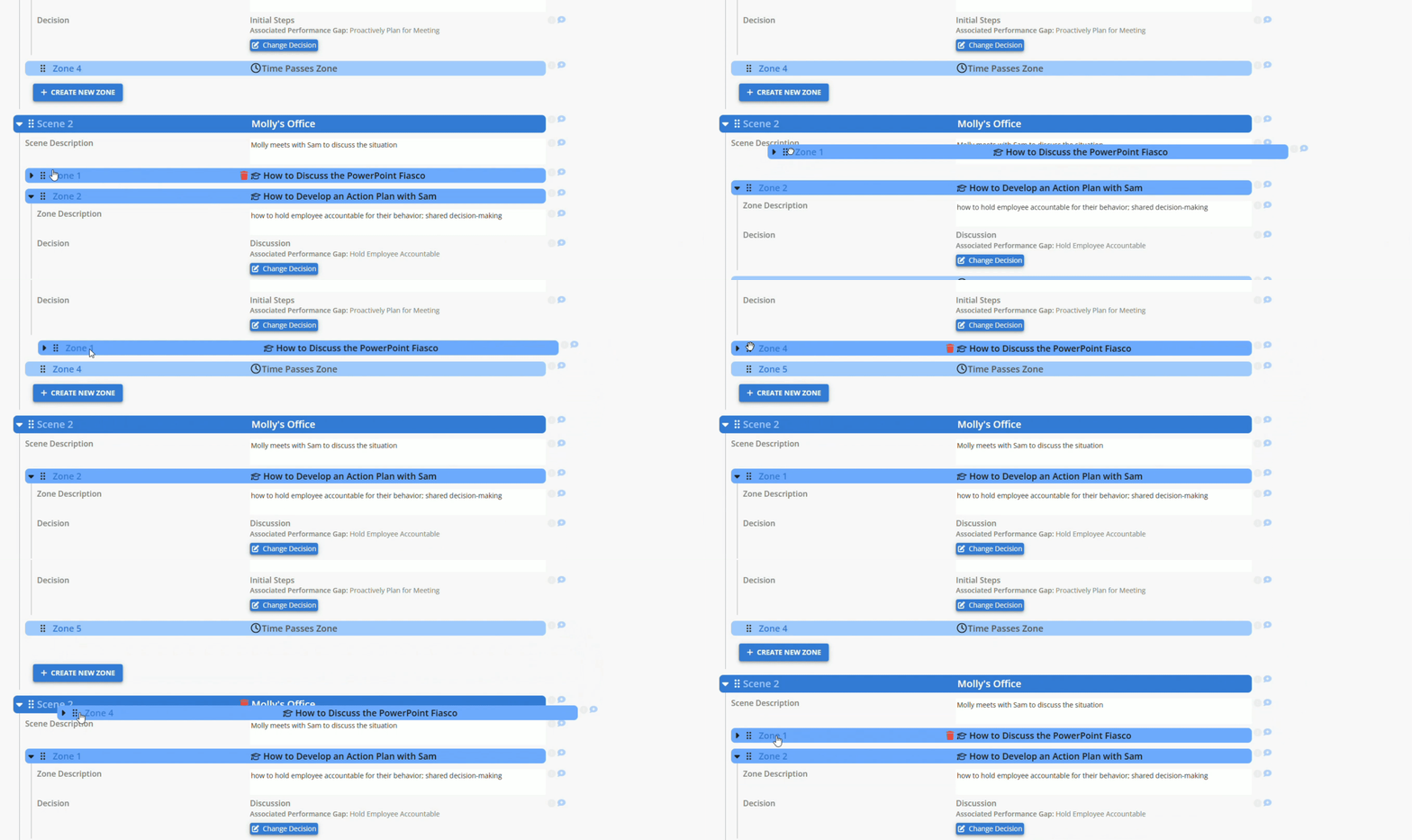
The interface is flexible:
Drag zones between scenes using the grip dot icon
Reorder zones within scenes for better flow
Add or remove zones as ideas develop
Zone descriptions are optional but can help you remember your intent later.
Ready for Setup!
Your scenes and zones are outlined - time to bring them to life! Click "Setup" to choose environments, add characters, and configure all the interactive elements.
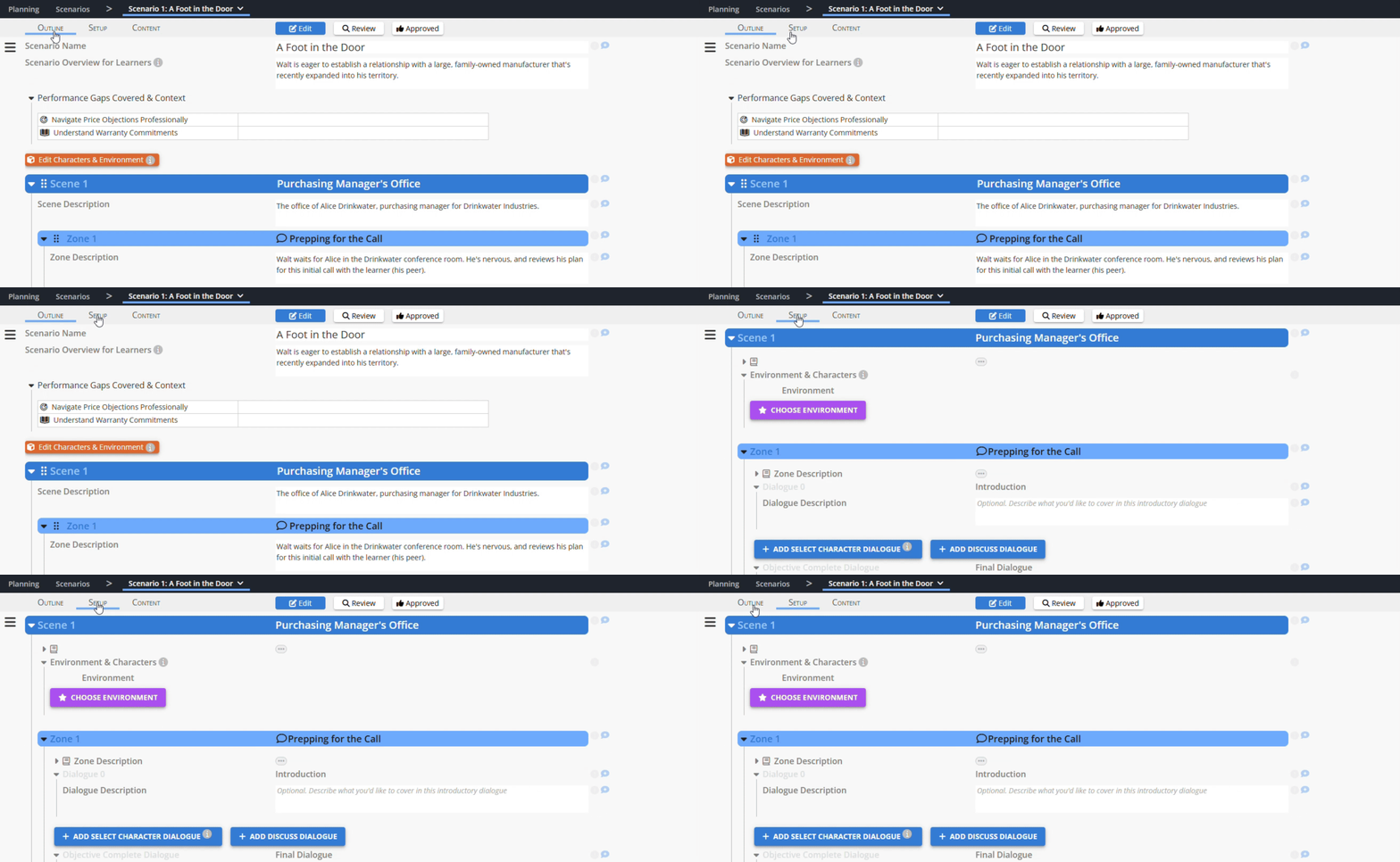
What you've accomplished: You've set up the scenario flow. You've got your scenes and interactive zones ready to go - now let's make them amazing!
Your creative foundation is solid - let's add the characters and environments that will bring your scenario to life.
Powered by Syandus Immersive Learning Technology